Tag Archives: movie brush
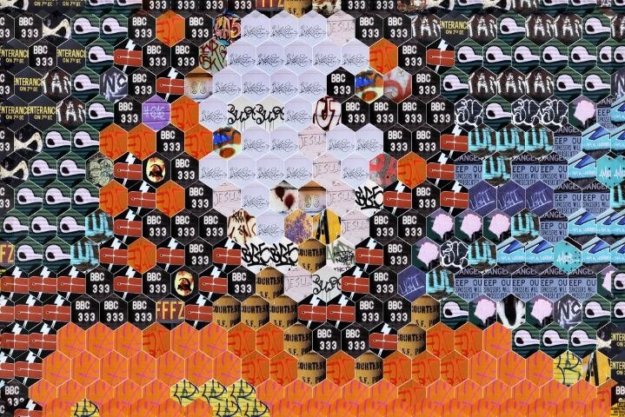
Hexagonal Photo Mosaic Grid Effect
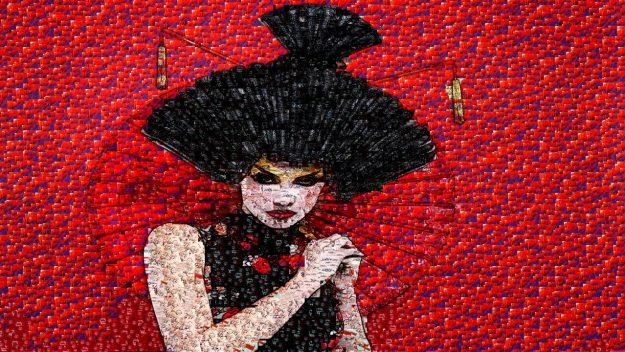
Today’s post will discuss how to build a movie brush that incorporates an embedded alpha channel to create a photo mosaic effect based on a hexagonal grid. The trick is to build your movie brush to include a hexagonal embedded alpha channel mask. And to then use that embedded alpha channel movie brush in the paint synthesizer with a Hexagonal Grid Scan path start Generator.
Building a Paint Strategy Ex4
Today’s post continues our exploration of different approaches to generating paint strategies that work to build up different visual aesthetic paint effects. Today’s example takes an extreme approach to get across that how you approach this task is only limited by your imagination, and the end result may be very different than the individual sub-components you are using to create the final effect.
Using the Vectorizer to Define PhotoMosaic Shapes
Yesterday we showed how to use the Vectorizer to generate flat colored regions that were then used to position paint synthesizer text brush word positioning. Today we’ll show an approach to use the Vectorizer to build a region effect abstracted flat color source representation that the paint synthesizer will then convert into a photo mosaic image based on a movie brush. The photo mosaic sub image layout will be based on the abstracted shapes generated by the Vectorizer.
Making a Masked Movie Brush from a Folder of Alpha Matted Images
In yesterday’s post we showed how to build a masked photo mosaic effect from a movie brush that contains an embedded alpha channel. Today we will show how we built the masked movie brush used in yesterday’s post from a folder of alpha matted images.
Masked Movie Brush Photo Mosaic Effect
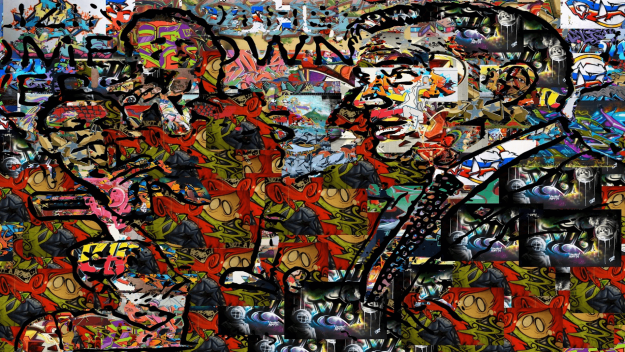
Today’s post will discuss how to create the movie brush photo mosaic effect shown above. The effect uses a movie brush with an embedded alpha channel that masks the objects in each individual movie frame. The effect is also using random paint nib positioning for the individual masked objects, as opposed to laying them down in some kind of regular or adaptive grid patterning.
Reusing a Movie Brush PASeq with a Different Movie Brush
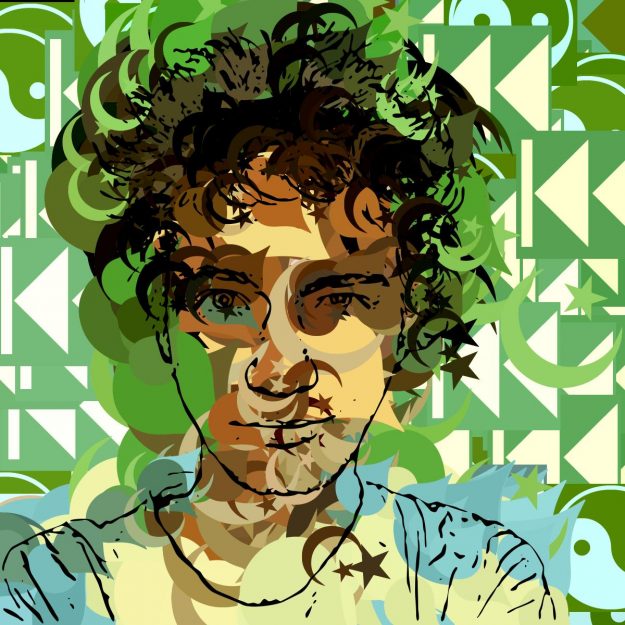
A few days ago we posted a tutorial on how to build a PASeq that automatically generated a sub-nested photo mosaic based on a movie brush paint preset, auto-generating a tiled selection mask that accented the source image edge features by auto-masking the placement of smaller sized mosaic tiles to build detail. When you save a PASeq like the one we built in that post, it referenced a specific movie brush and associated sizing for the tiled selection mask action steps. This post will discuss how to re-use a PASeq like this, since it can easily be re-edited to reference a different movie brush file and associated auto-selection tiling size for the new movie brush you want to work with. We’ll also use a Vectorizer Outline Technique preset to overlay some additional facial features (as seen above) on top of the tiled grid photo mosaic canvas generated by the edited PASeq.
Auto Generation of Nested Sub-Blocks to Build Detail in a Regular Grid Photo Mosaic
See the full gallery on Posterous We’ve previously discussed how to program the paint synthesizer to generate grid tiling paint presets, and how to hand paint 50% size reduced grid tiling movie brush presets to hand paint additional detail in a photo mosaic that properly nests the tiled sub blocks. But sometimes you might not want to put in all that effort to hand paint in the additional detail. This post will discuss an automatic approach you can use that automatically builds a tiled selection mask based on source edge features. By running repeated cycles of auto-building a tiled selection mask at 100% brush size for the cycle and then using that auto-generated tiled mask to mask the auto-painting of a 50% size reduced movie brush photo mosaic preset, you can build a PASeq that will automatically generate a sub-block nested photo mosaic effect without doing any manual drawing to add additional smaller tile block detail.
Working with Non-Rectangular Shapes in Photo Mosaic Effects
See the full gallery on Posterous Today’s post will discuss how to work with creating photo mosaic effects based on movie brushes that contain a series of non-rectangular shapes or objects on flat colored backgrounds. The images above show how i created a movie brush effect using the actual shapes of the objects for the individual brush nibs, as opposed to using rectangular nibs.
Working with Multiple Live Pen Tracking Points
The screen shot above shows an example of 3 different instances of a movie brush playing back in real time in the Studio Artist canvas. I’m using the movie brush paint preset we built yesterday, with one slight editing modification that will be described below. The edit allows me to interactively define and move around multiple live drawing pen tracking positions in realtime, in this example allowing for 3 different live movie brushes to be playing simultaneously in the canvas.
Painting with a Live Running Movie using Pen Tracking
See the full gallery on Posterous The 2 canvas images shown above were generated by painting with a movie brush. The second example was using manual painting that cycles through the individual frames in the movie source brush, placing them one by one along a manually paint path as you move the pen on the canvas. The first example was generated by running an auto-paint preset that allows you to use a hovering Wacom pen positioning to determine the position of the movie as it plays live. So you can position a live playing movie paint nib (or other kind of paint effect) that paints continuously in a static canvas location you have control over specifying. In a later post we’ll discuss how to extend this idea to multiple paint start locations that continuously spew paint that can be interactively positioned using a hovering Wacom pen.