Erasing the Canvas
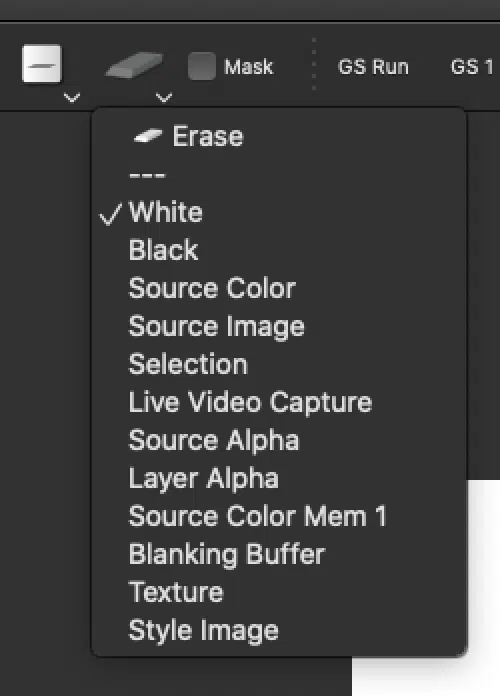
How to Erase the Canvas To erase the canvas choose the Eraser Icon at the top of the Interface or choose Canvas > Erase to See this Post for more detailed information on the canvas eraser options.

How to Erase the Canvas To erase the canvas choose the Eraser Icon at the top of the Interface or choose Canvas > Erase to See this Post for more detailed information on the canvas eraser options.
There are a few different ways to resize the canvas, let’s go through these options. NOTE: When designing you want to keep your canvas size to around 2K Also when creating a new file you will be asked what canvas size you want. Canvas > Resize Canvas This is the main canvas resizing option. Changing…

Resizing the Canvas Please see this tip on Resizing the Canvas And how to Resize the Canvas for High-Resolution Print
This Post will show you how to erase the canvas and also how to use eraser presets. A simple question that comes up when getting started using Studio Artist for the first time is how to erase the canvas. The quick answer is that you can use the eraser button in the main operation…
This post will show how to bring the canvas image into the source, the clipboard or the Style Image. And also how to do the opposite of bringing the source image into the canvas. To bring the Canvas Image into Source – Clipboard or Style Image Canvas > Canvas To Using the Toolbar Eraser –…