
The following image is a single frame from an abstract animation generated from a self-animating MSG preset. This post will take a look at how the MSG preset was built, showing off the user of Temporal Generators (TG) to self-animate MSG parameters. We’ll also show off a few MSG Editing tricks you might find useful for building your own MSG presets.
The animation was generated using the paint action sequence (PASeq) shown below.
All of the image generation is really taking place in the first MSG action step. Everything else in the PASeq is just associated with ‘polishing’ steps. I use the Smart Blur ip op to smooth out any jaggies in the MSG generated abstract image, and use the Blur action steps in conjunction with Edge1 compositing to slightly multi-res sharpen the output image.
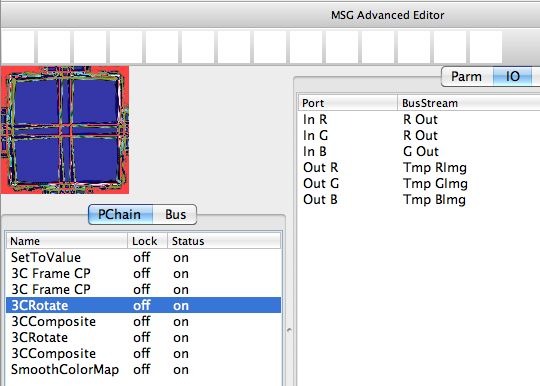
The MSG preset used to build the abstract animation imagery is shown below.
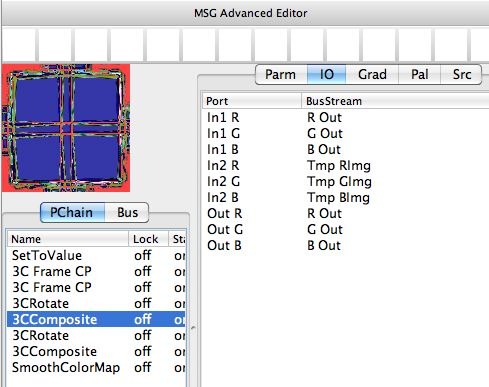
Note the preset is using an editing strategy of using a 3C Rotate processor to rotate a 3 channel color abstract image and then route it to 3 temporary image streams. The original color image and the rotated version in the temporary image streams are then recombined using a 3C Composite processor. This editing strategy is repeated 2 different times to build complexity.
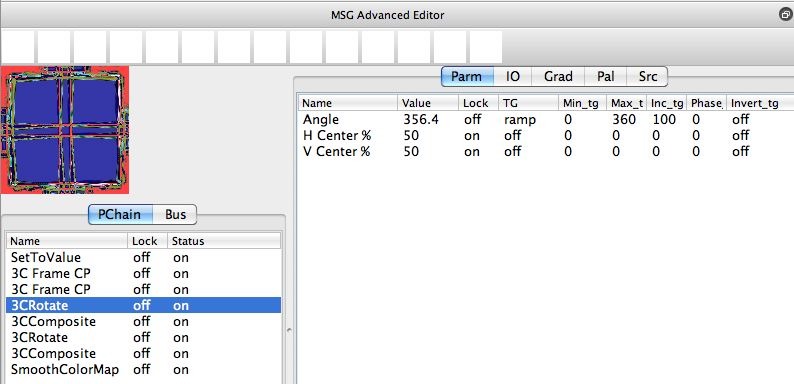
If you look at the 3rd gallery image above you can see the editable parameters associated with the first 3C Rotate processors. Note that the H Center % and V Center % parameters are both set to 50%, and they are locked. By locking these 2 parameters, they will not change when the preset is edited in the Evolution Editor. Both 3C Rotate processors are locked so the rotation of both of them is centered at 50% of the full canvas dimensions, which is equivalent to the center of the canvas.
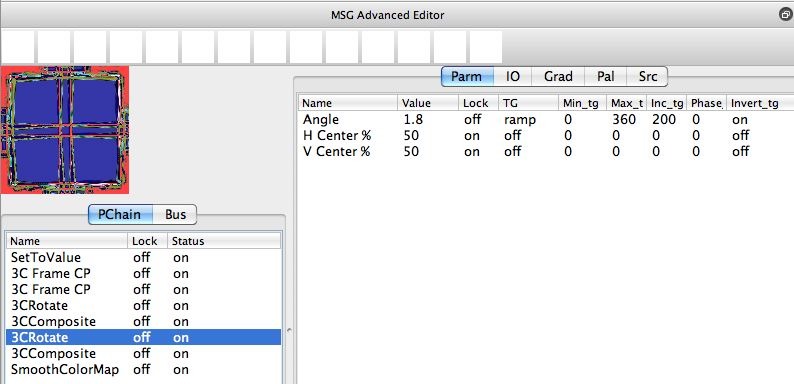
The 3rd and 4th gallery images above show that a Ramp temporal generator (TG) has been attached to the Angle parameter of both 3C Rotate processors. The second 3C Rotate processor has the Ramp TG inverted, and it’s running at 200 frames per cycle as opposed to 100 frames per cycle for the first 3C Rotate Angle TG modulation.
I used the Action : Animate with Paint Action Sequence : to Movie menu command to output the 200 frame animation to a movie file. You can see the final procedural animation here.
The final SmoothColorMap processor in the preset’s processor chain is used to colorize the composited output with a color palette. Compositing algorithms that combine two color images together can sometimes lead to weird colorings for their color output, and either the SmoothColorMap or the ForceColorMap processors are useful in any situation where you wish to colorize abstract imagery based on a color palette to generate more visually pleasing final results.
A fun experiment would be to keyframe the MSG action step using 2 different color palettes for the initial keyframe at frame time 1 and the final keyframe at frame time 2. You could then smoothly interpolate between 2 different color maps used for the SmoothColorMap processing over the course of the 200 frame animation.