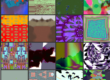
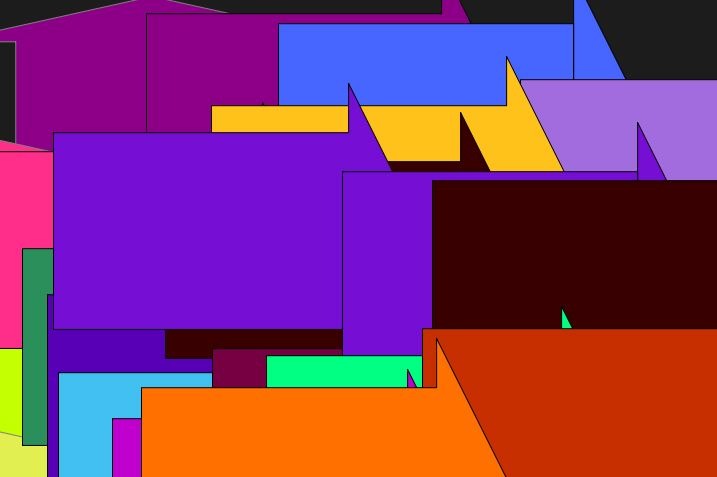
The images above are some simple examples of abstract vector shapes that can be generated by MSG processor that overlays colored shapes based on a user definable color palette. We’ll take a look at this simple MSG processor and how to use it in this post.
The particular MSG processor we will be looking at in this post is the 3C Abstract11 CP processor. It’s designed to overlay simple stylized color vector shapes on top of an incoming 3 channel color image stream. For example, look at the first 2 images in the gallery below to see the IO (input-output) routing I used to build a simple MSG preset that overlays shapes generated by the 3C Abstract11 CP processor on a flat gray background image.

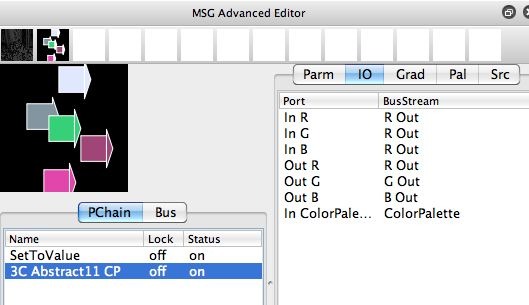
Note that I started my 2 processor MSG preset by using the SetToValue processor to set the ROut image stream to a flat gray value. The SetToValue processor is a generator, it doesn’t have an input Port, it only has an output Port. It’s Out port is attached to the ROut image stream.
The second MSG processor in the processor chain list is the 3C Abstract11 CP processor. Note that I hooked up all 3 input ports (In R,In G,In B) to the ROut image stream. Note that the ROut image stream was set to a gray flat value by the SetToValue processor, while the outer 2 output streams for the preset (GOut,BOut) are still set to unknown values.
The 3 output ports of the 3C Abstract11 CP processor (Out R,Out G,Out B) are hooked up to the 3 main output streams for the MSG preset (ROut,GOut,BOut). After the 2nd processor runs all 3 output image streams are set to specific values, in this case a flat gray background with colored vector shapes overlaid on top of it.
The colors of the vector shapes are defined by the colors in the ColorPalette stream, which is hooked up to the InColorPalette port of the 3C Abstract11 CP processor. Remember, streams in a MSG preset can be image streams, color palette streams, color gradient streams, or Float buffer streams.
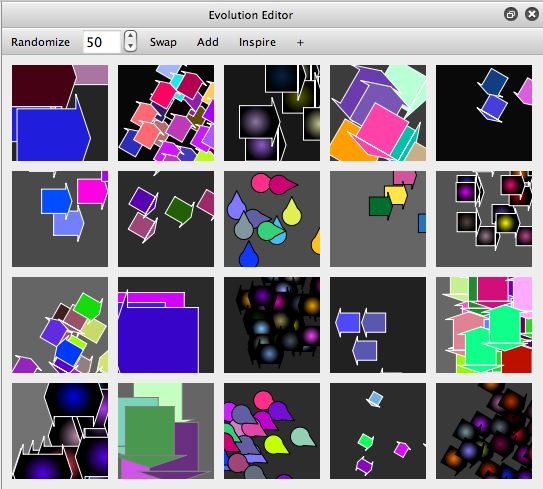
The 3rd gallery image above shows a set of mutated variants of the simple MSG preset described above. These were created by clicking the image preview in the top left corner of the MSG Advanced Editor, which then propagates mutated variants of the clicked preset in the Evolution Editor preview cells. You can continue to click individual preview cells in the Evolution Editor to mutate new variants derived from the clicked preview preset, or you can use the evolution command buttons at the top of the Evolution Editor to create more radical mutations and evolved preset effects.
Because the 3C Abstract11 CP processor overlays it’s generated vector shapes on top of a set of existing 3 channel color image streams, you can stack multiple versions of the processor to overlay different shape variants on top of each other to build visual complexity. The 1st gallery image below shows how I added two copies of the 3C Abstract11 CP processor to my existing processor chain list.
I did this by option dragging the original 3C Abstract11 CP processor in the processor chain list editor to make a copy of the option dragged processor. You could also drag a copy of the processor from the Source library tab area on the right side of the MSG Advanced Editor.
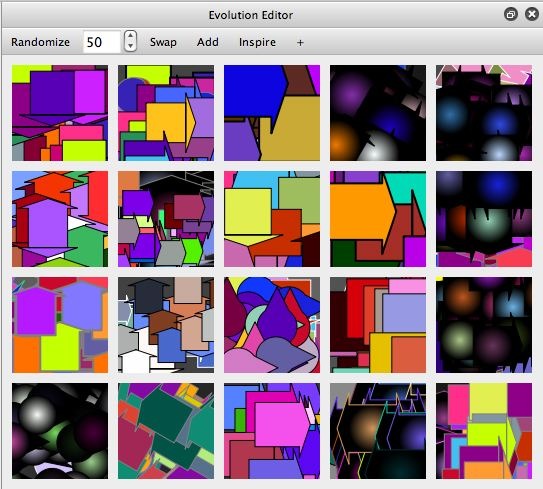

The 2nd gallery image above shows off mutated variants of my newly edited stacked overlay preset. Note how the complexity of the resulting abstract imagery generated by this more complicated preset is more complicated than the original 2 processor preset.
Tomorrow, we’ll start off where we left off and perform some directed evolution using the Evolution Editor to build a more complicated visual effect from this simple starting point we created today.