How to Composite movies by using Content Context Action Steps. How to use Content Context action steps to associate images or movie files as default backgrounds for specific canvas layers. Today we’ll show how to composite 2 different movie files together by using Content Context action steps to associate them as default backgrounds for 2 different composited layers.
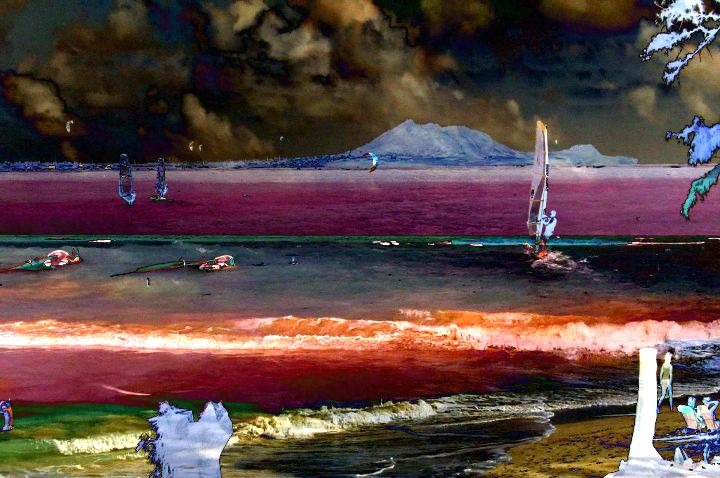
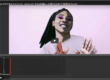
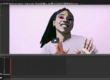
The image above shows off 2 different movie files in 2 different layers composited together using Edge3 compositing. The simple PASeq I used to create this effect is shown below.
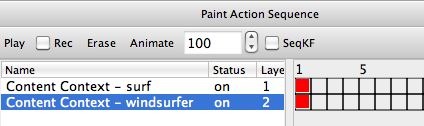
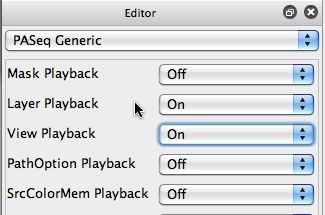
Note that two different Content Context action steps are used to associated 2 different movie files as default backgrounds for the 2 different layers. I made sure that the Layer Playback and View Playback controls in the PASeq Editor were turned on, so that the original recorded layer and canvas view control settings would be played back when the PASeq was run.
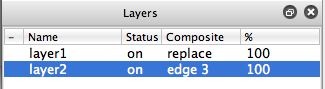
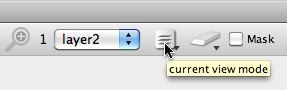
I setup the Layer window so that Layer 2 was Edge3 composited with Layer1. And I made sure the Current View icon popup control in the main operation toolbar was set to View All.
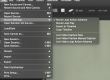
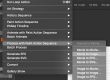
I used the Action : Animate with Paint Action Sequence : to Movie menu command to render out 100 frames using this simple PAseq just to show what it’s doing. You can watch this simple composited movie example here.
You should read yesterday’s post on working with Content Context action steps if you don’t understand how to record them, since that post covers how to do that in great detail. Whatever the current layer is when you run the Action : PASeq Timeline : Record Context: Content menu command is the layer the Content Context action step will setup with it’s recorded default background image or movie file when the action step is played back. Like all PASeq layer playback, you need to make sure the Layer Playback control is turned on in the Editor, or the PASeq will just play back any action step into the current layer.
You can of course use many nonlinear video editors to composite together different movie files. The posts from yesterday and today were specifically put together to answer a question someone asked about how to composite 2 different movie files together in Studio Artist. Working with Content Context action steps to associate the 2 movie files as default backgrounds for 2 different layers is the easiest approach.
For more information on PASeq Contexts and what you can use them for, check out this tip.