Yesterday we briefly discussed auto-generating color palettes from specific images, and mentioned that one use for this feature is to re-colorize images or movie frames to match the color aesthetics or mood of a particular image or painting you like the color aesthetics of. This post will discuss the methodology of how to do re-colorization based on a custom color palette.


Auto-Generating a Custom Color Palette from an Image
I choose 2 different impressionistic paintings to use as color sources for this post. For each one, I first loaded them into Studio Artist as source images. I then ran the Edit : Color Palette : Generate from : Source Image menu command to generate a custom color palette derived from the source images. You can see the respective source images and their auto-derived color palettes in the gallery below.
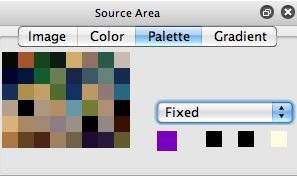
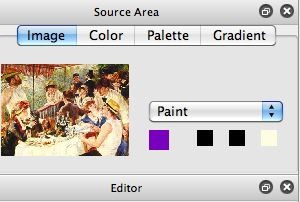
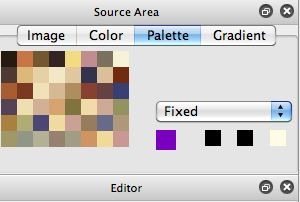
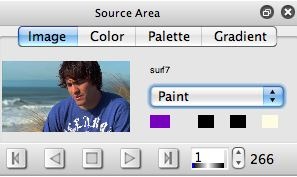
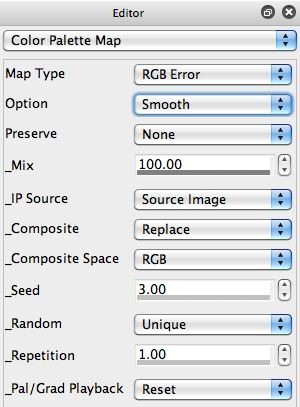
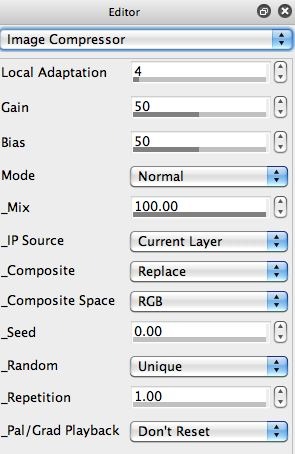
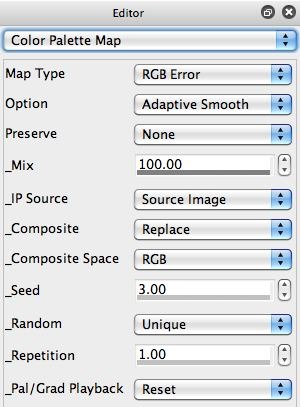
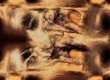
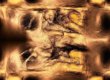
For each of the 2 re-colorized examples images shown at the top of the post I started by first loading the source image I wanted to derive my auto-generated color palette from. And I then ran the Edit menu command described above to generate the custom color palette from the source image. I did not record these 2 preparatory steps in the paint action sequence (PASeq) I then built for colorizing an image or movie with the custom color palette. I was able to record my custom color palettes into the 2 PASeqs I recorded. How I did this will be discussed below.
The paint action sequence below shows the 3 processing steps I used to generate my custom colorization effects. Note that I could have eliminated the first set the canvas to the source image action step by setting the second Color Palette map ip op action step so that it’s IP Source parameter was set to the Source Image option. I build the PASeq the way I did to help visualize the various processing steps, so you can see the original source image and then the effect of the re-colorization and subsequent contrast boost action steps.