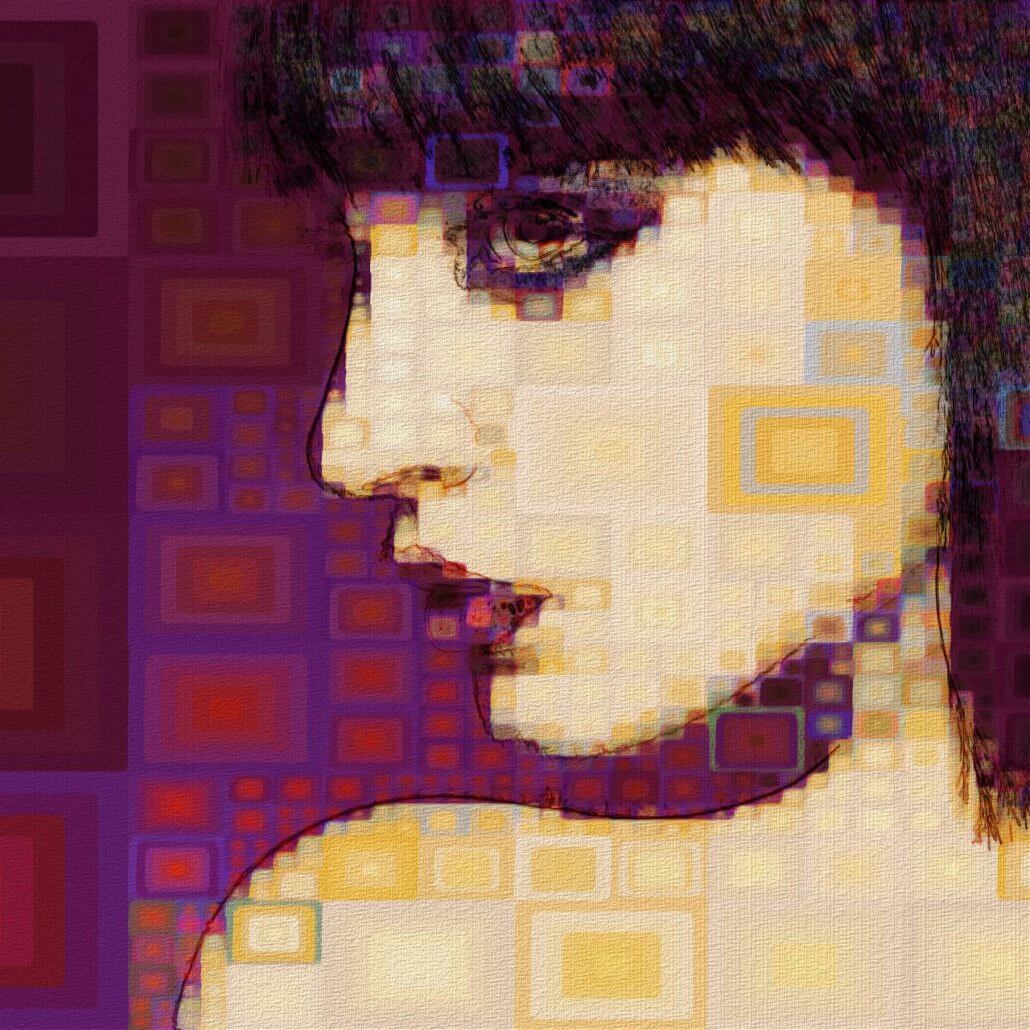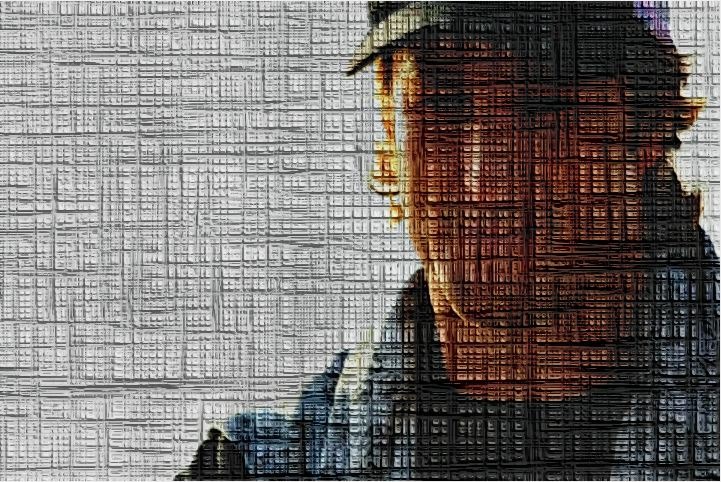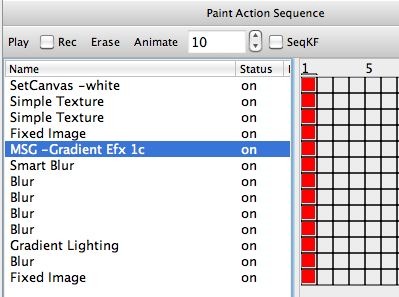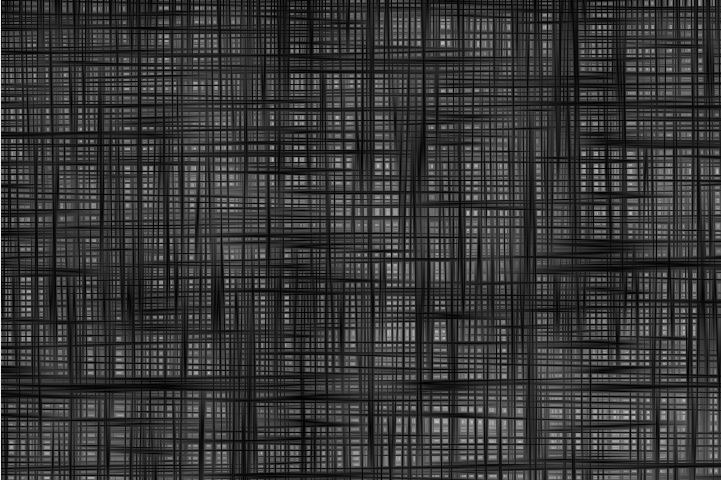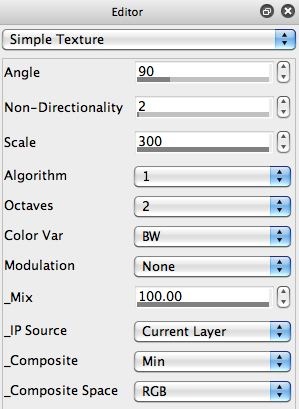
There’s are many different approaches you can take to simulate paint effects on lighted textural surfaces and there are several presets in the the Paint Synthesizer that have really nice canvas texture effects. Today’s post starts to break apart a PASeq preset that uses the Simple Texture image operation effect to build an artificial canvas texture. Additional MSG and image operation effects are then used to take the canvas texture and apply it to the source image, giving it a visual look like it’s been printed on a textured canvas.
PLEASE NOTE: There are several ready made canvas texture presets in the Paint Synthesizer > AutoPaint > Canvas Textures – Apply to Canvas