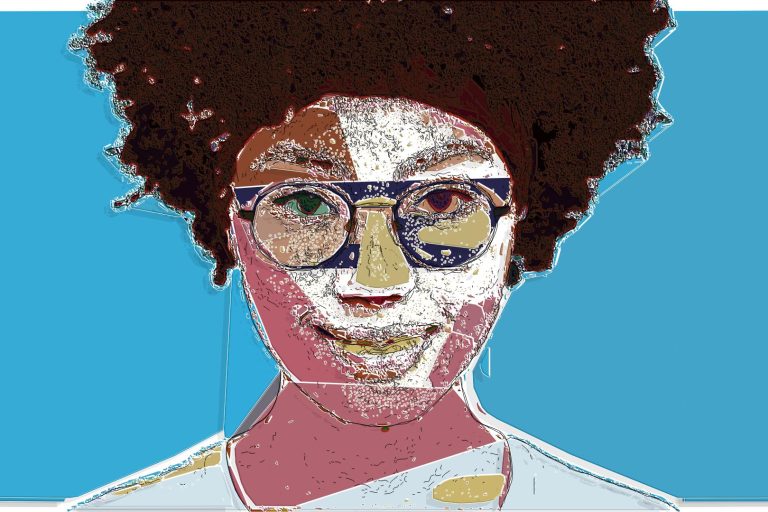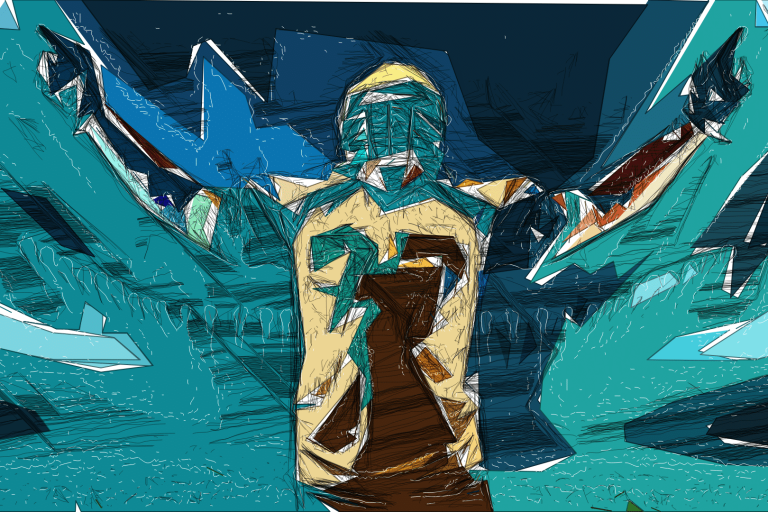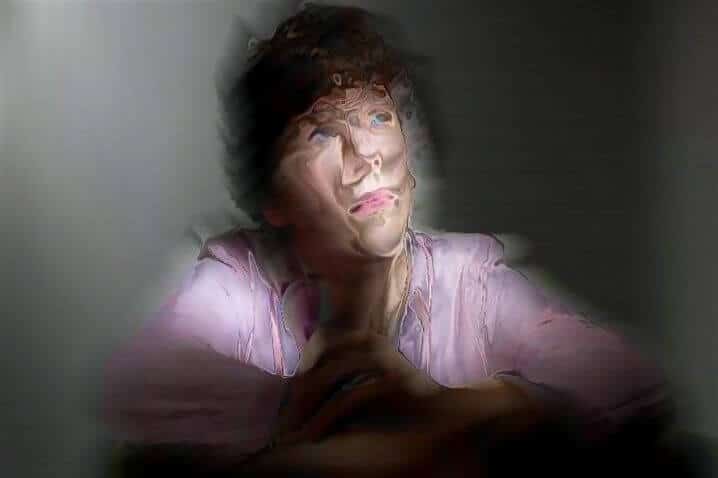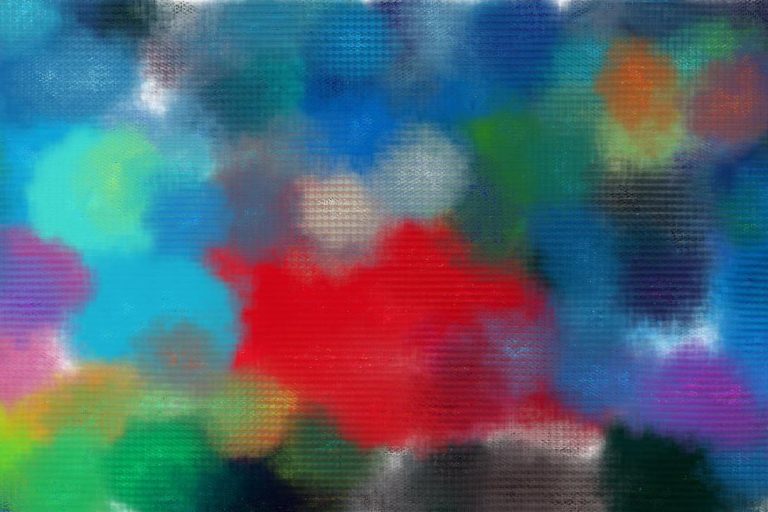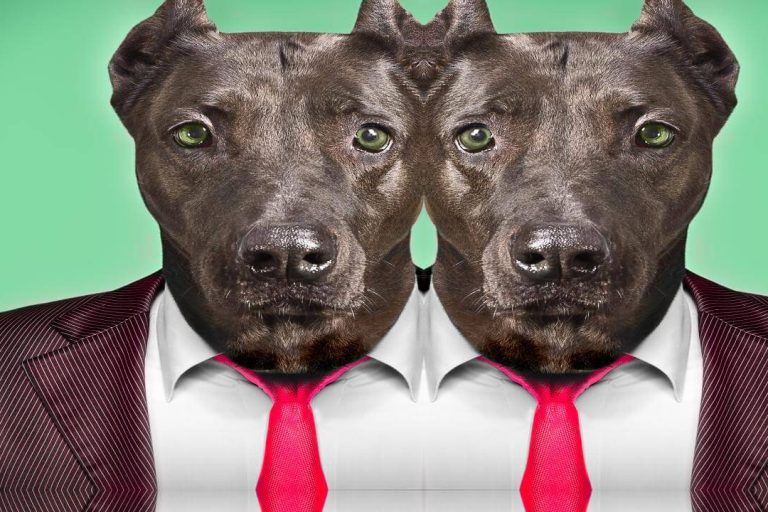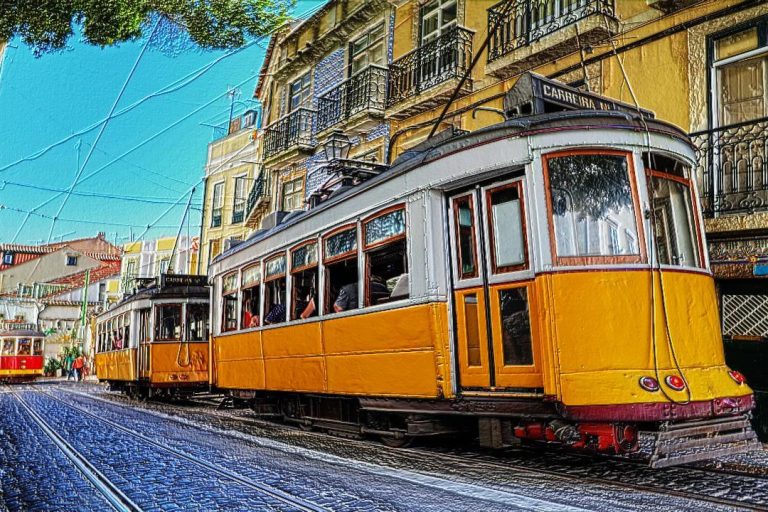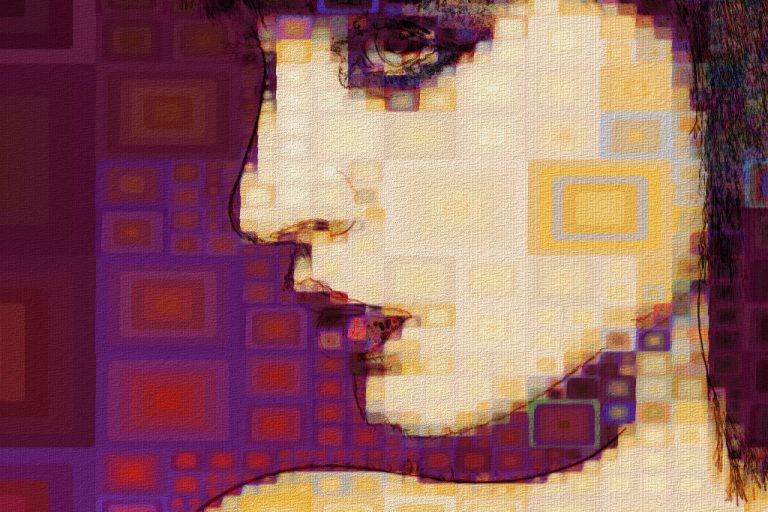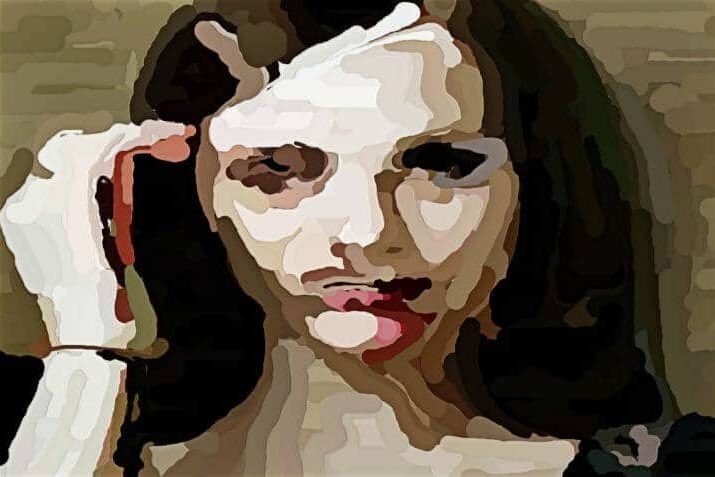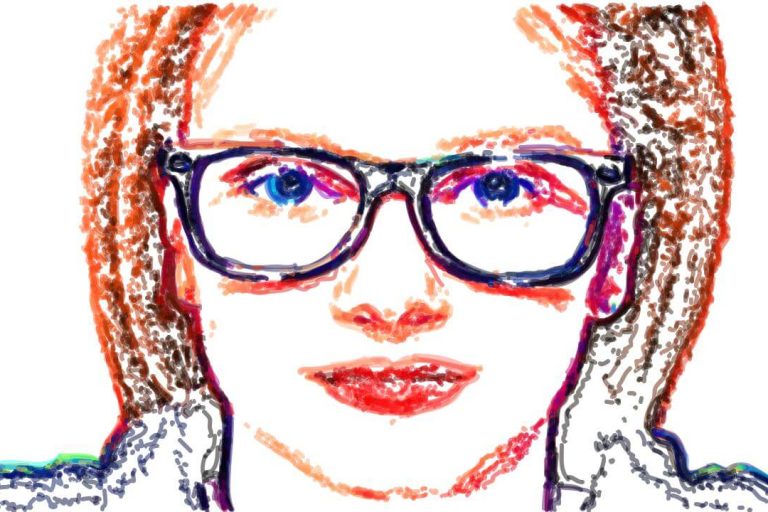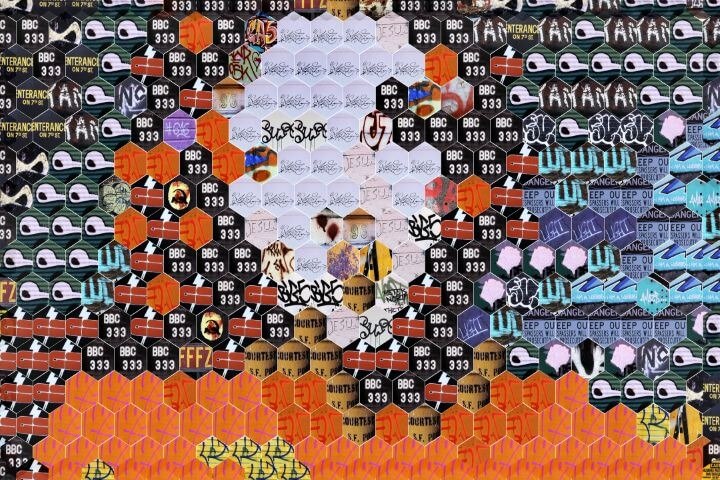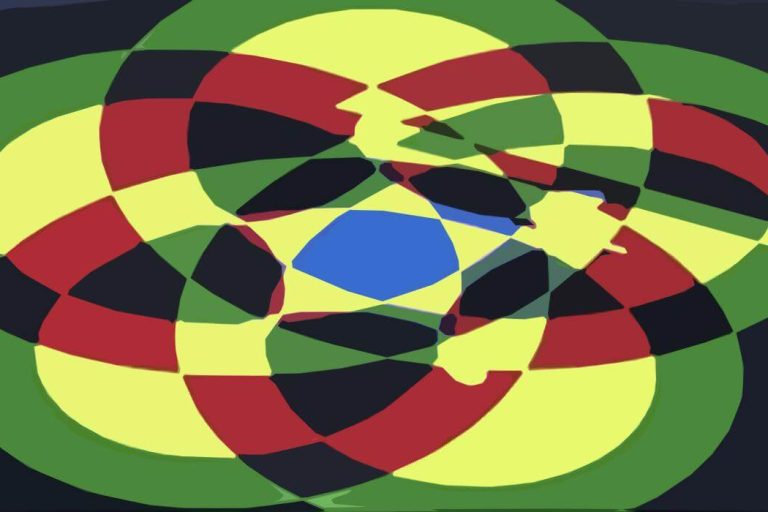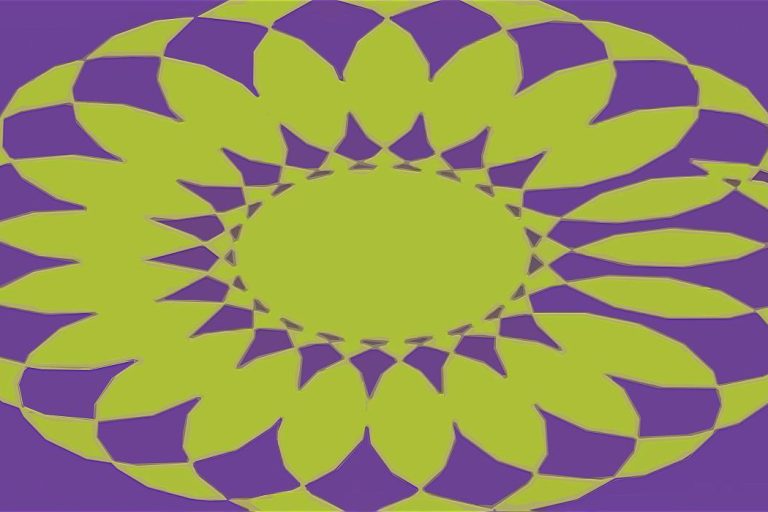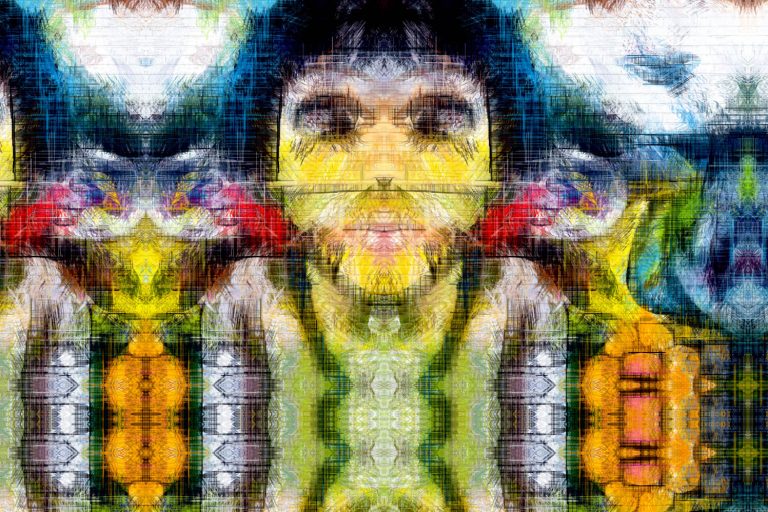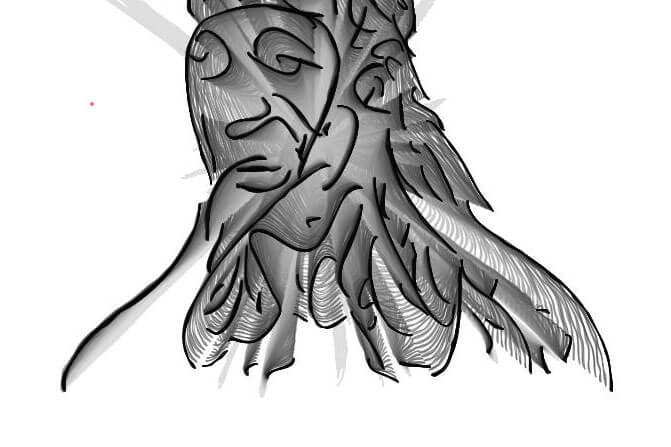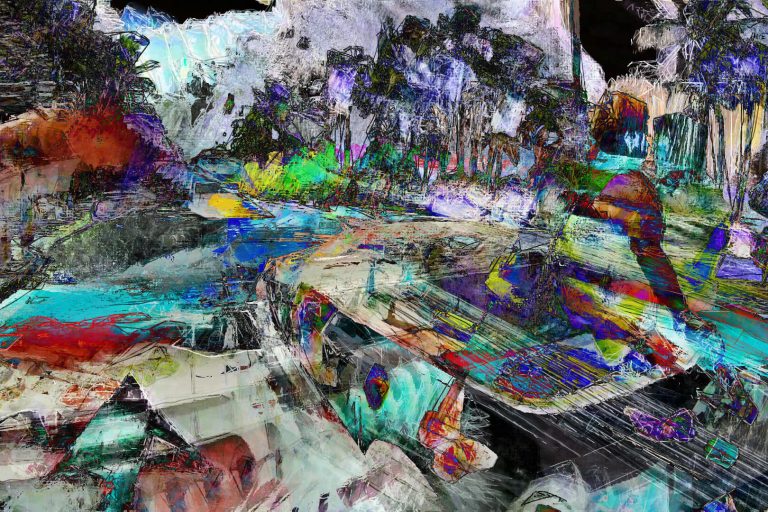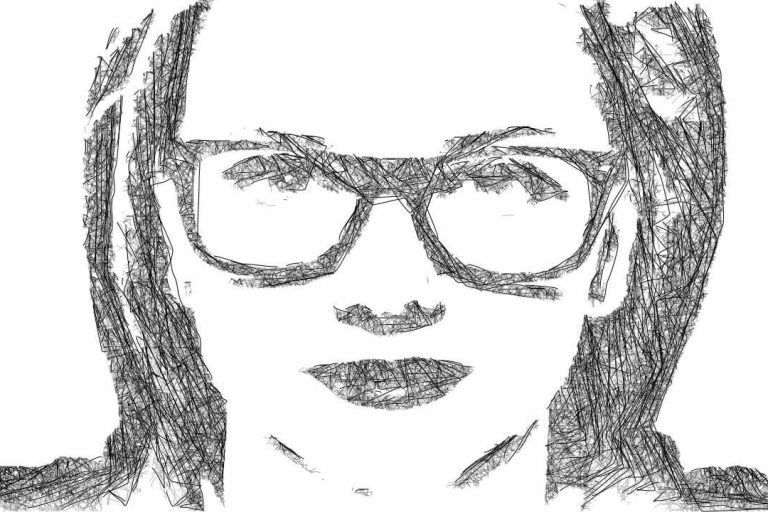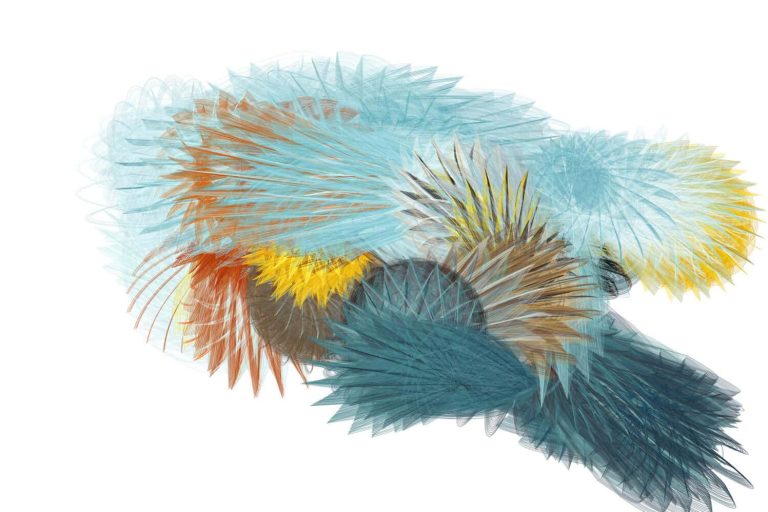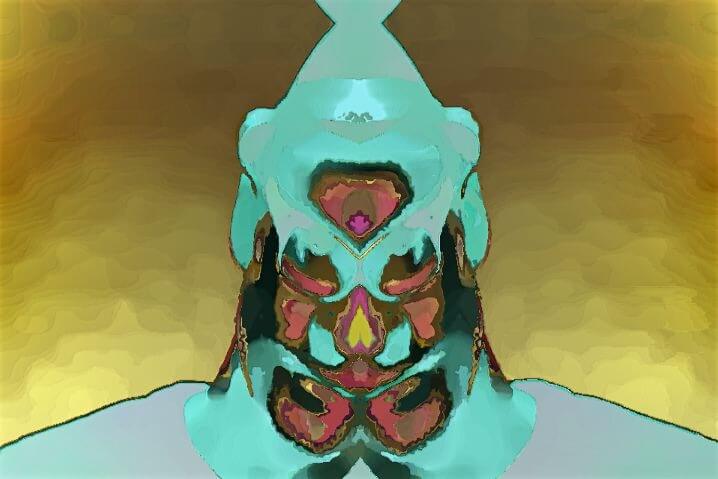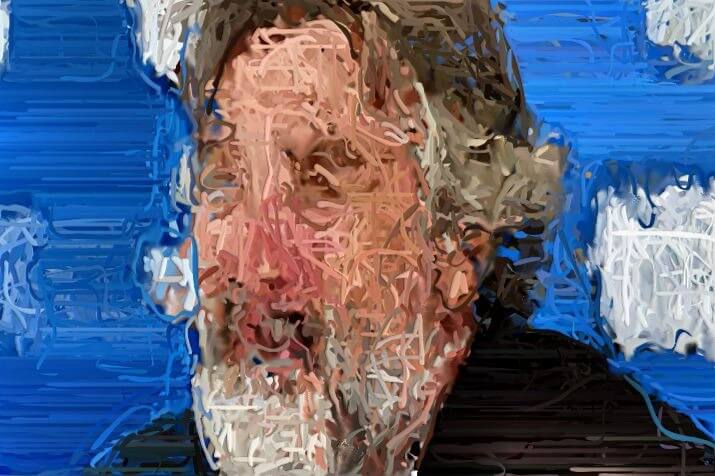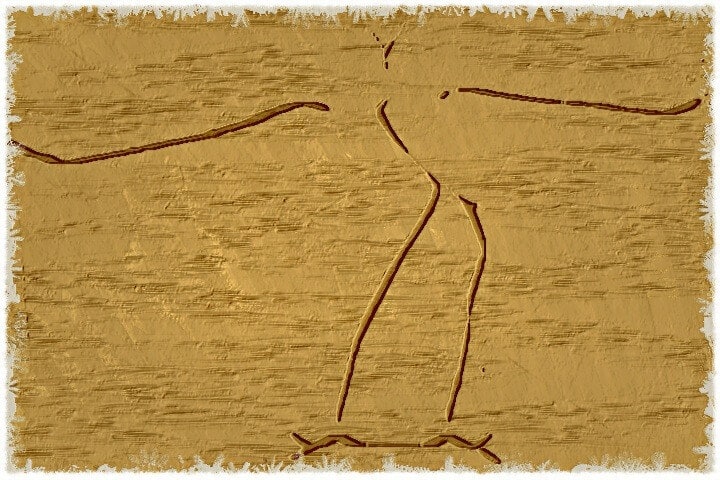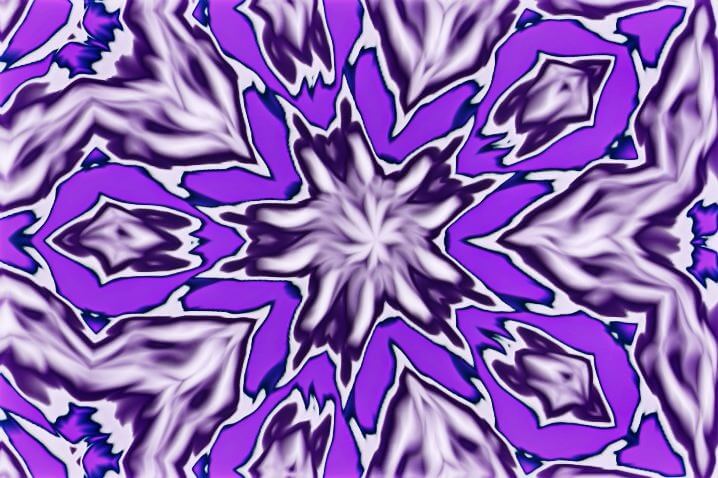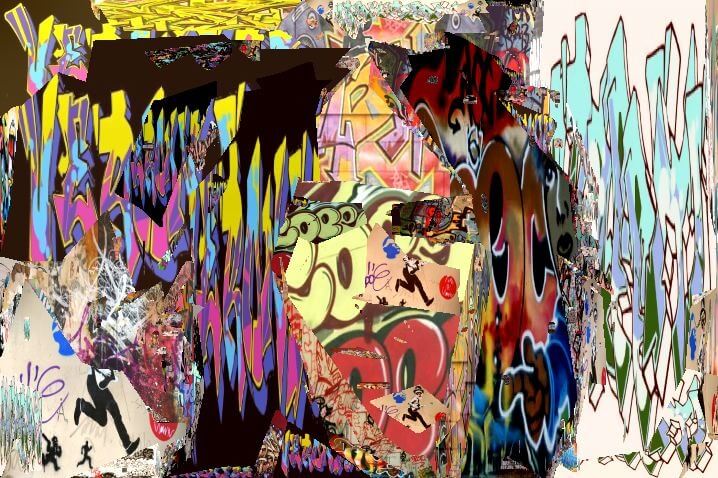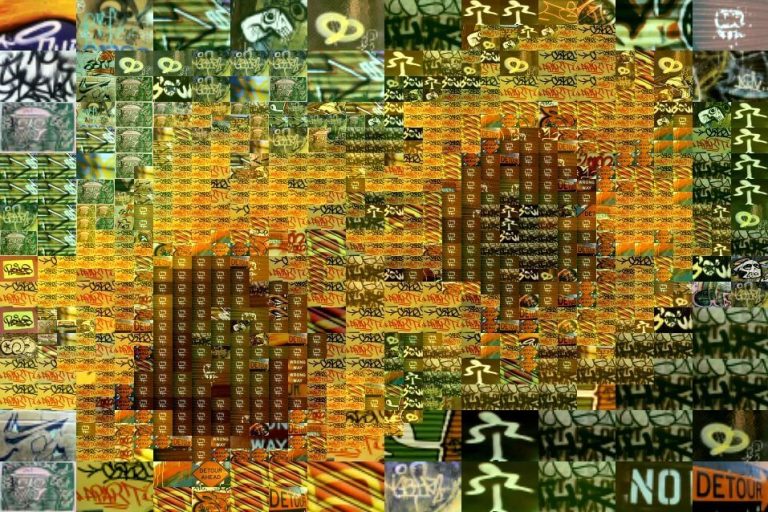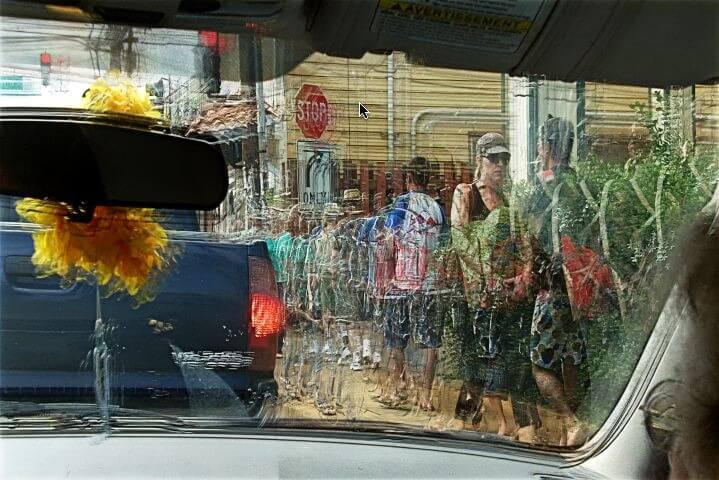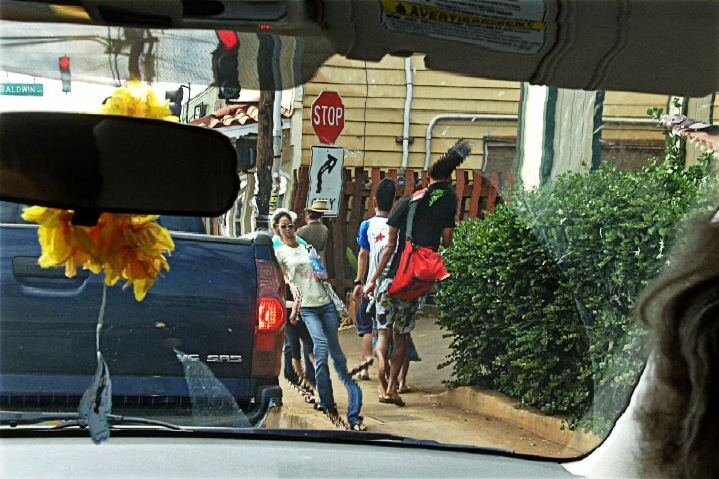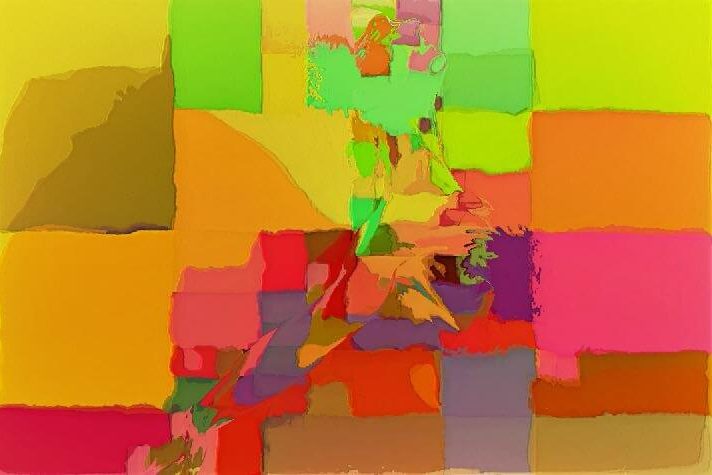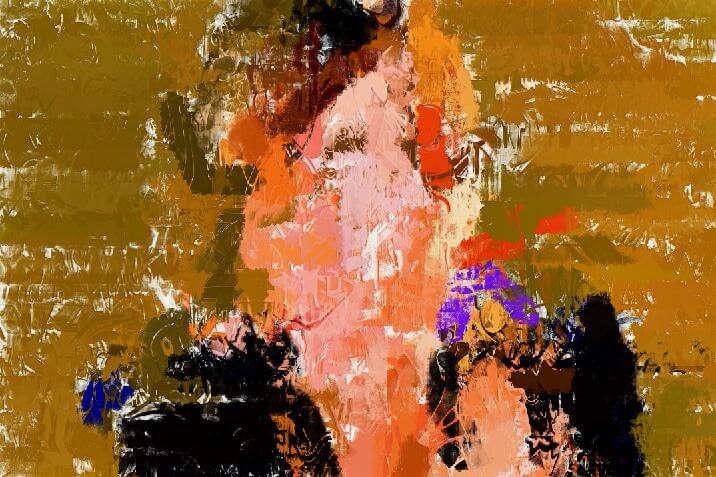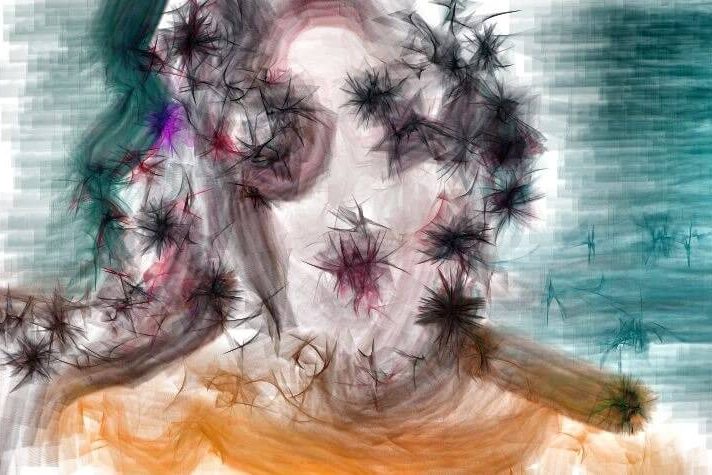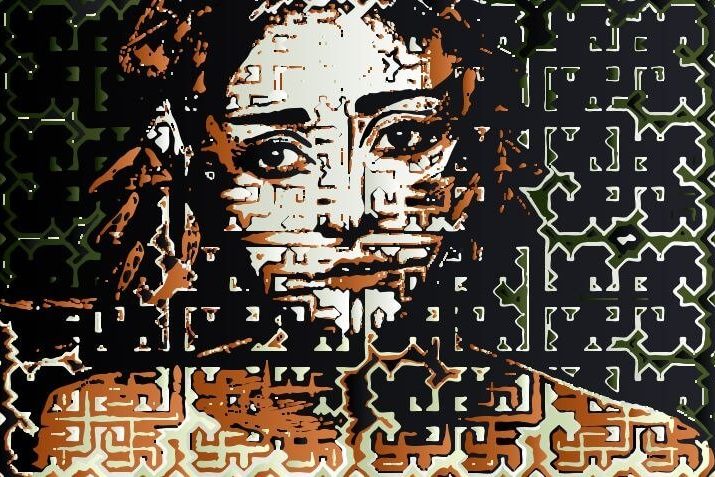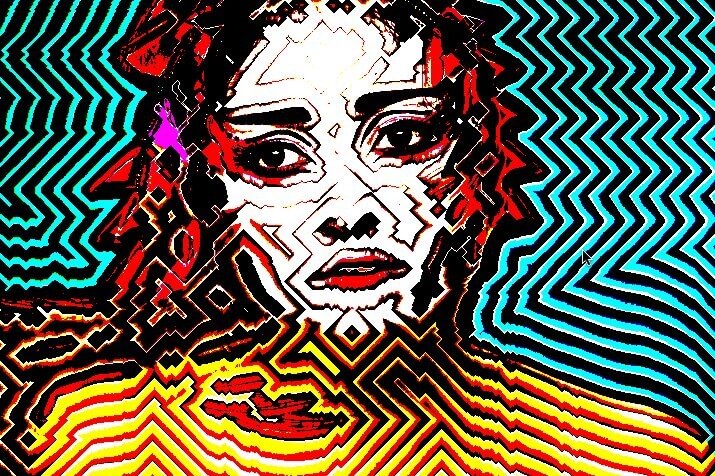

Mondrian Minimalist Geometrical Styles using The Shapes Mode in the Vectorizer
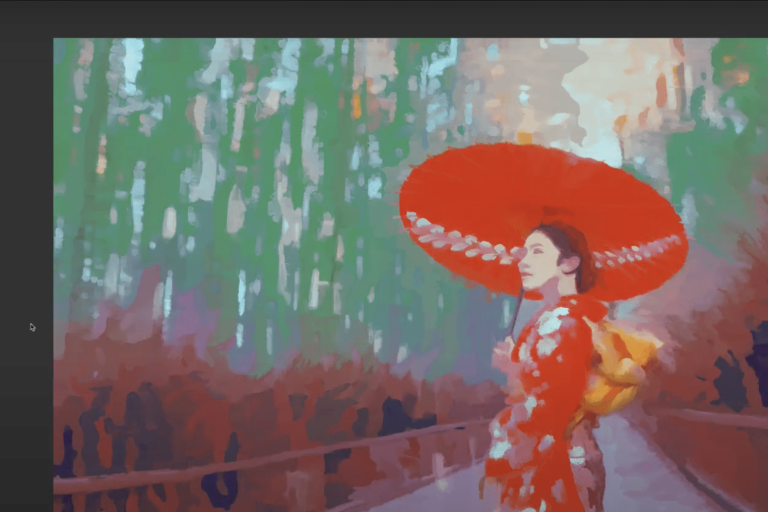
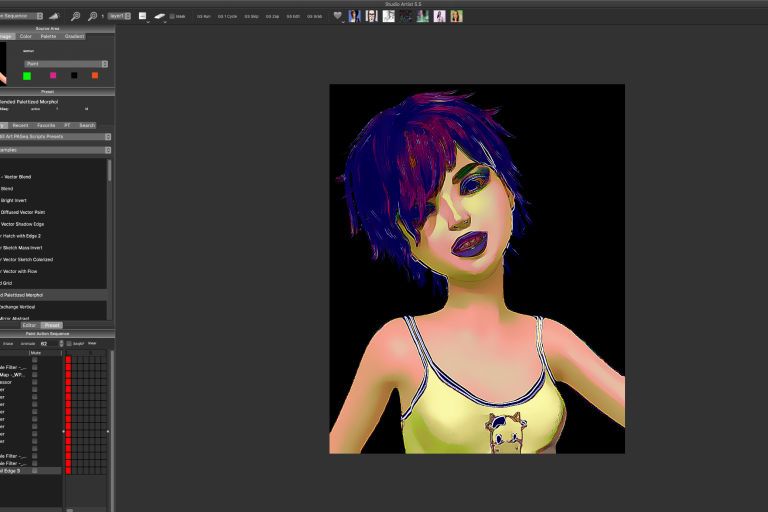
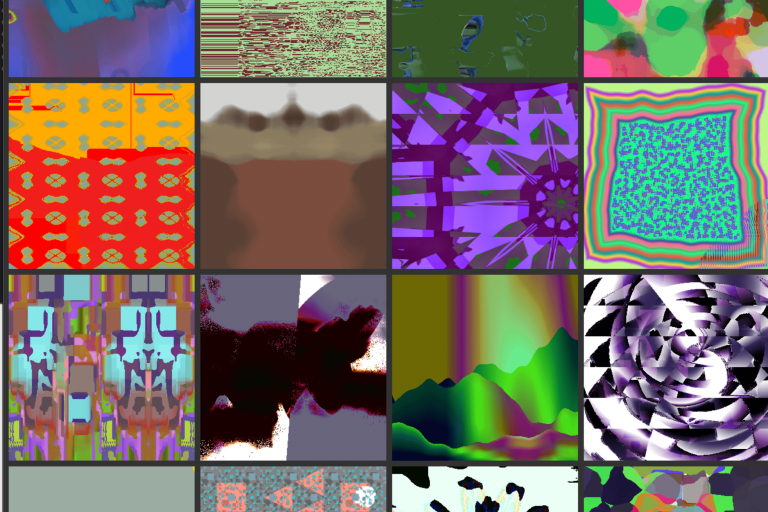
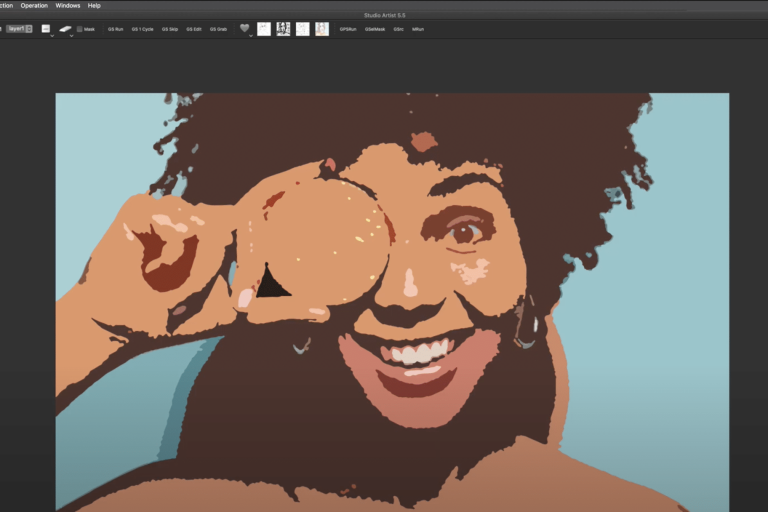
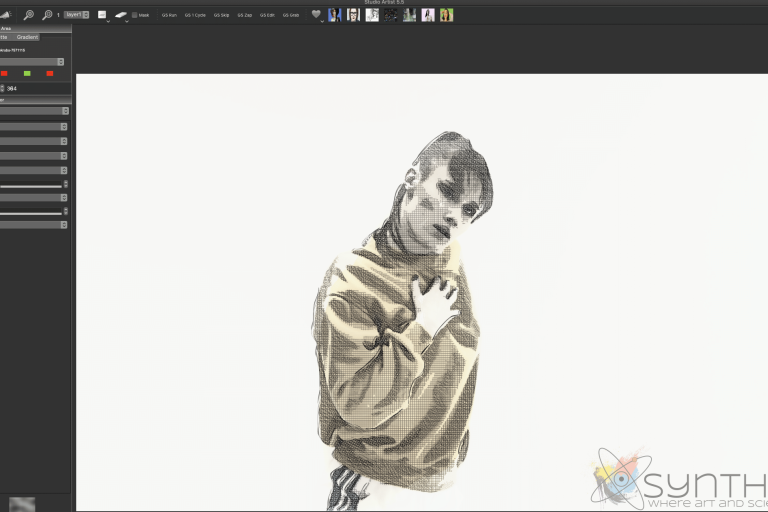
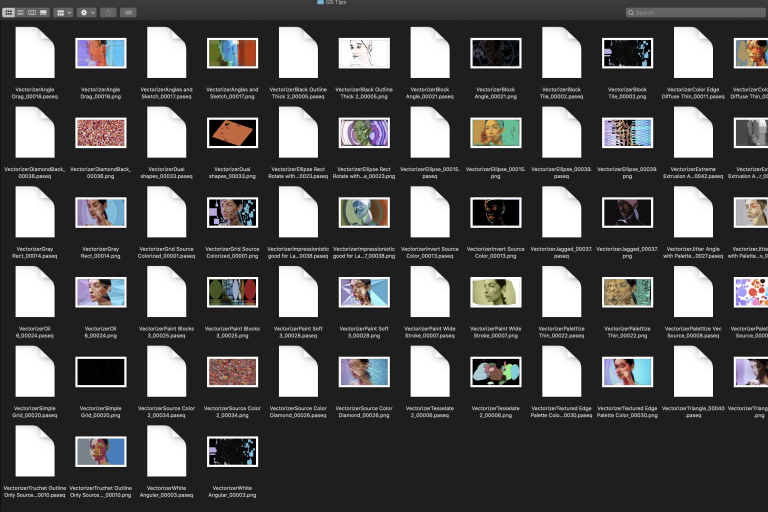
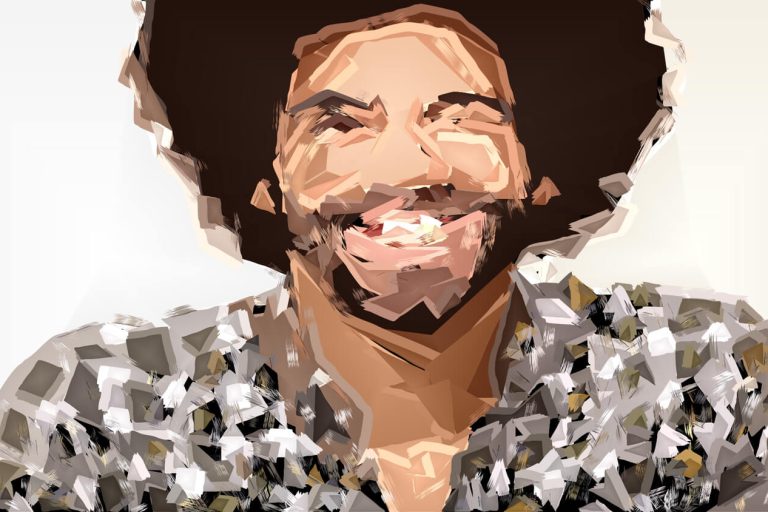
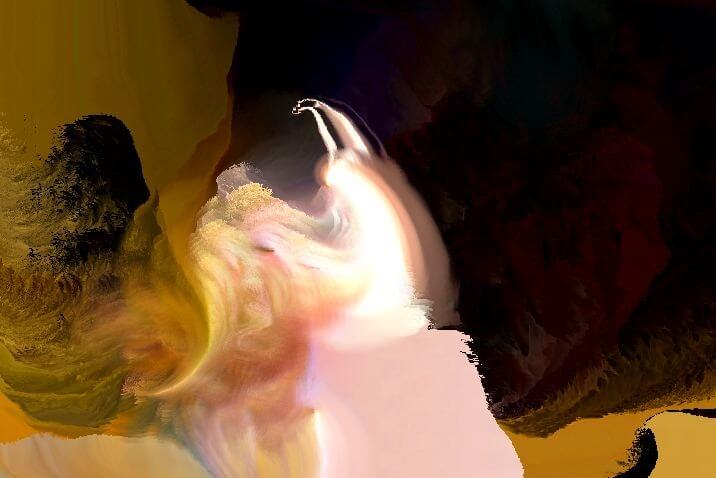
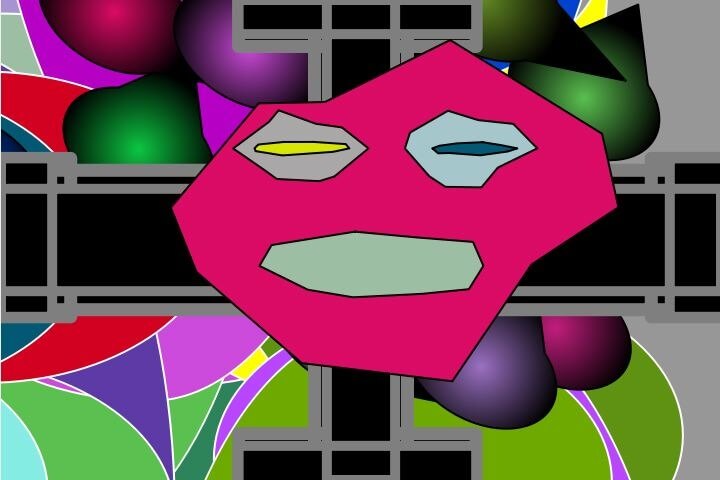
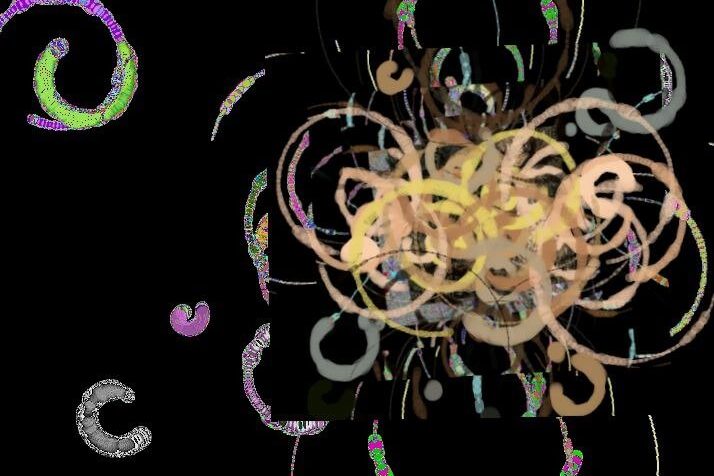
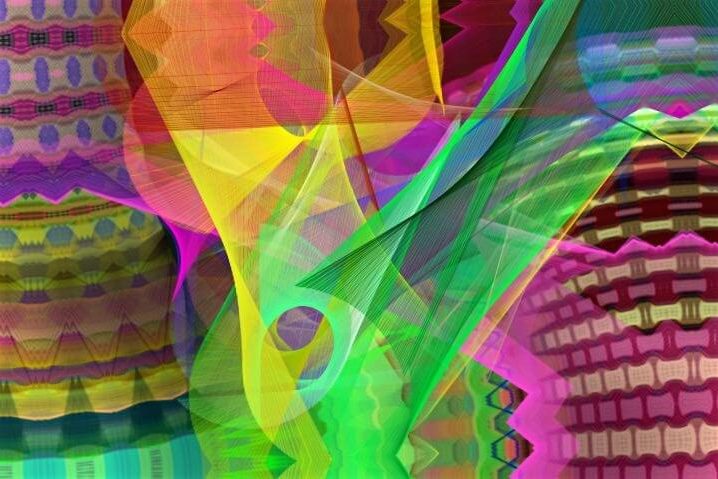
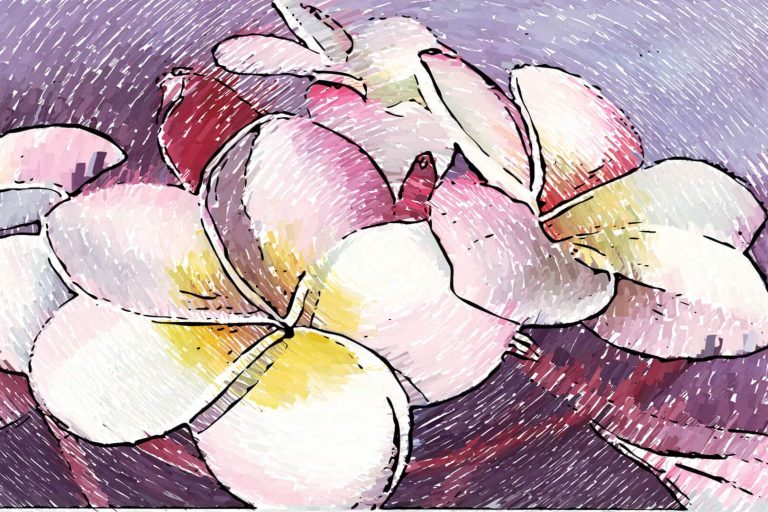
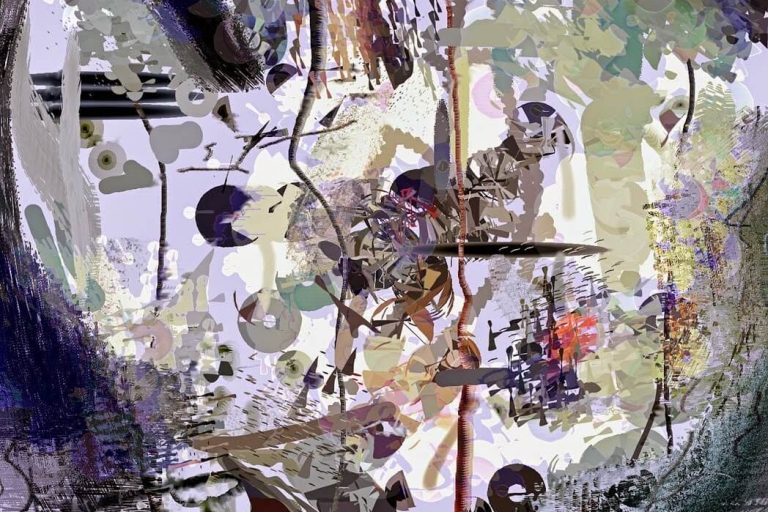
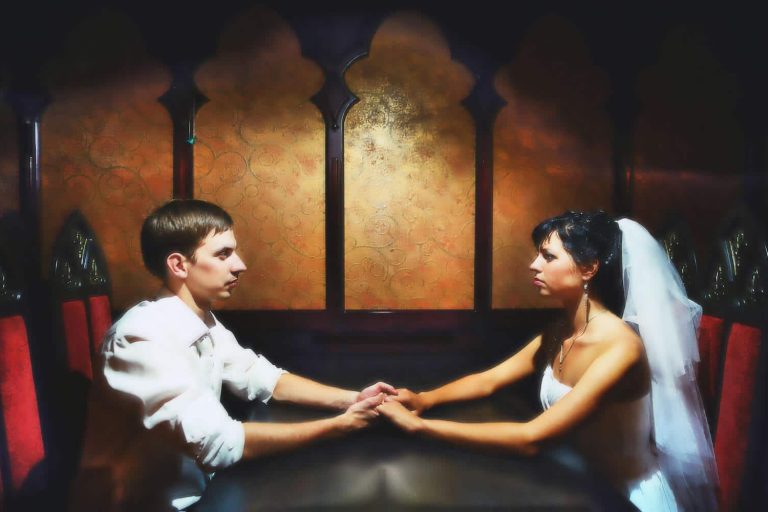
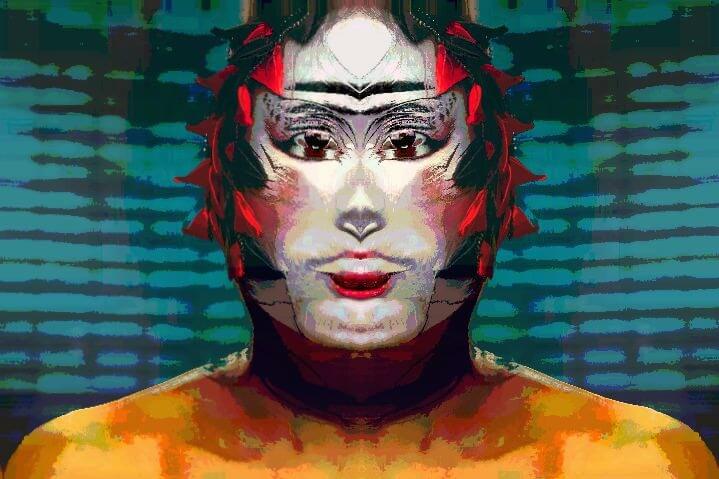
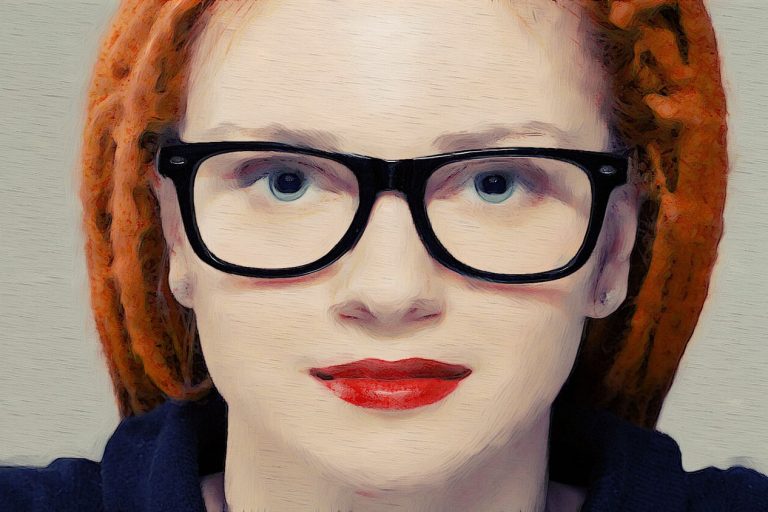
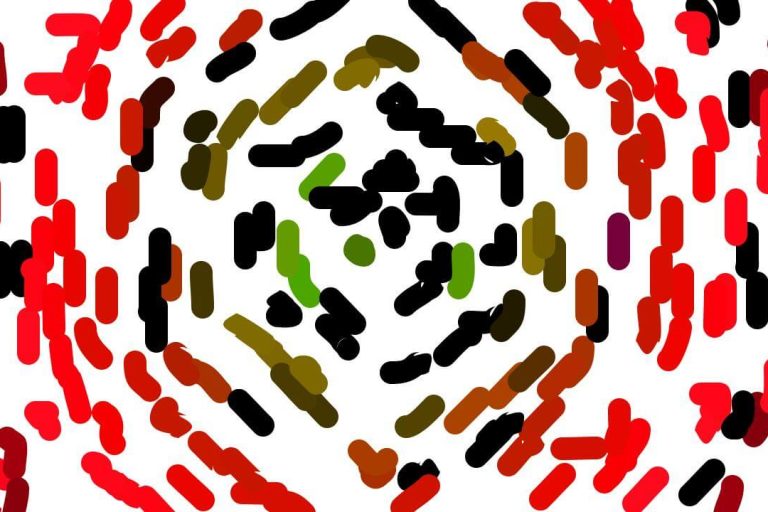
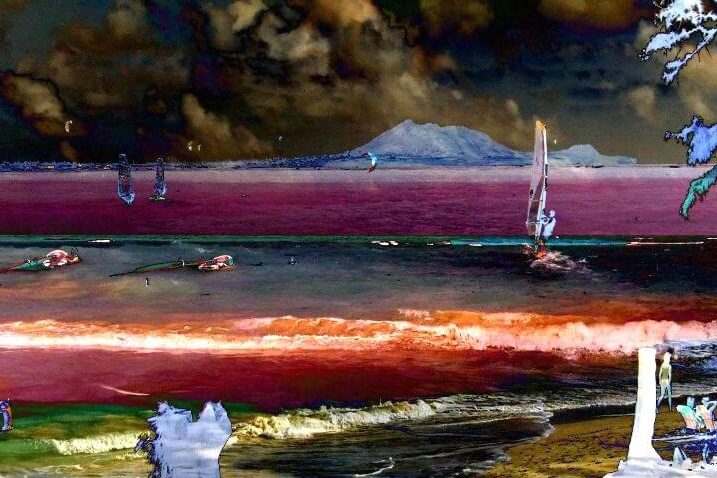
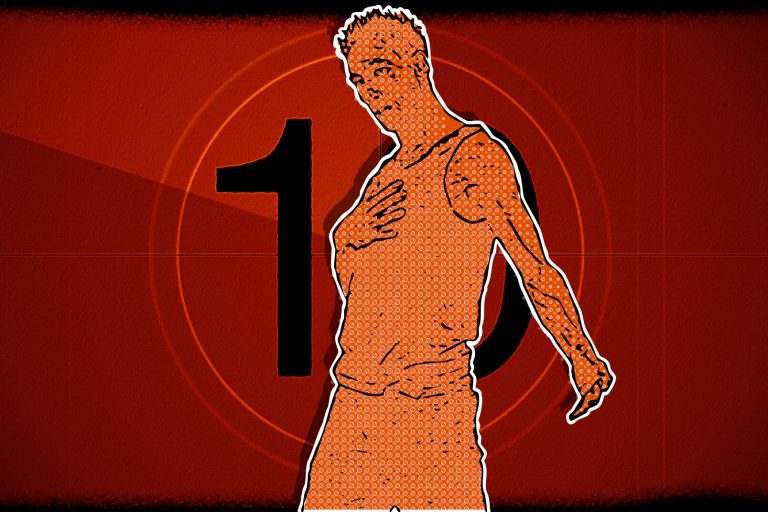
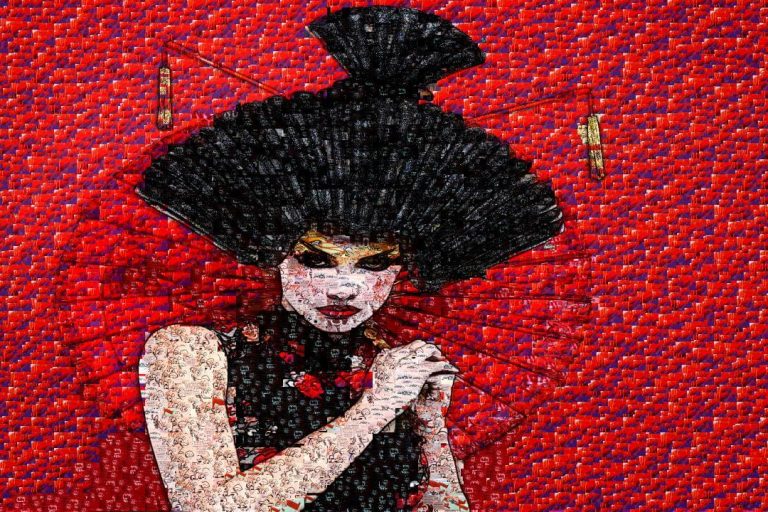
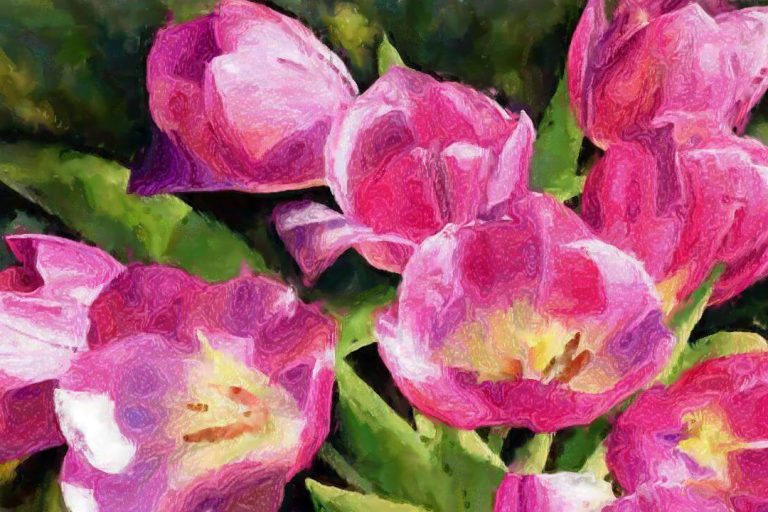
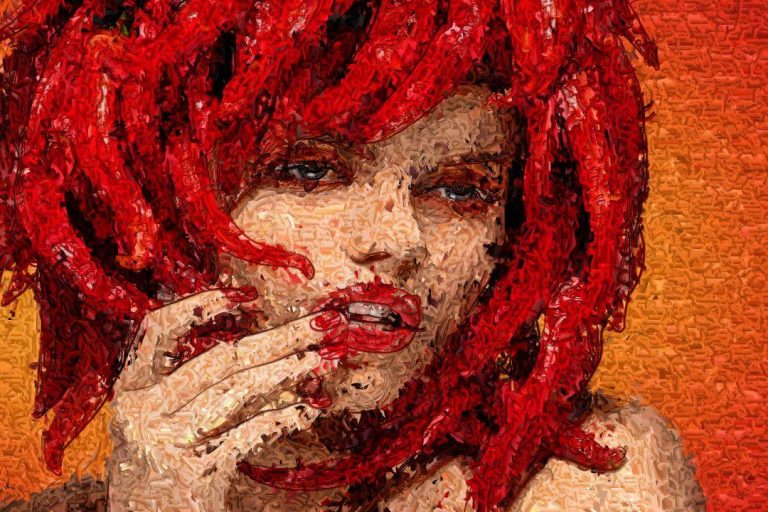
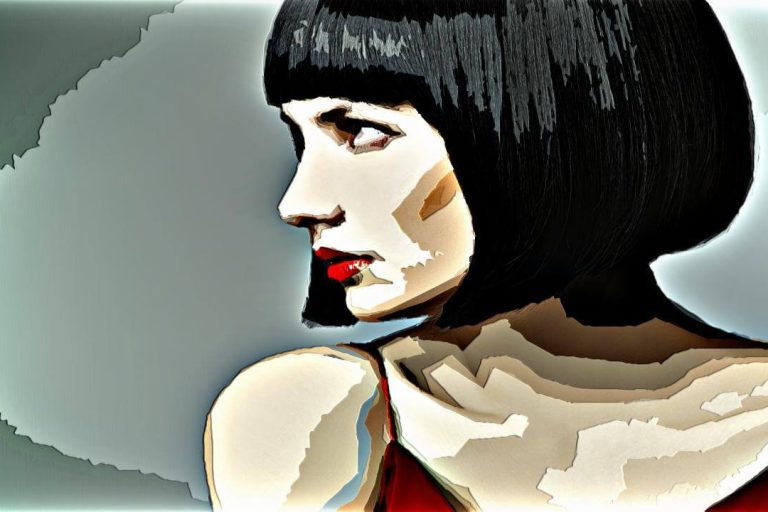
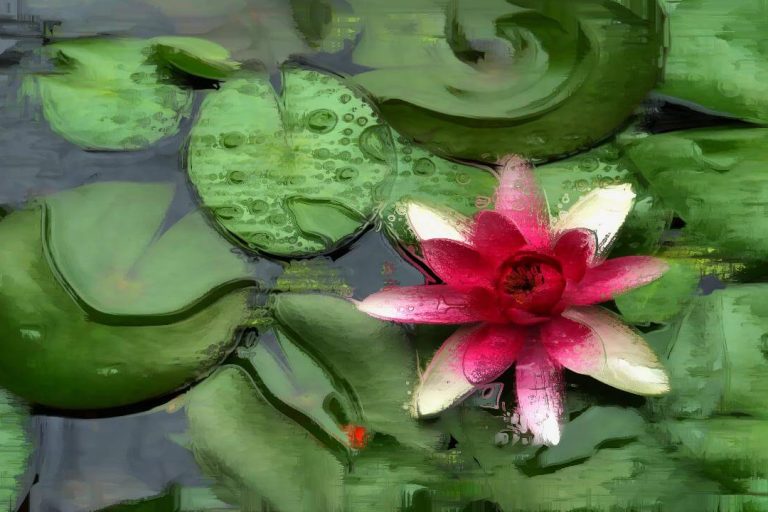
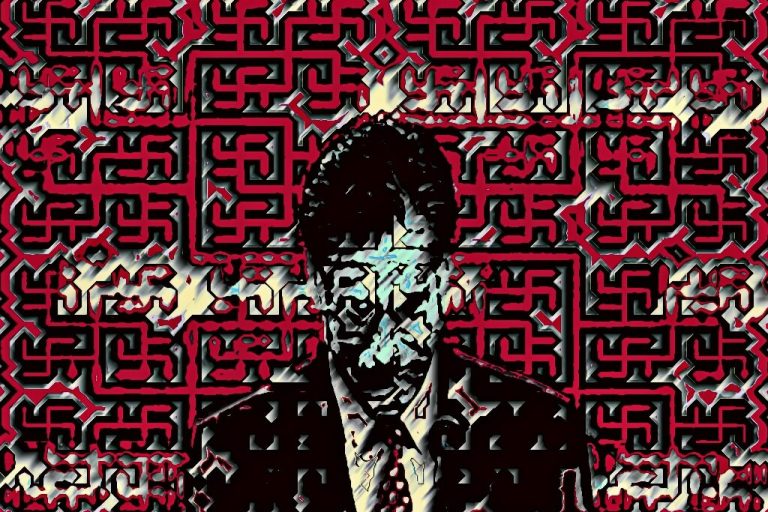
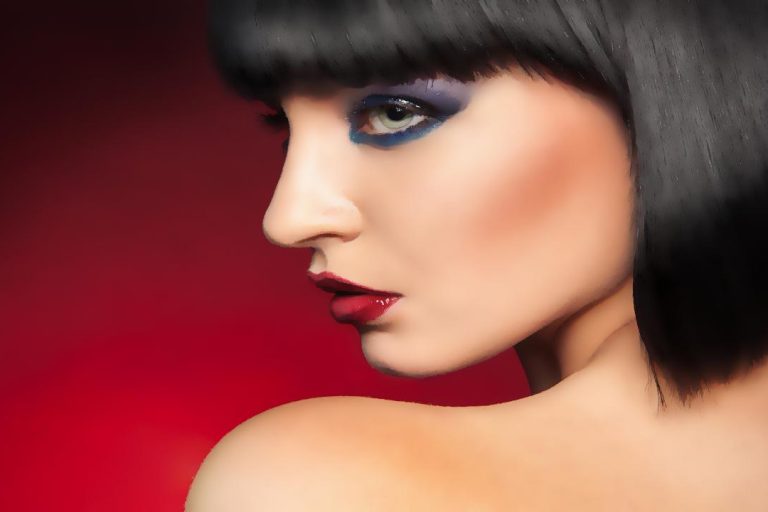
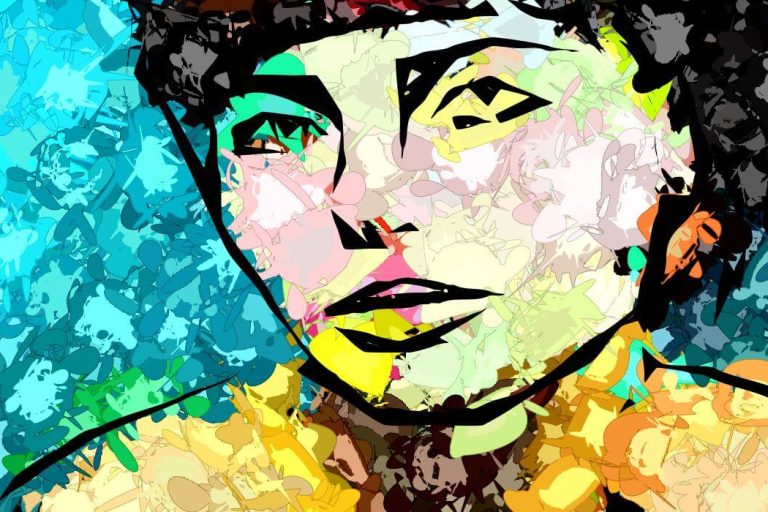
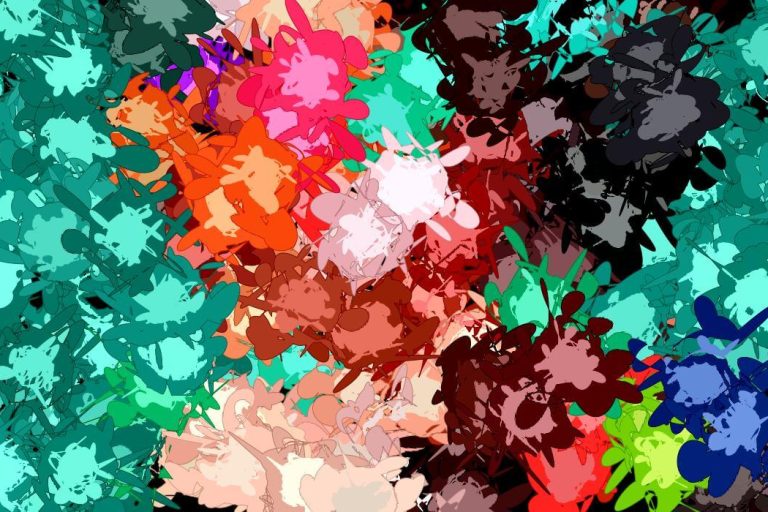
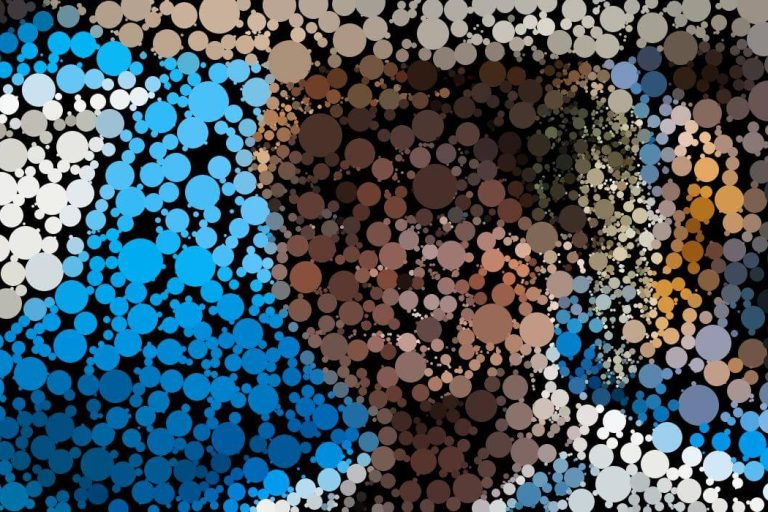
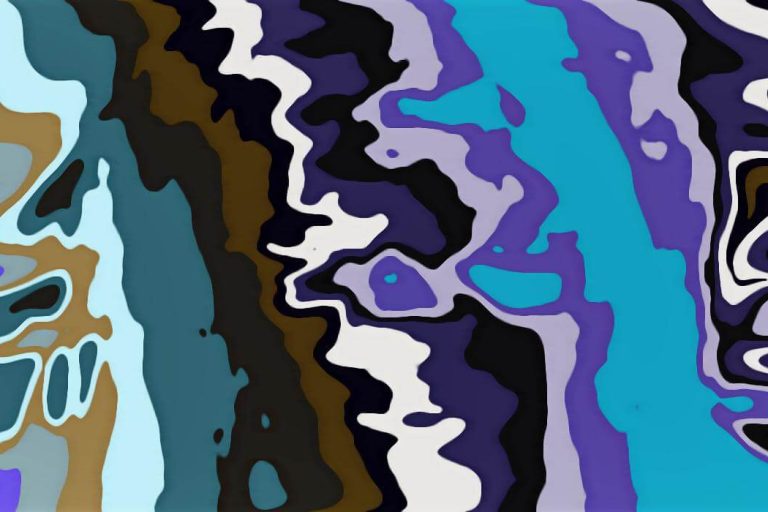
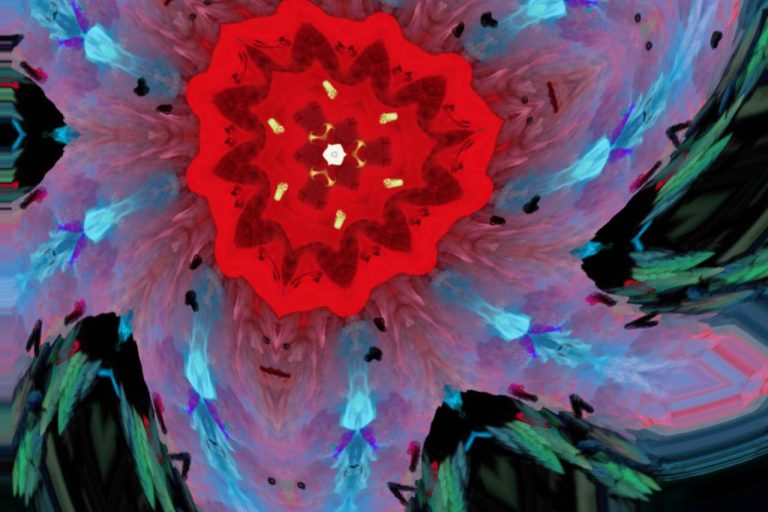
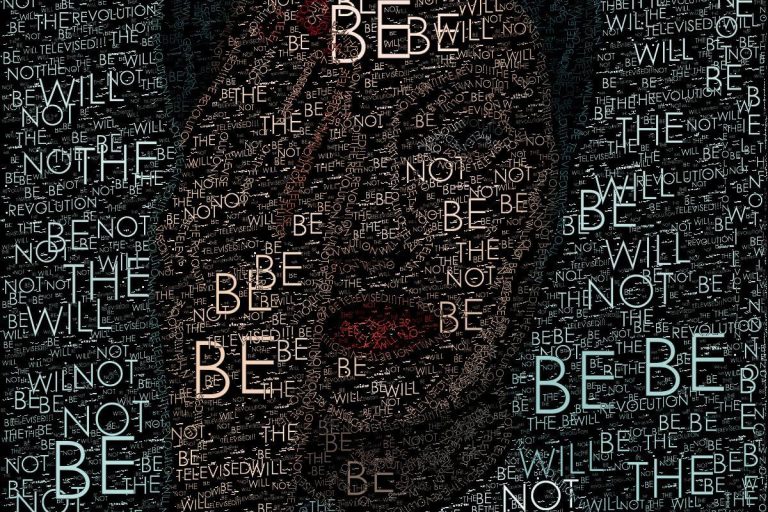
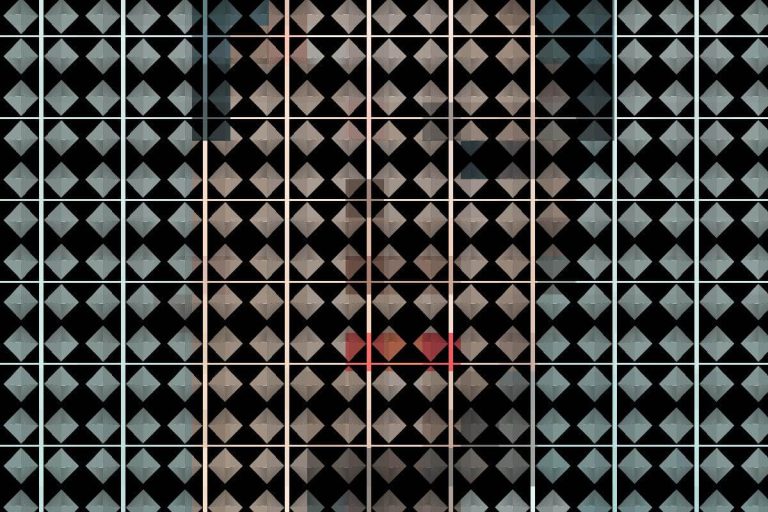
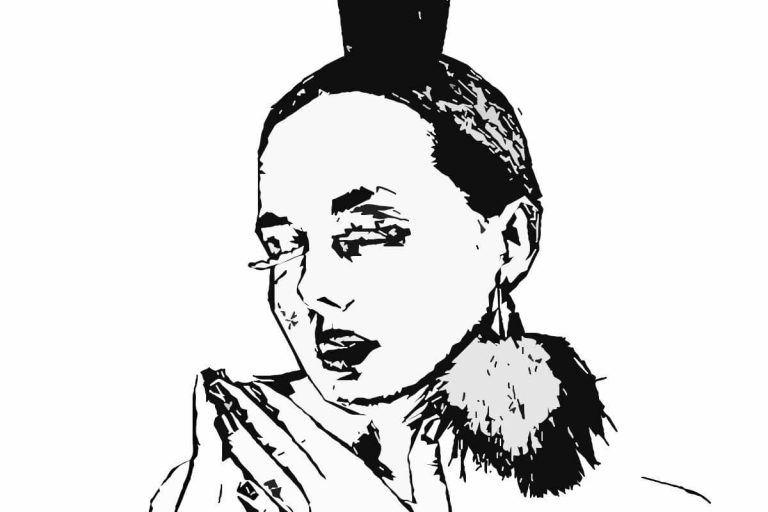
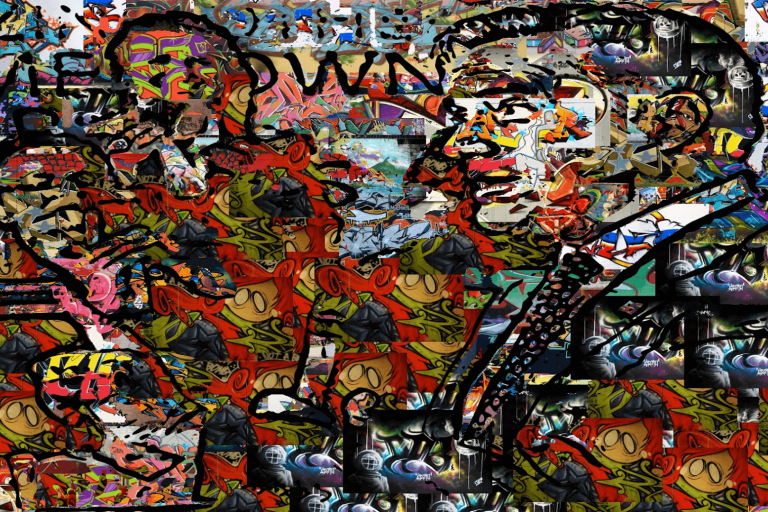
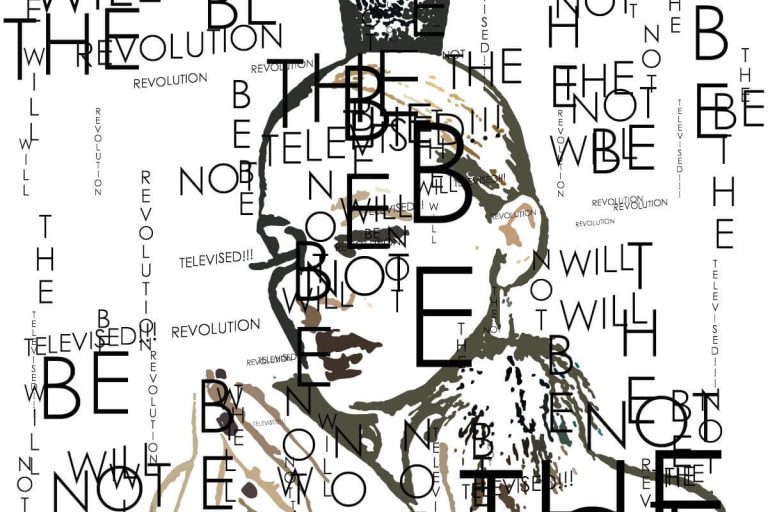
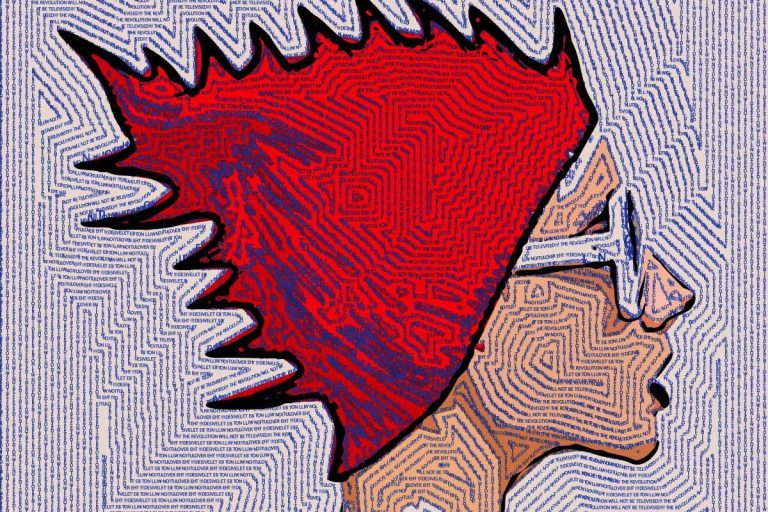
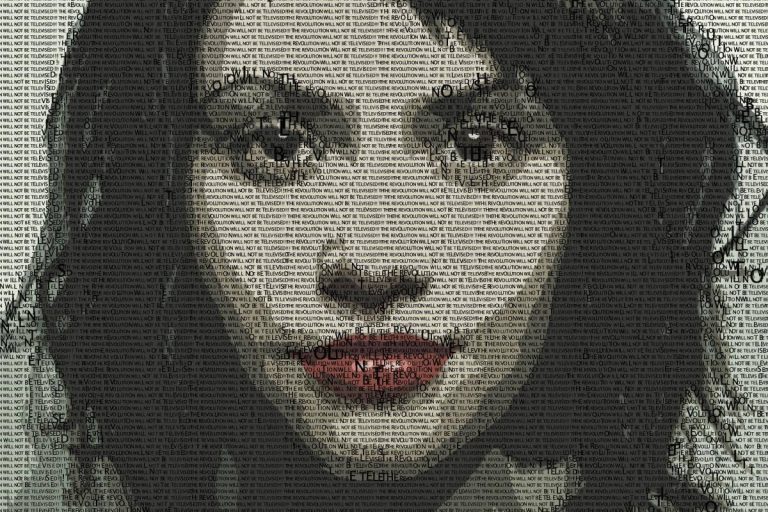
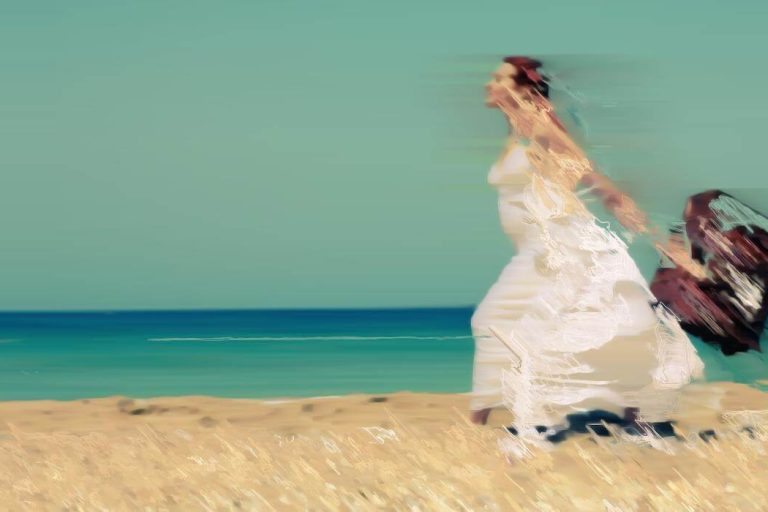
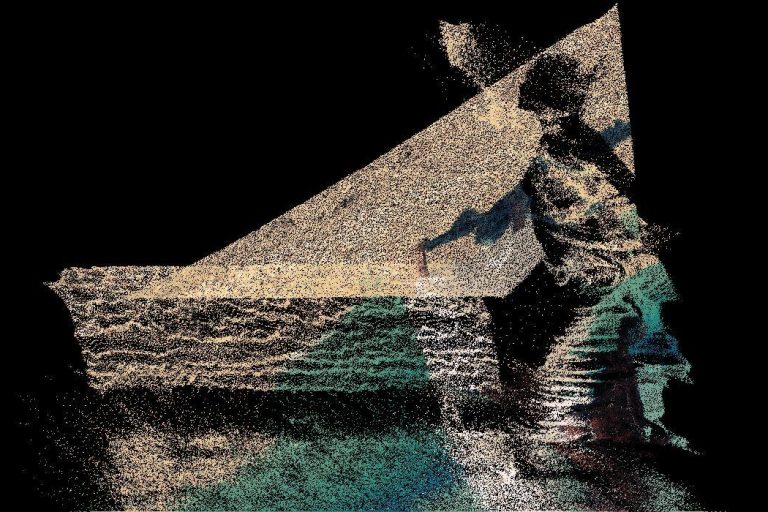
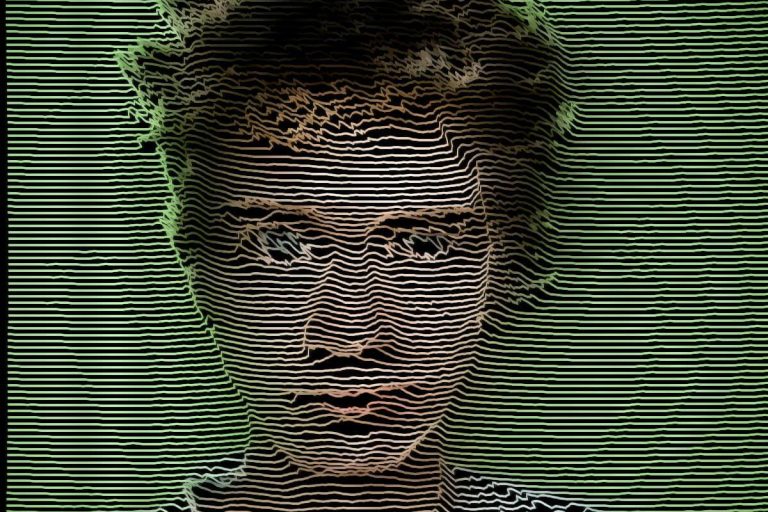
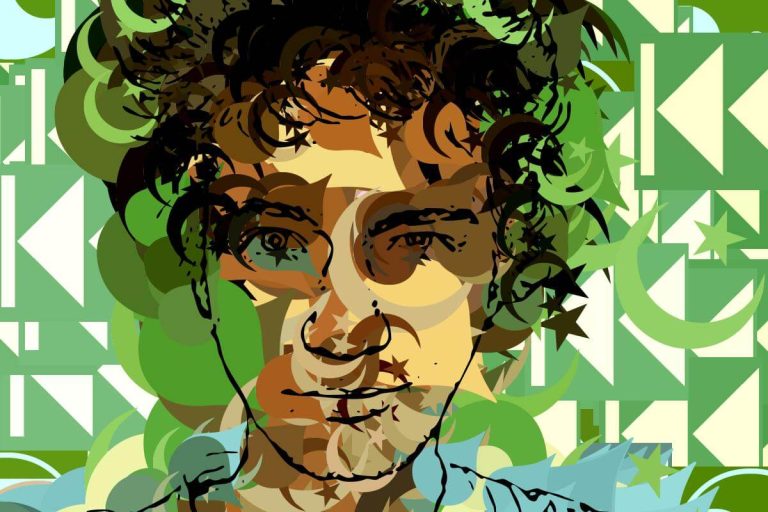
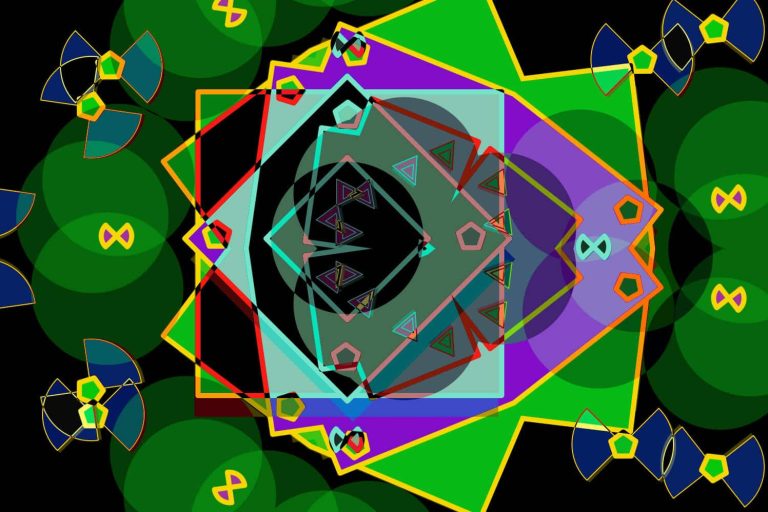
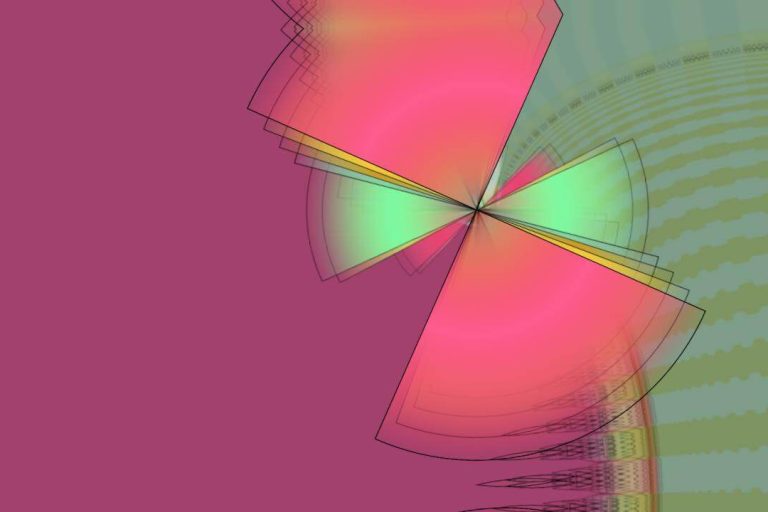
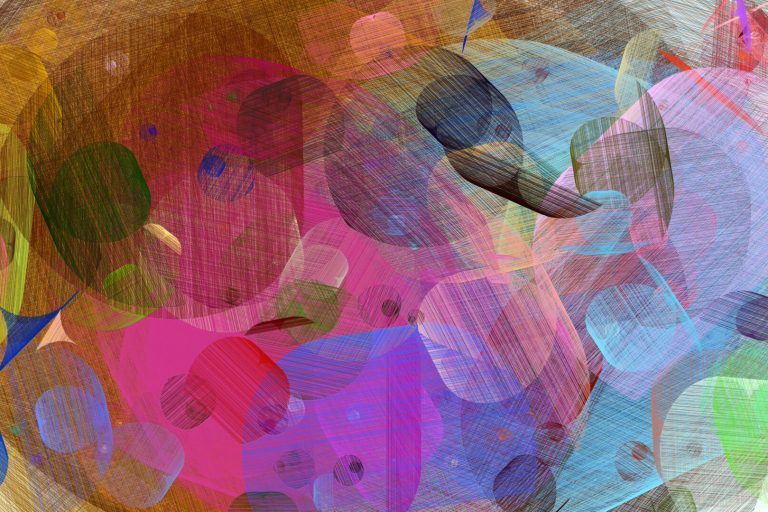
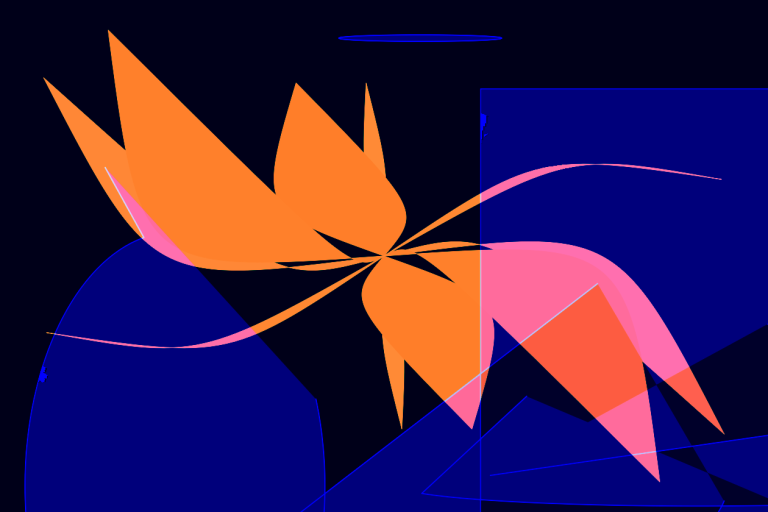
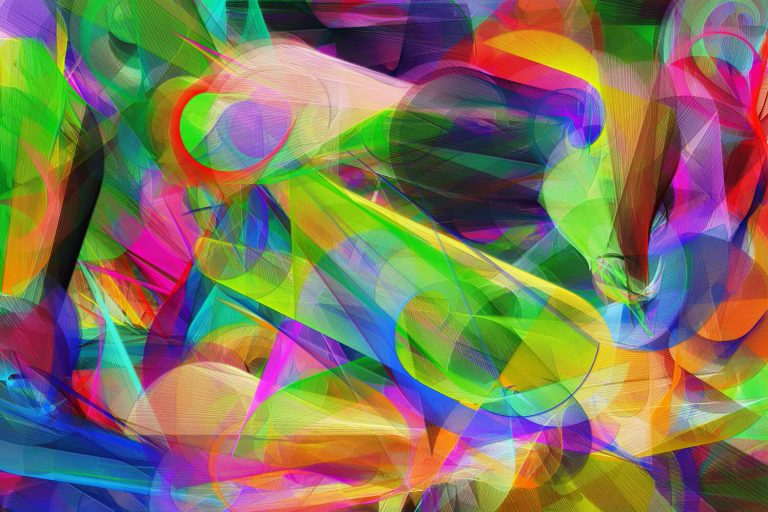
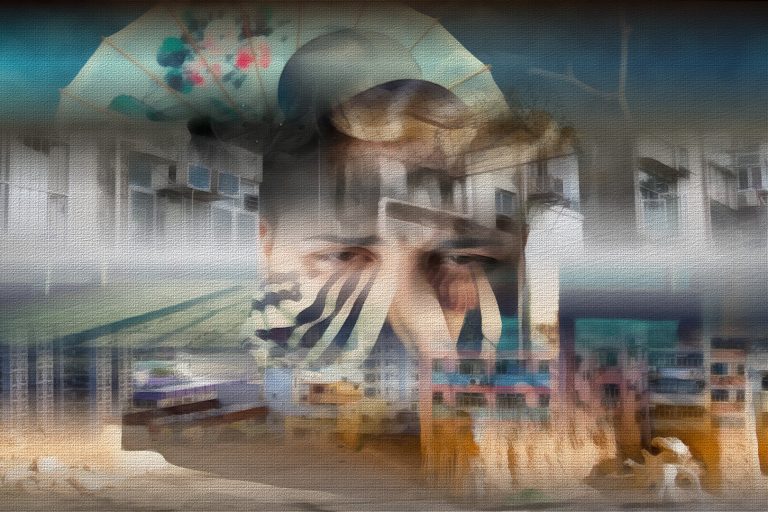
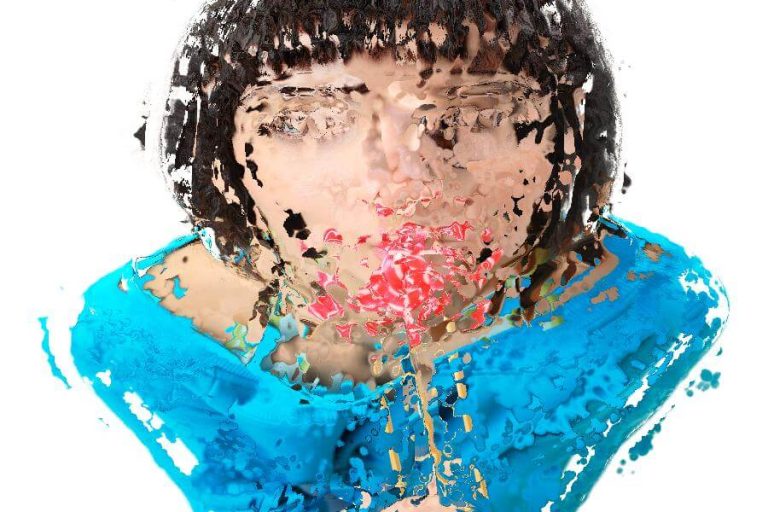
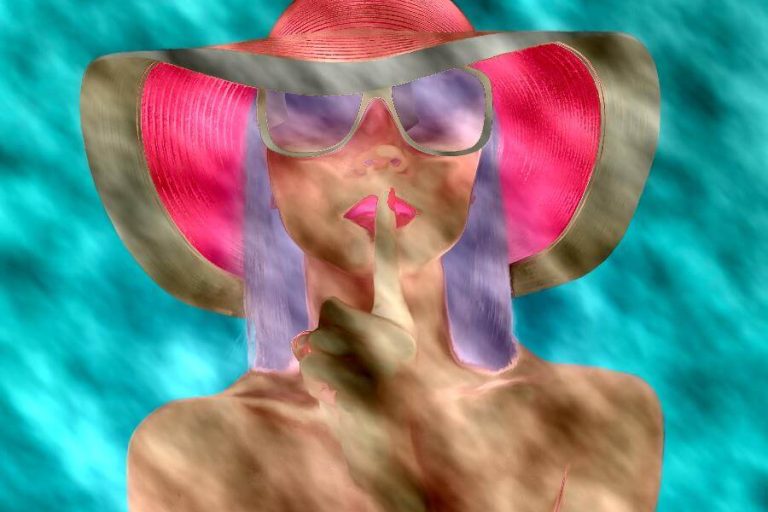
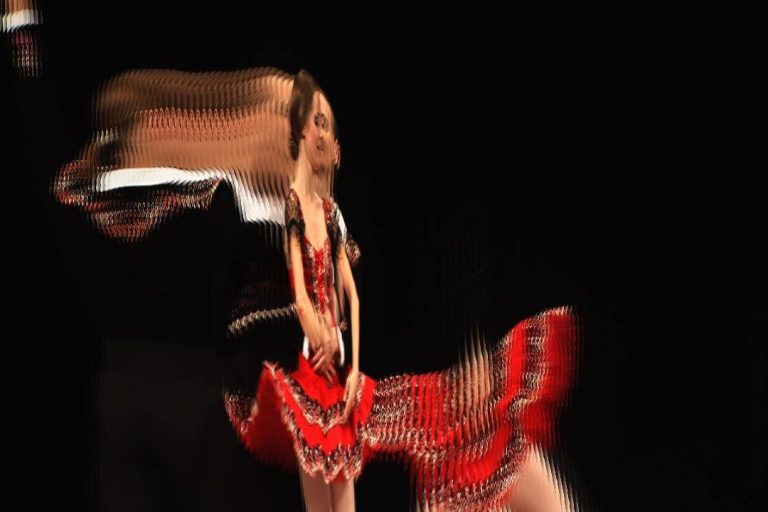
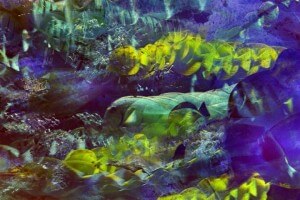
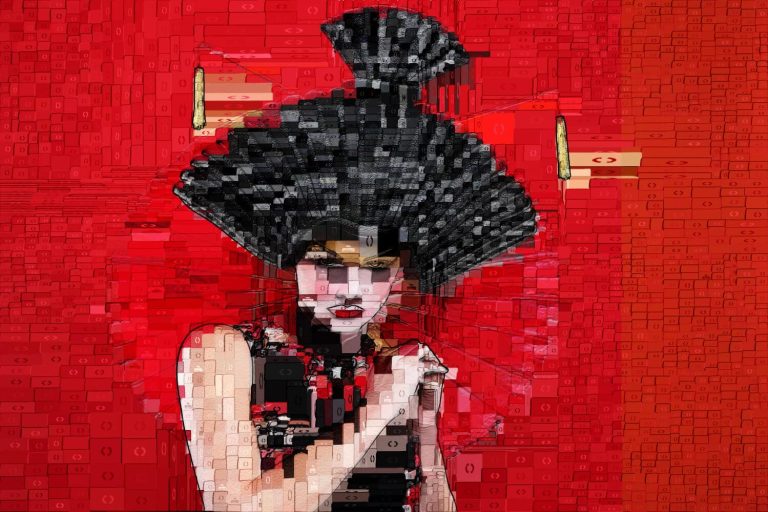
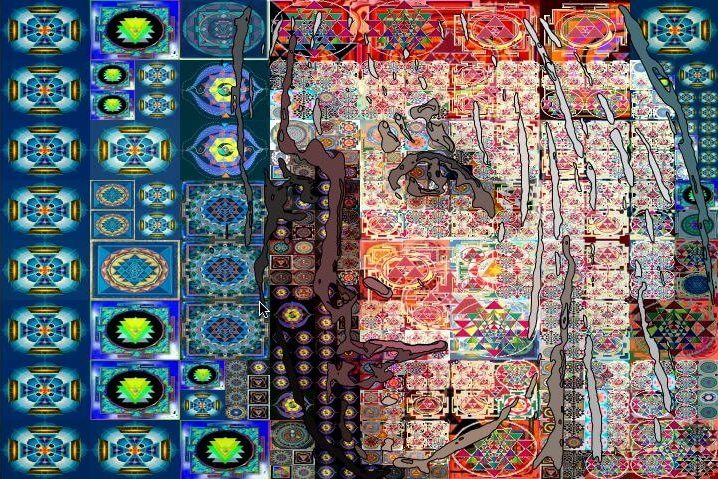
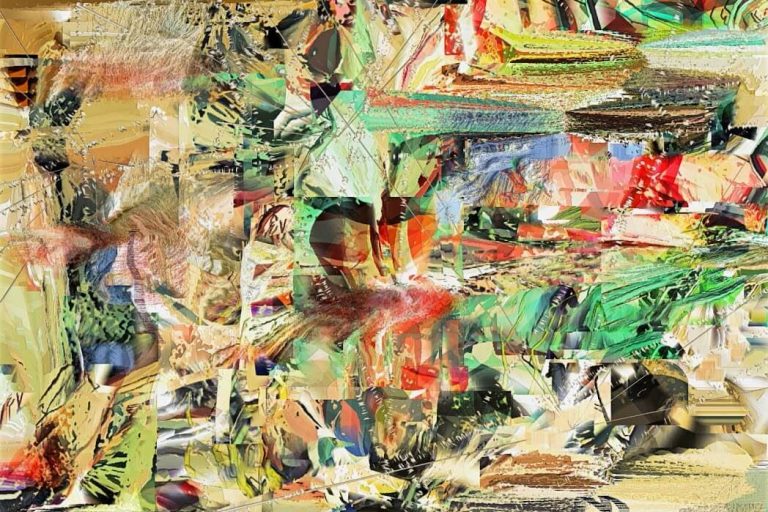
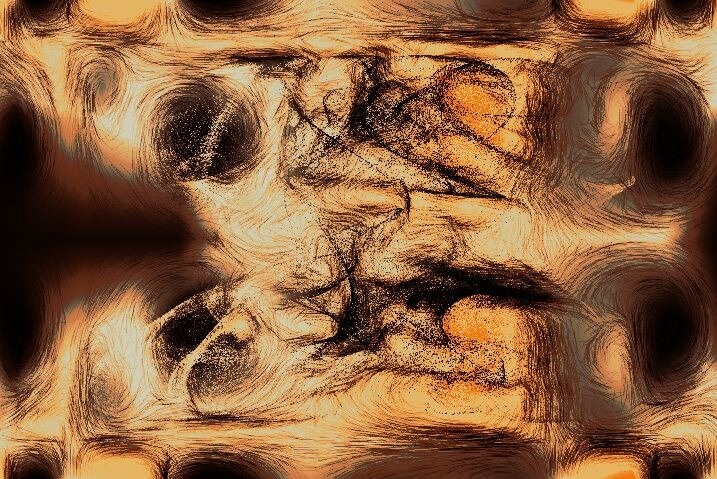
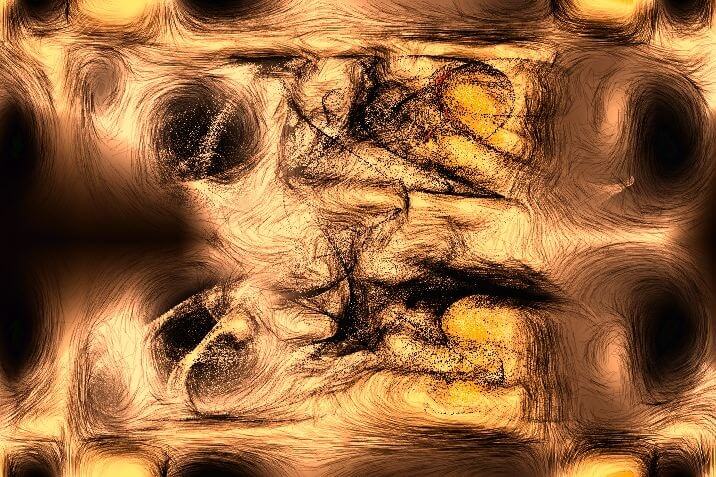
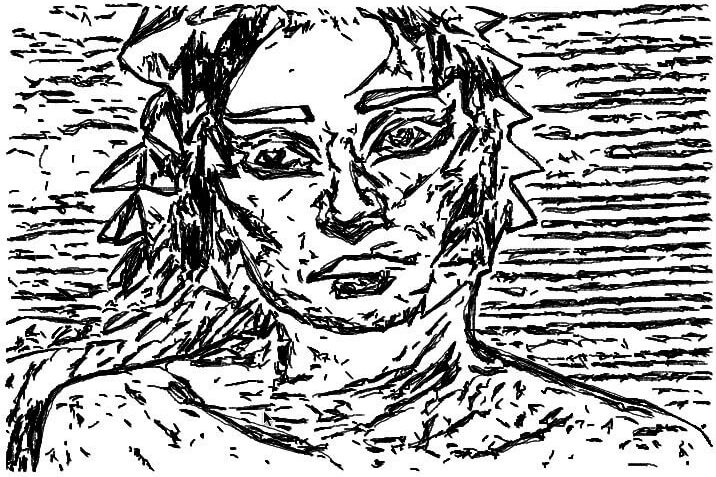
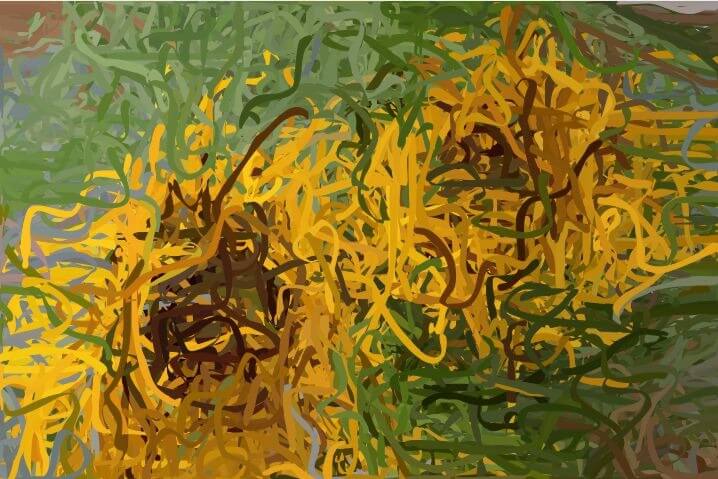
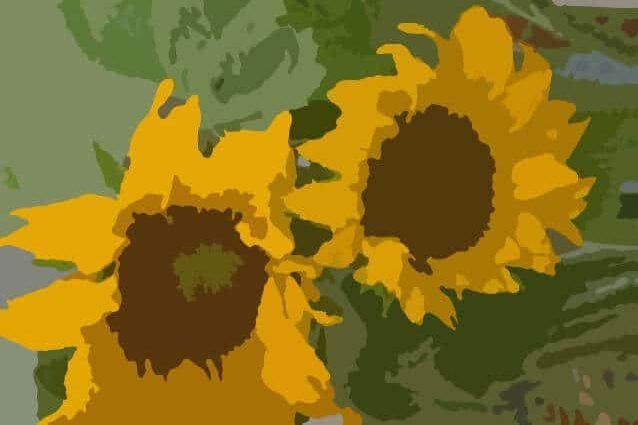
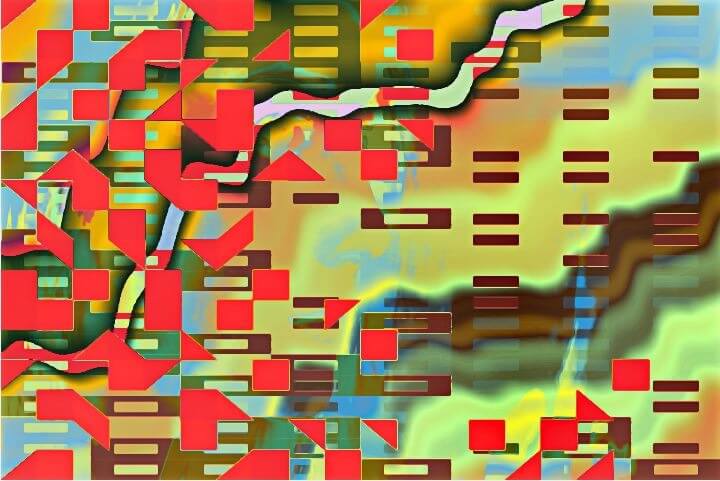
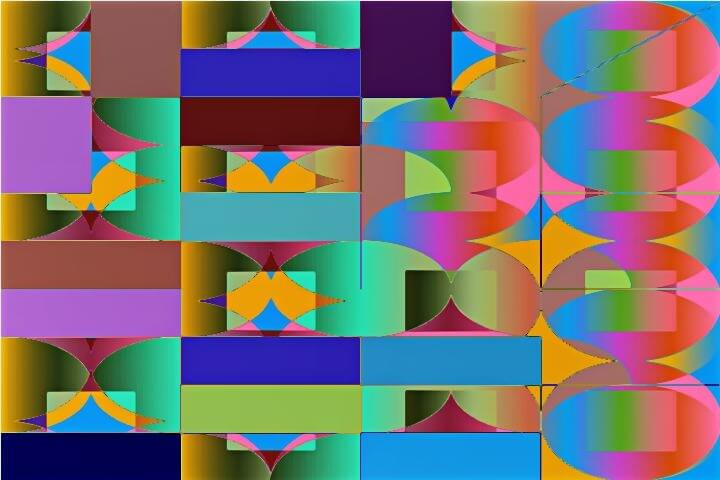
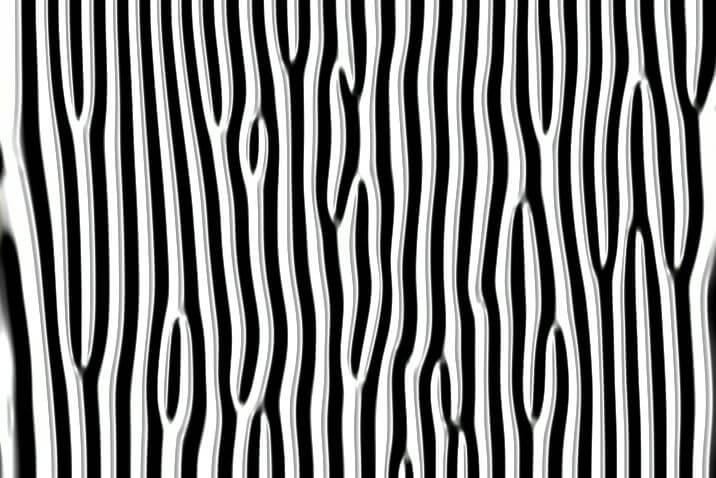
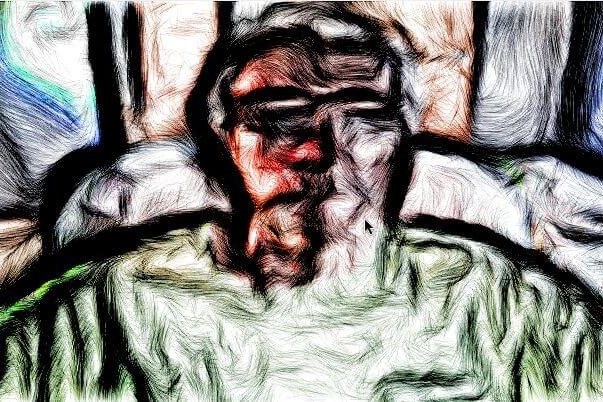
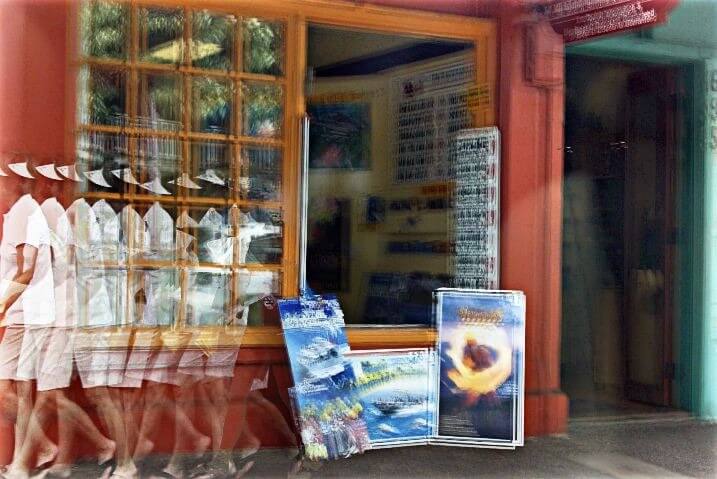
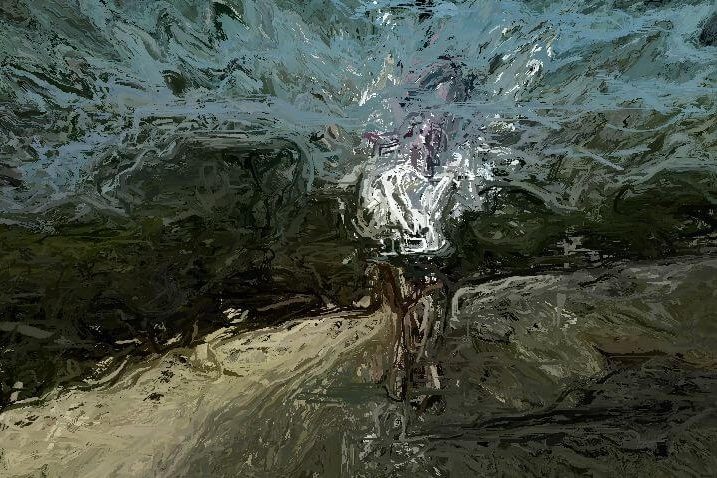
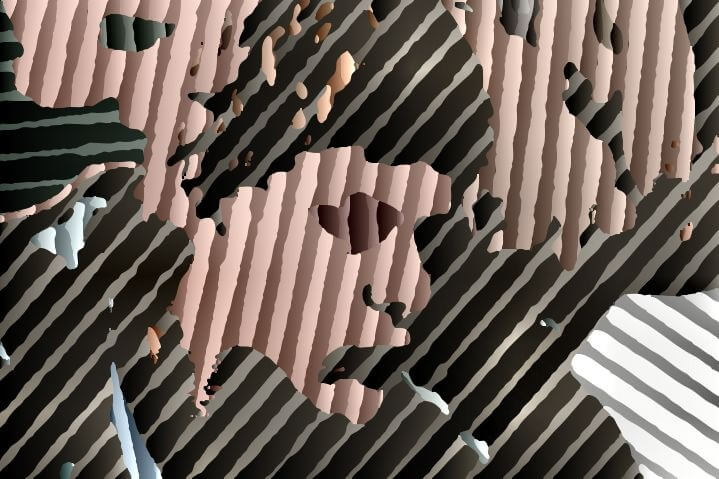
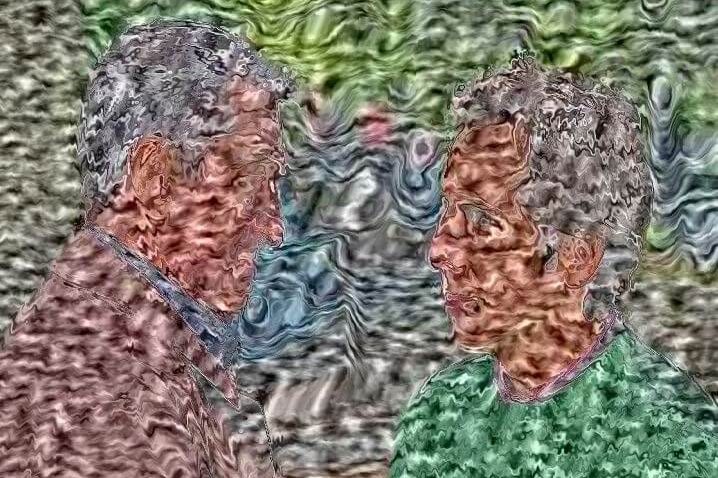
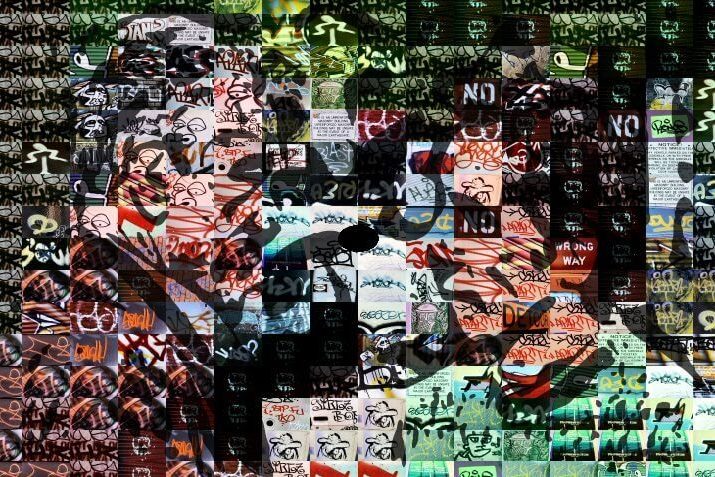
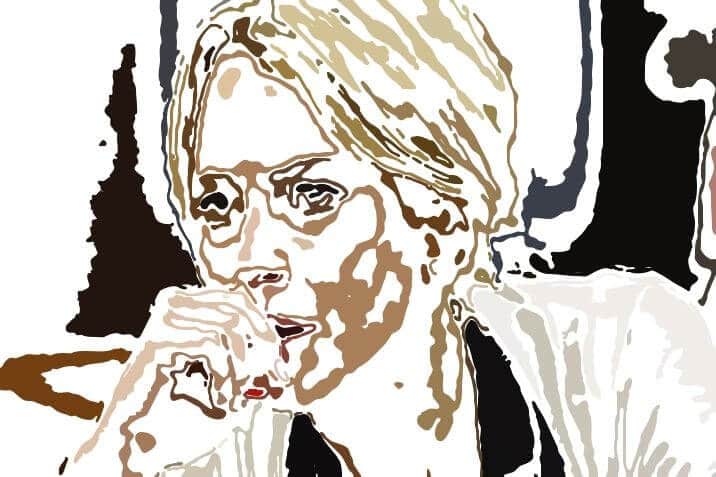
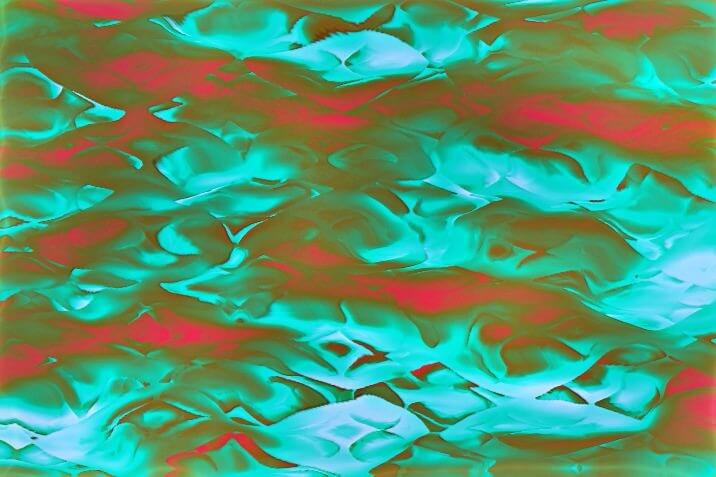
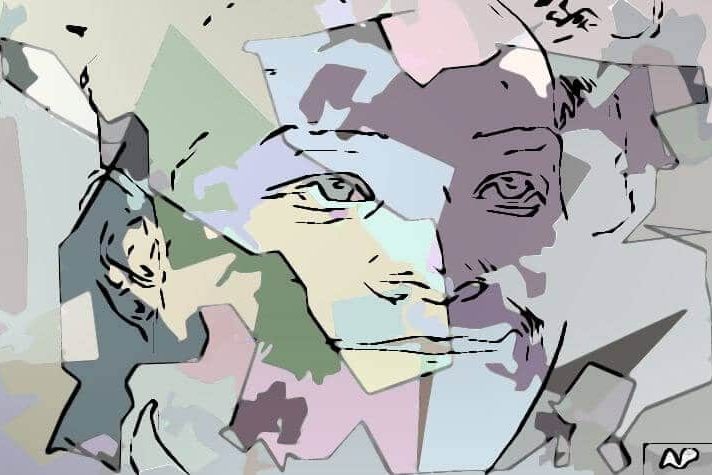
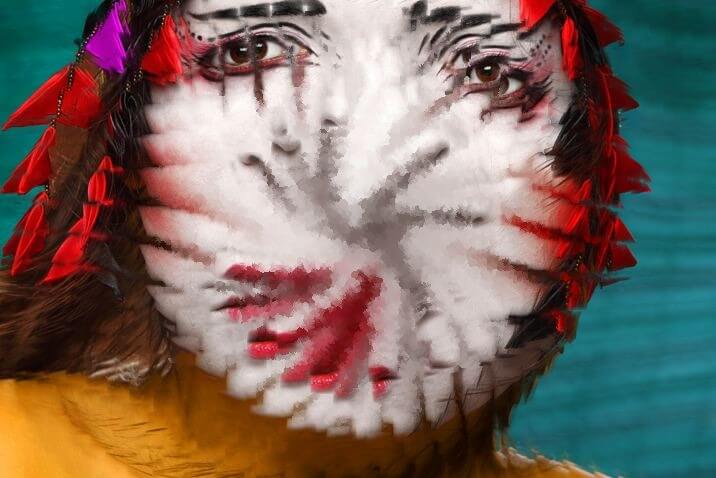
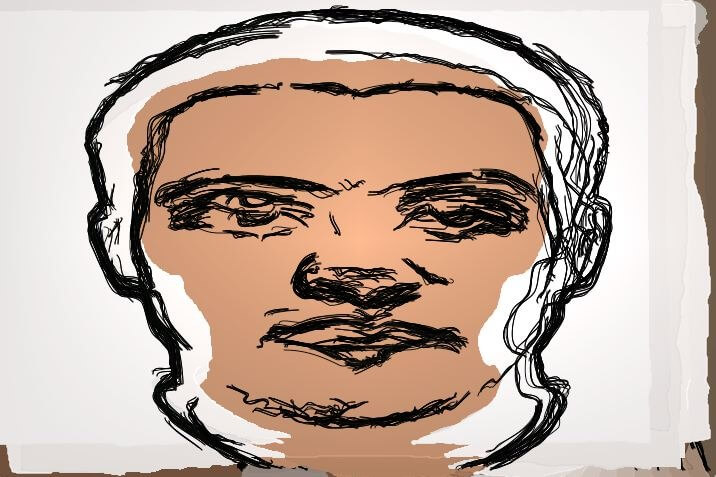
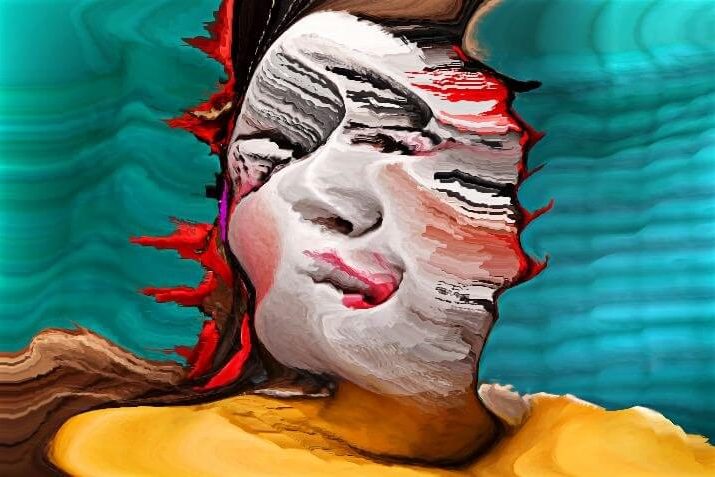
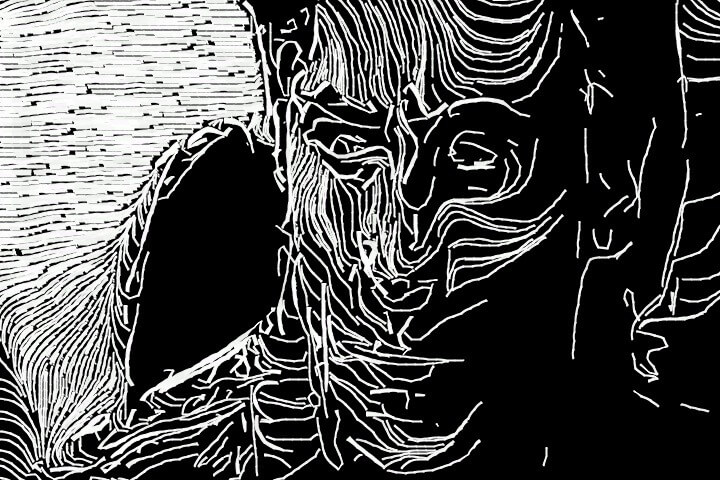
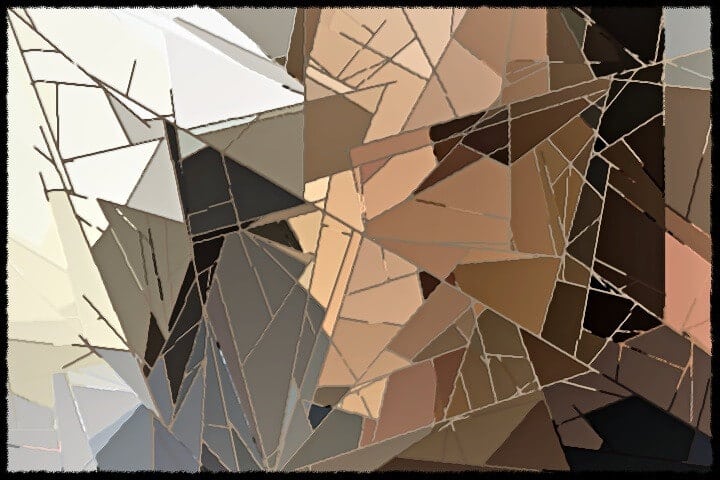
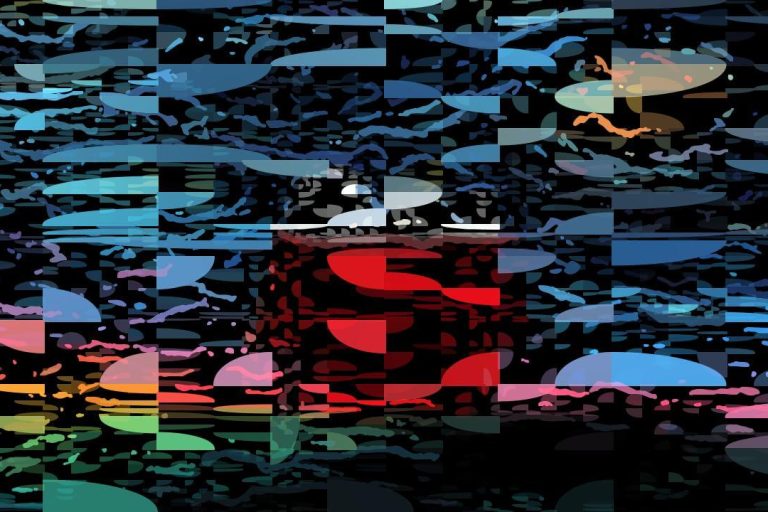
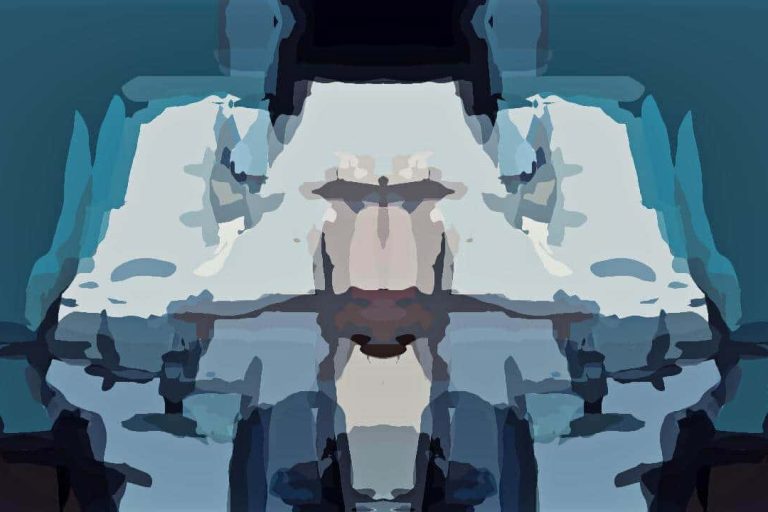
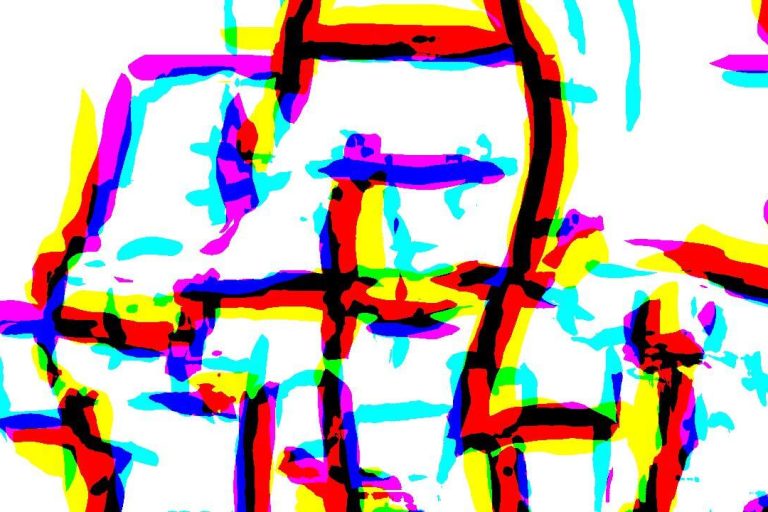
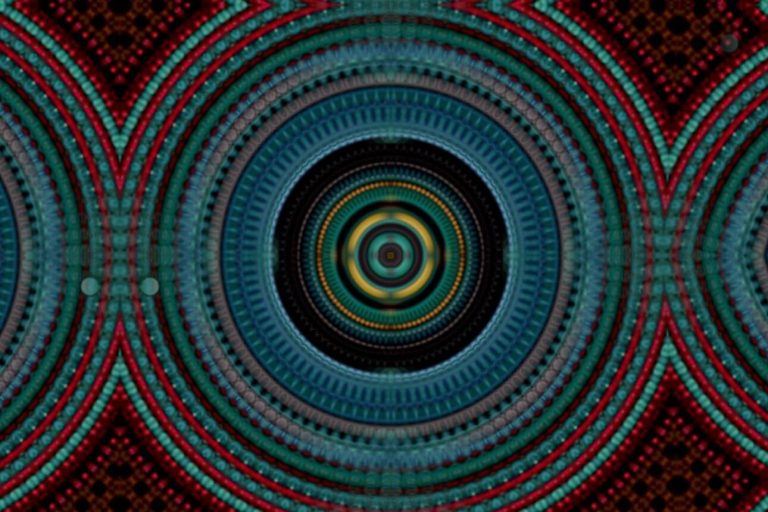
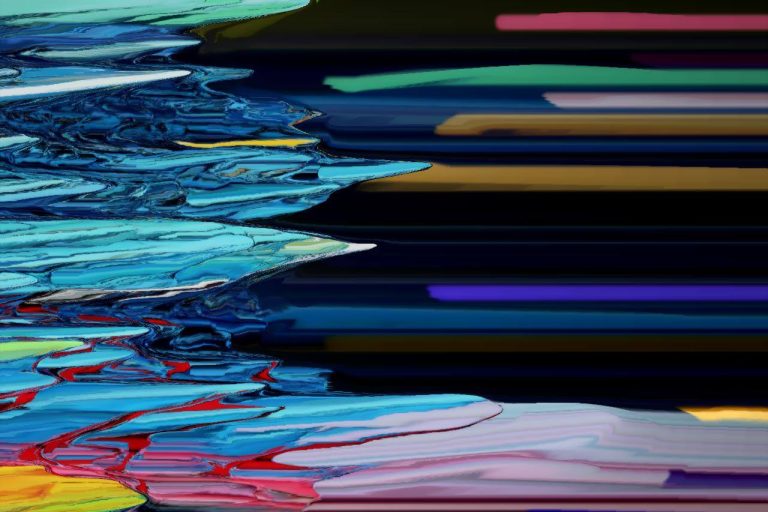
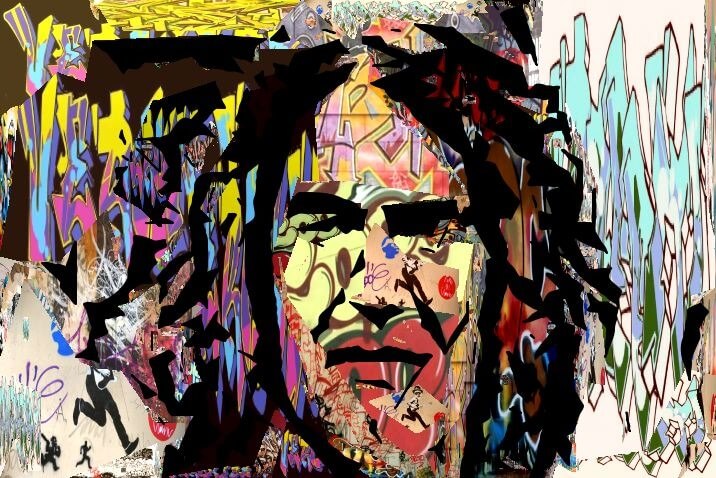
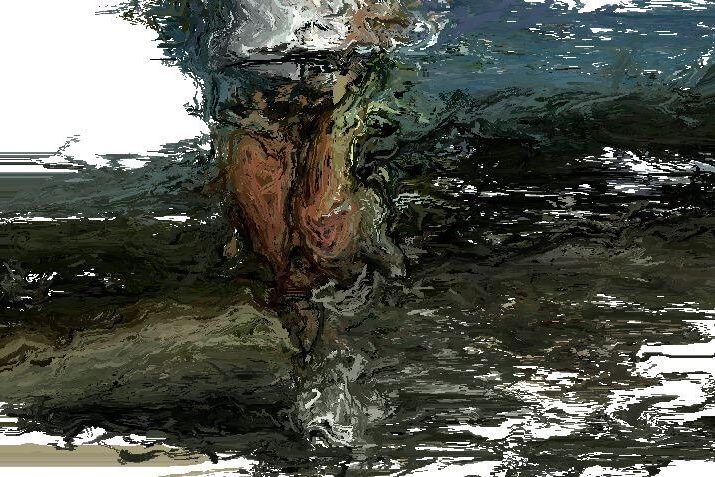
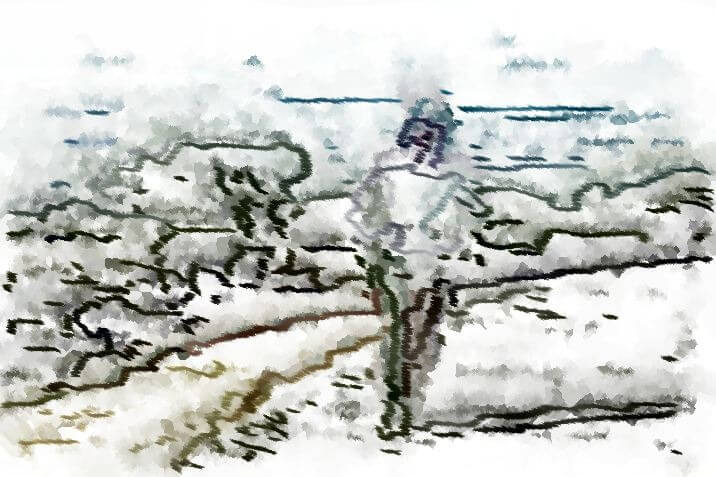
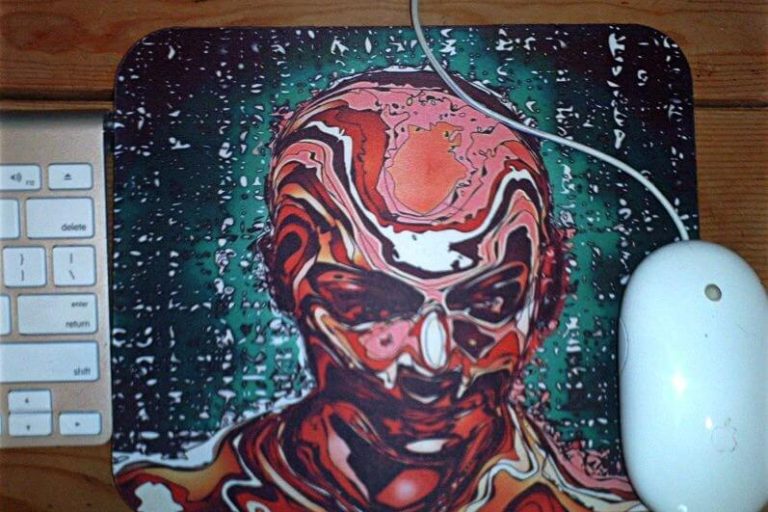
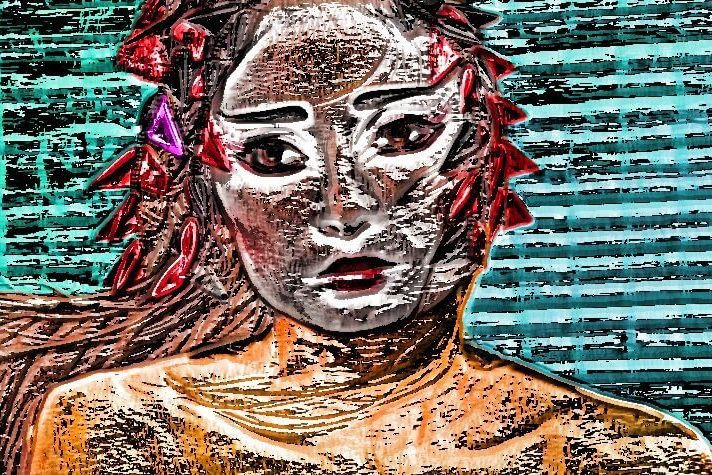
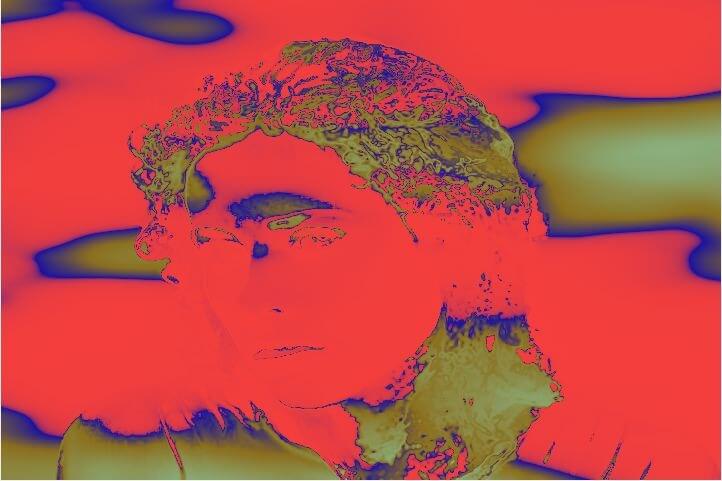
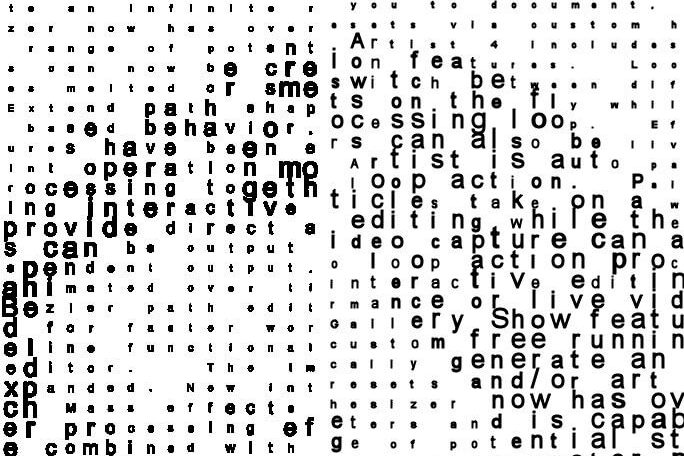
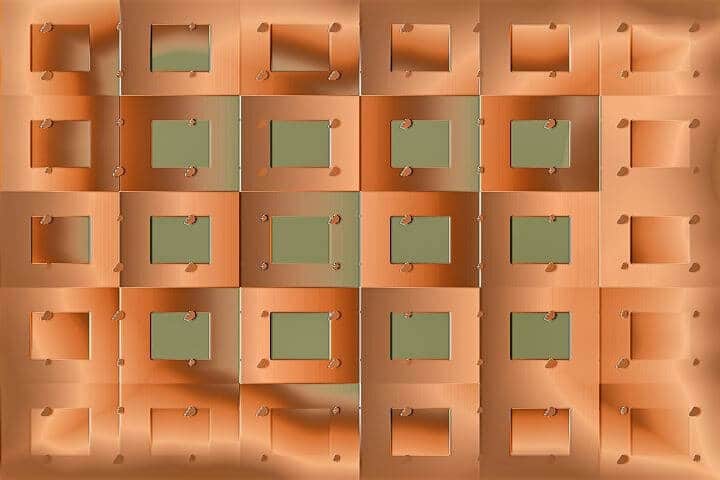
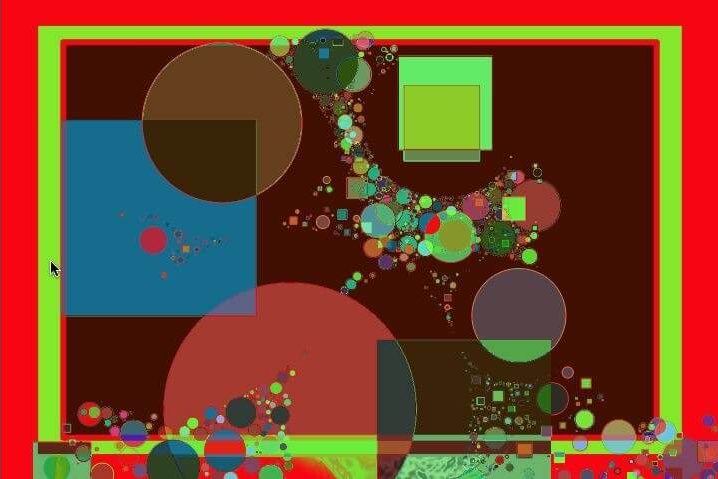
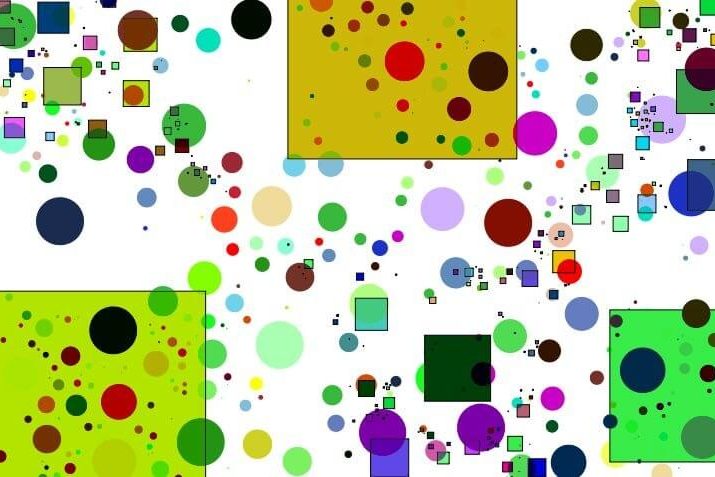
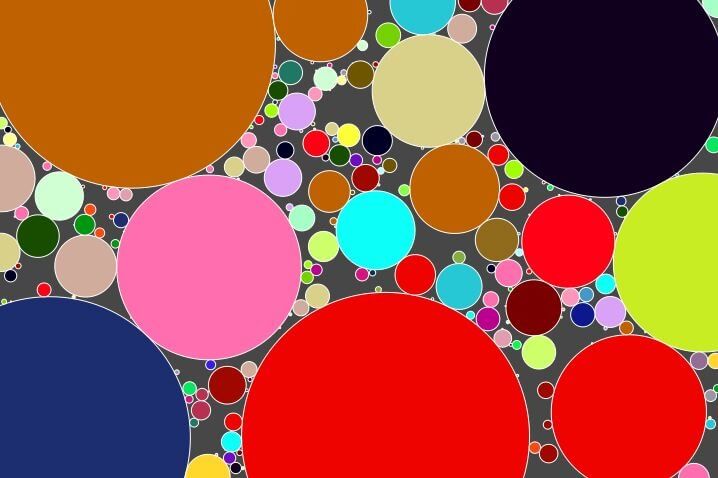
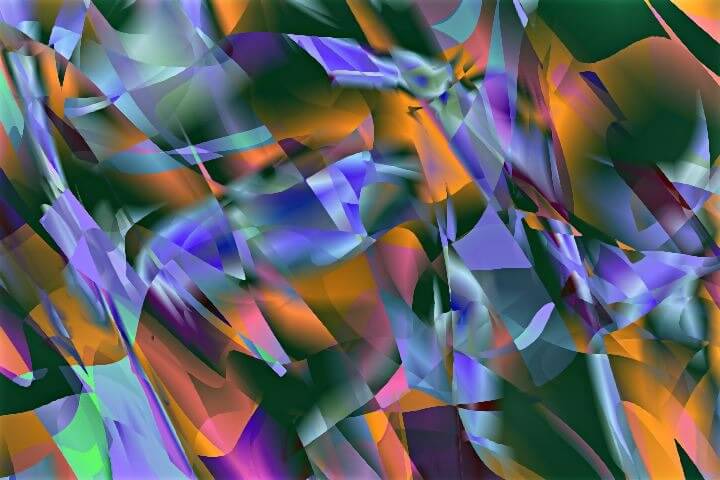
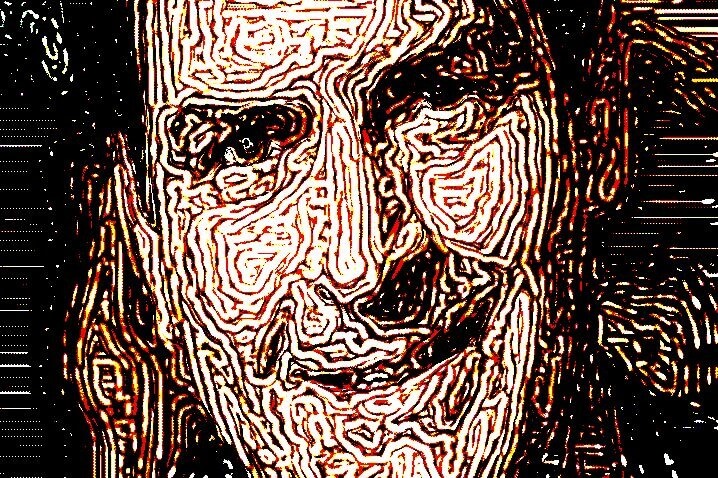
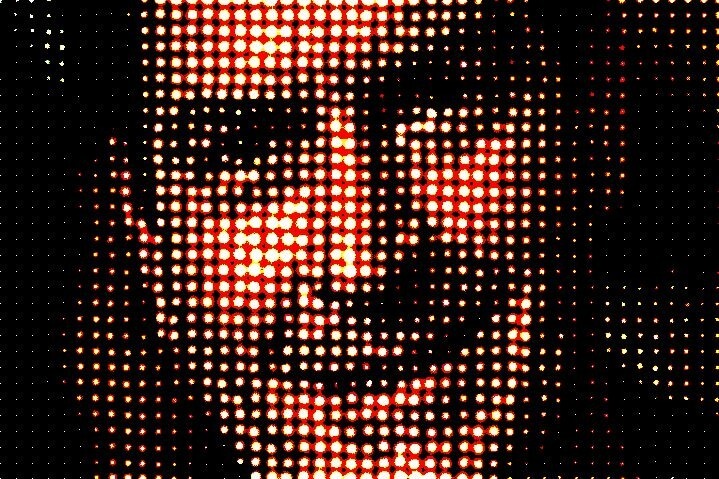
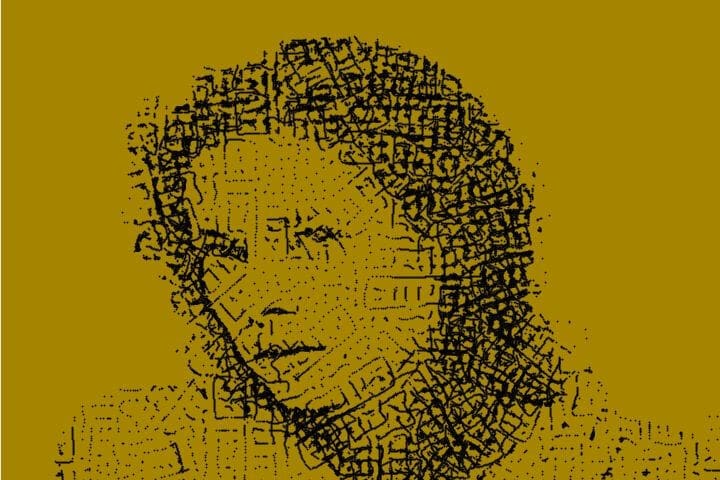
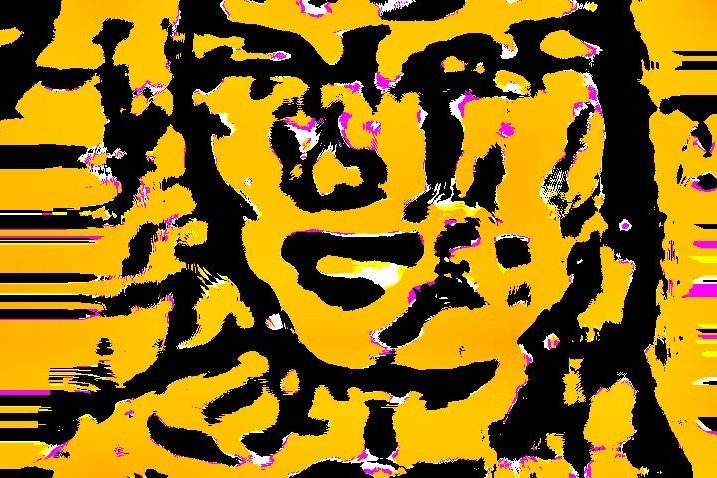
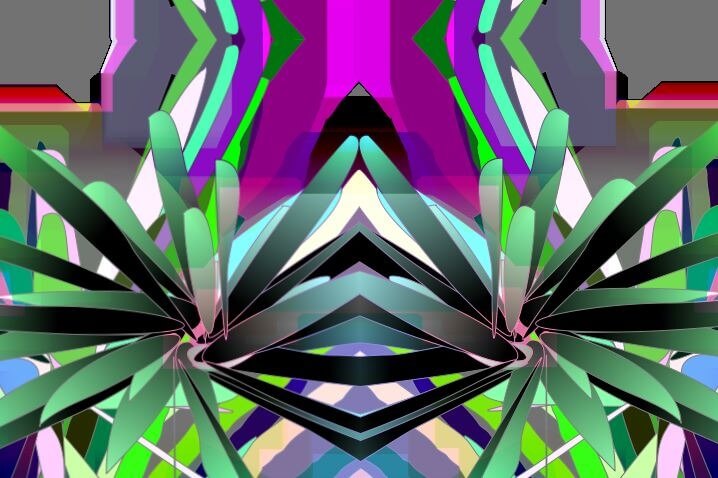
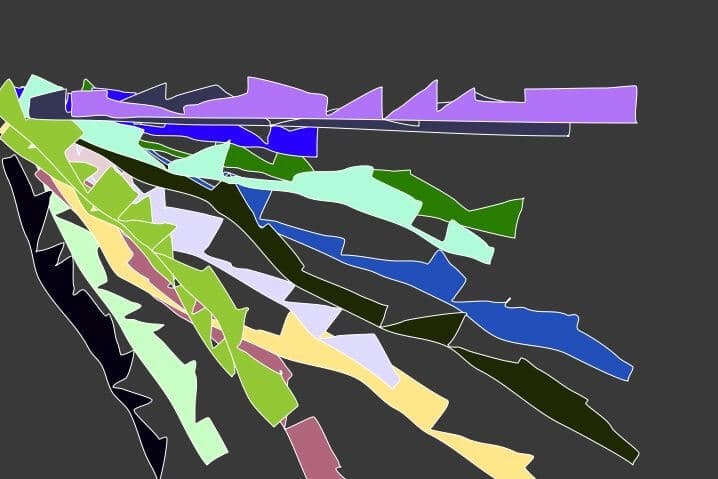
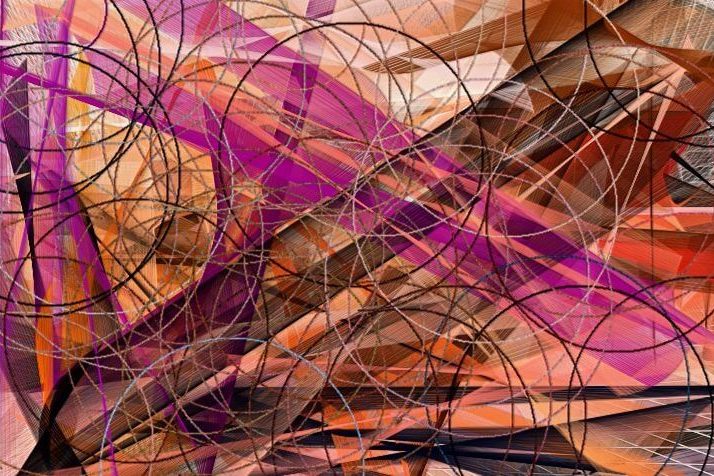
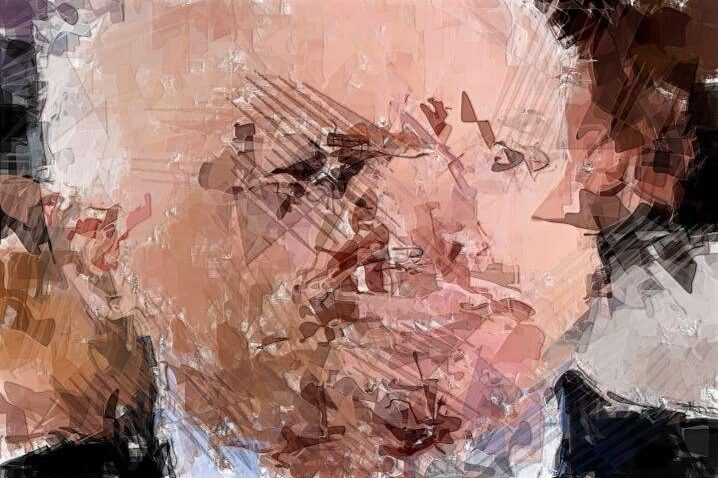
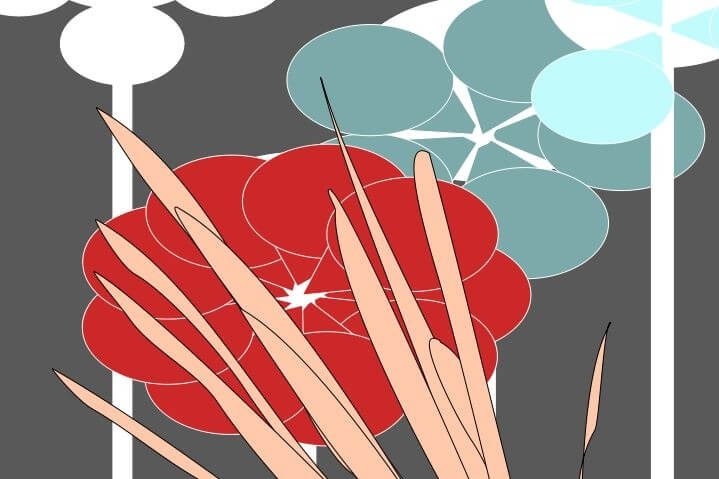
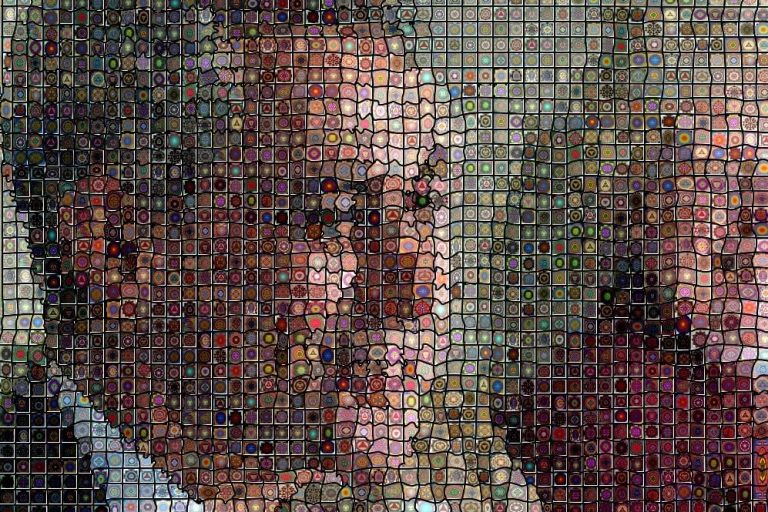
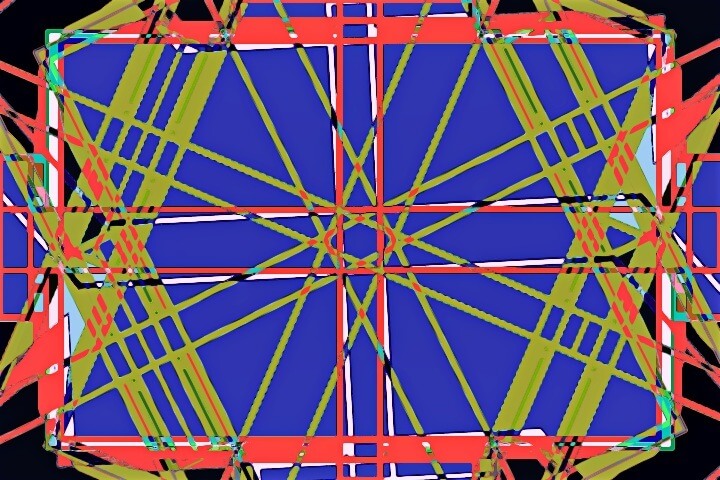
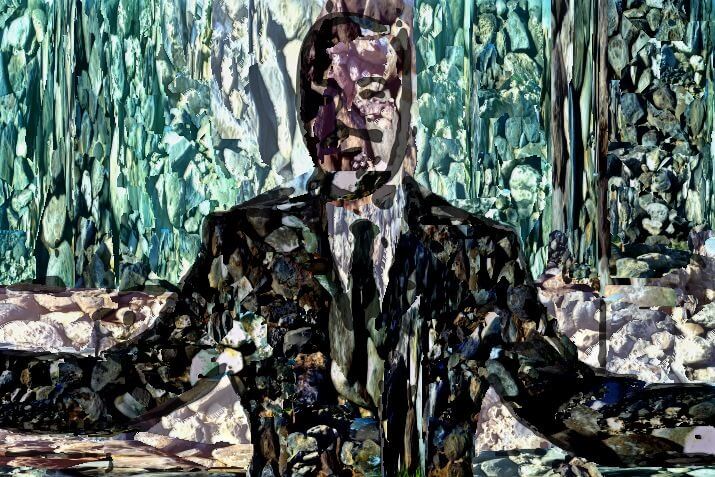
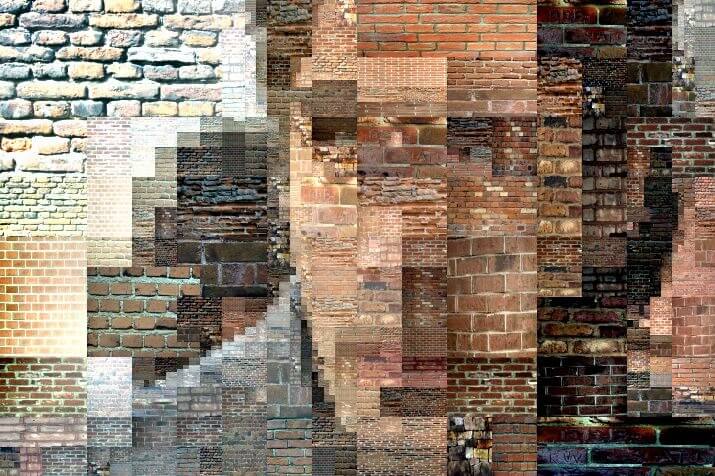
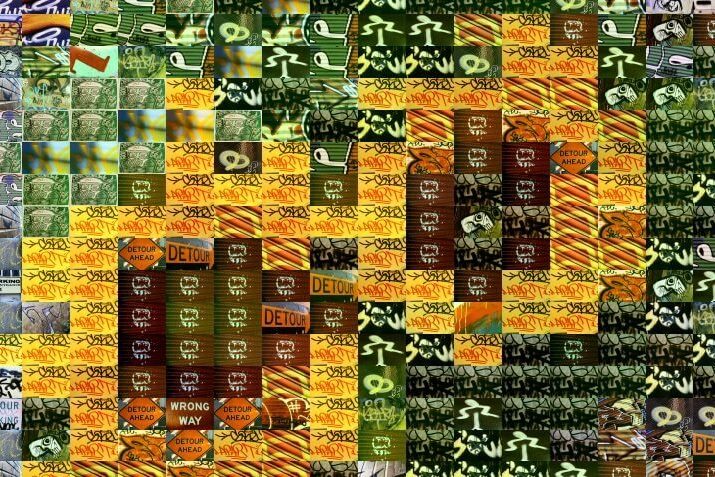
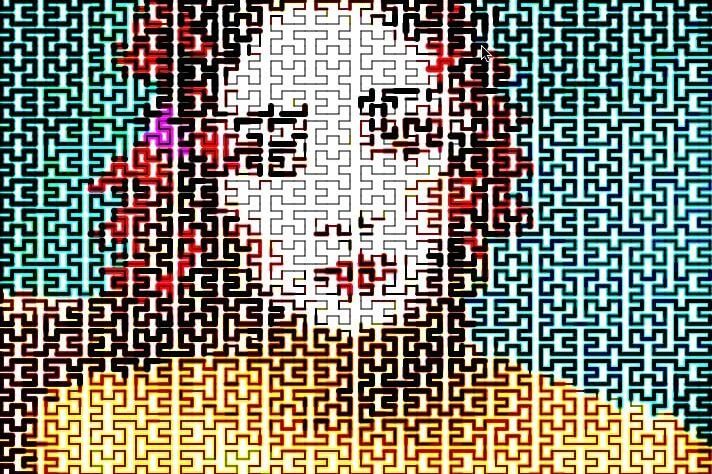
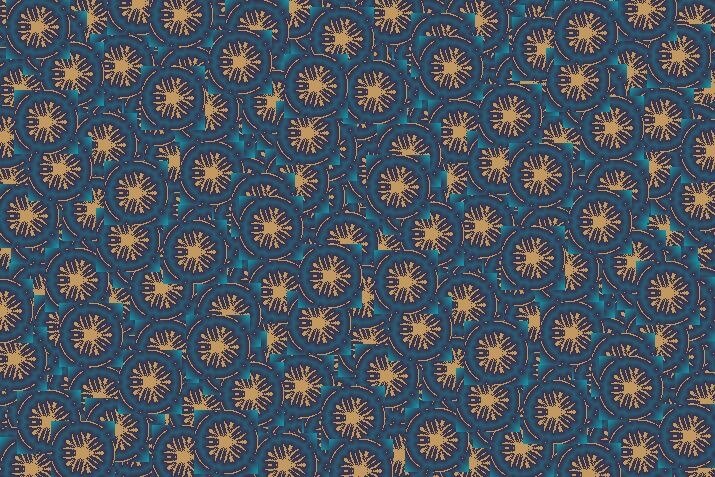
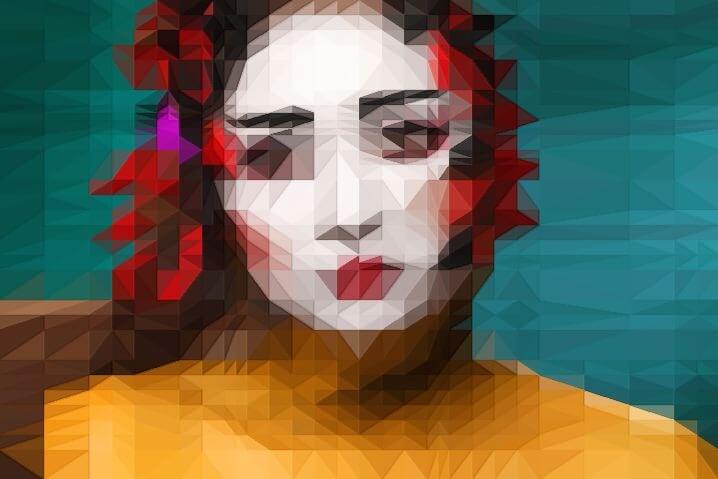
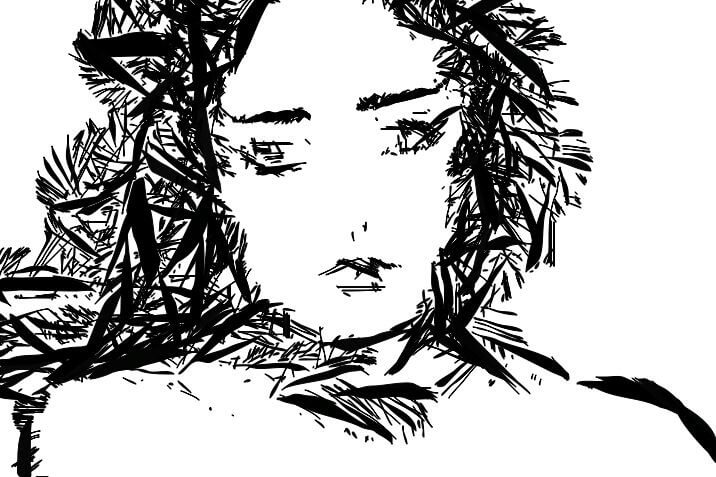
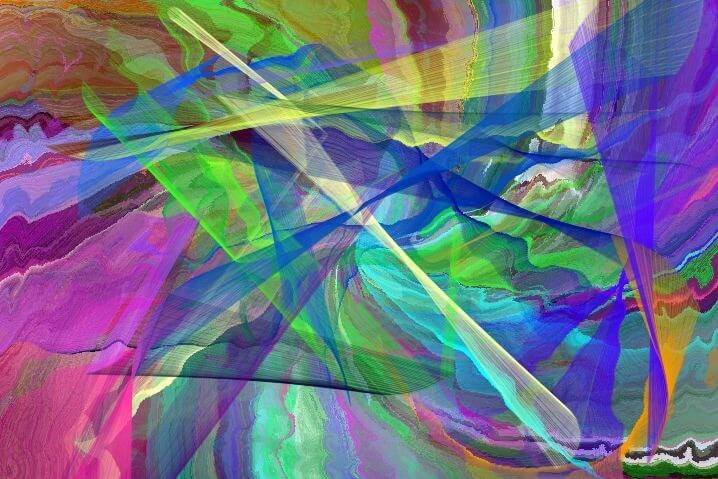
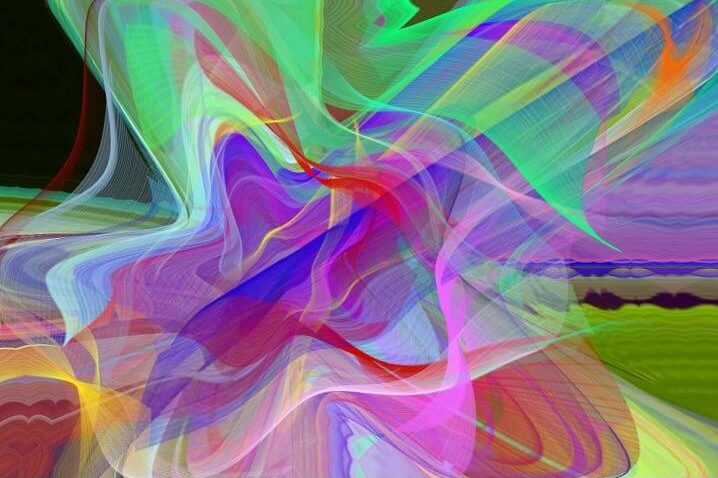
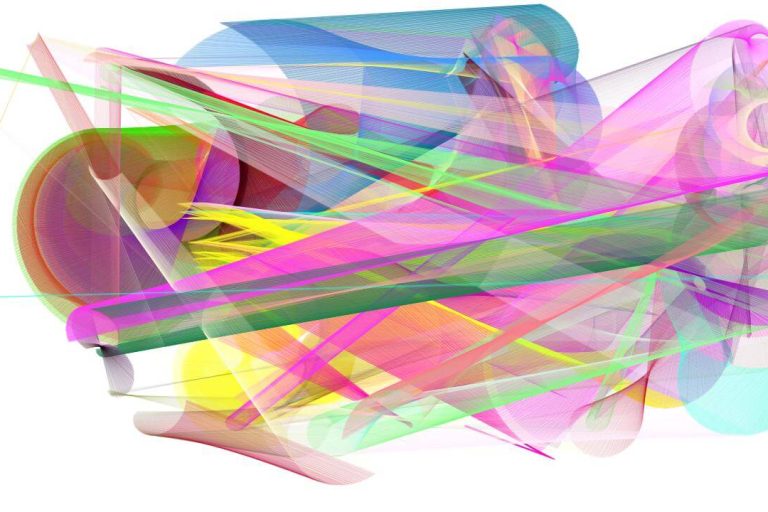
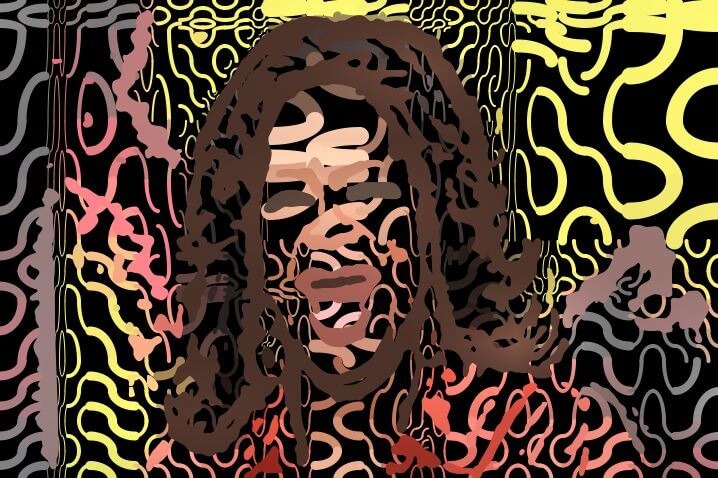
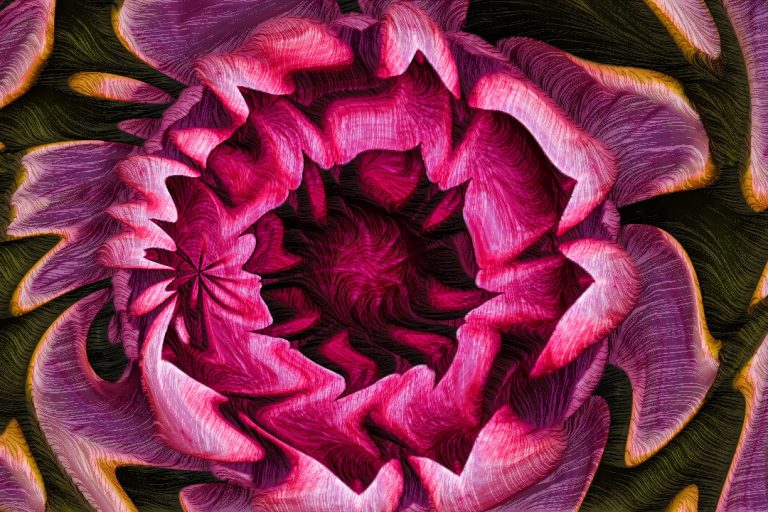
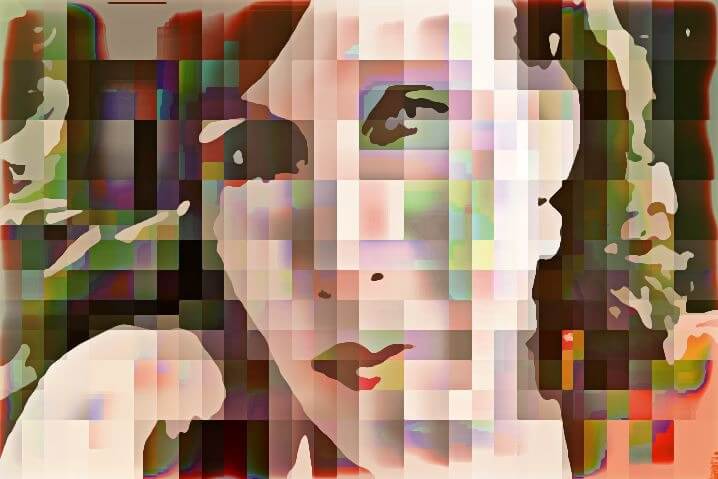
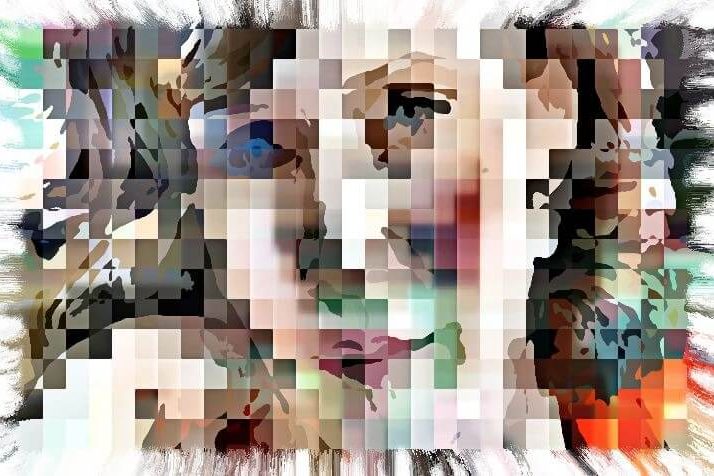
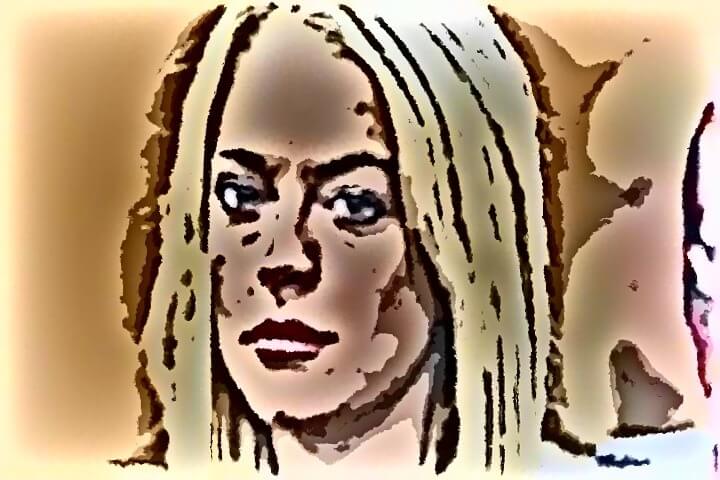
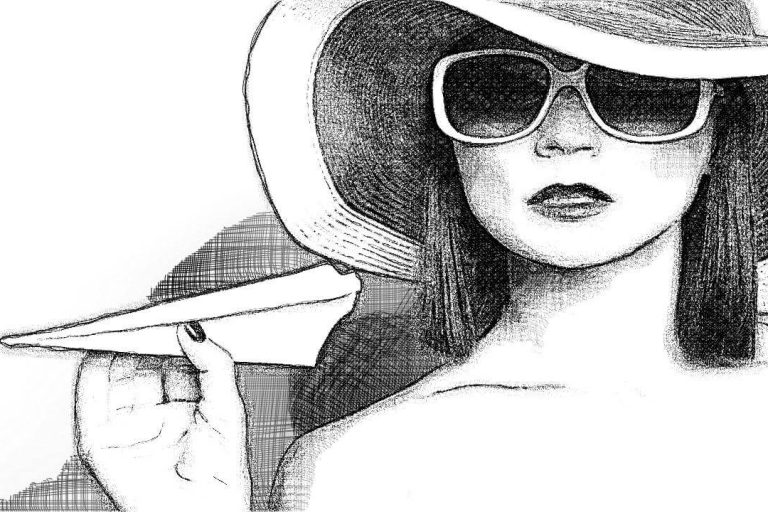
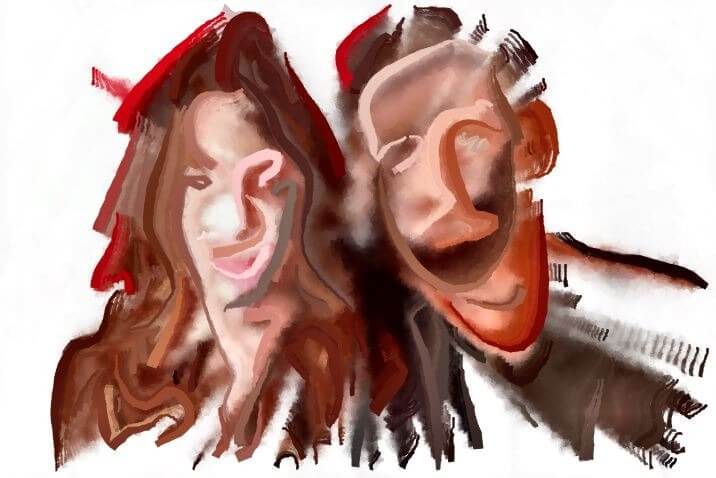
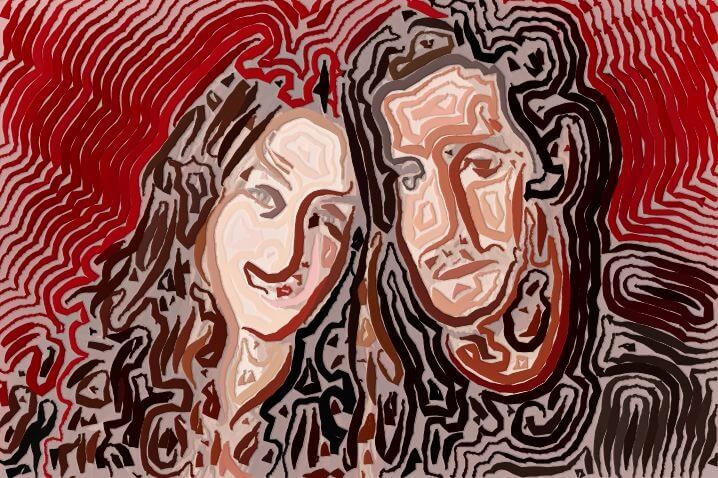
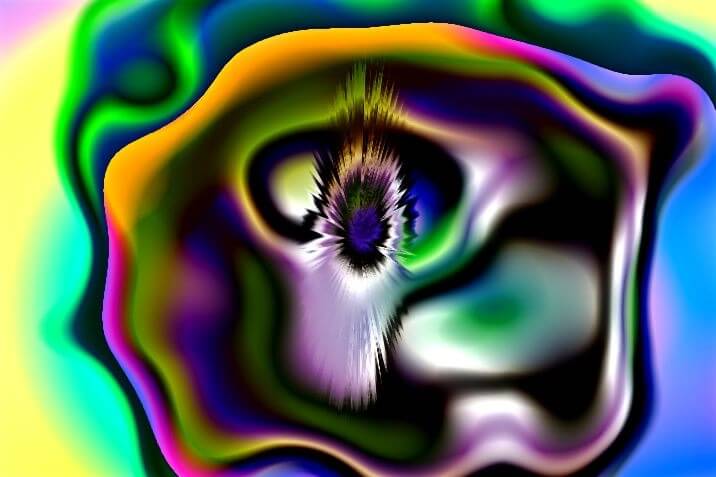
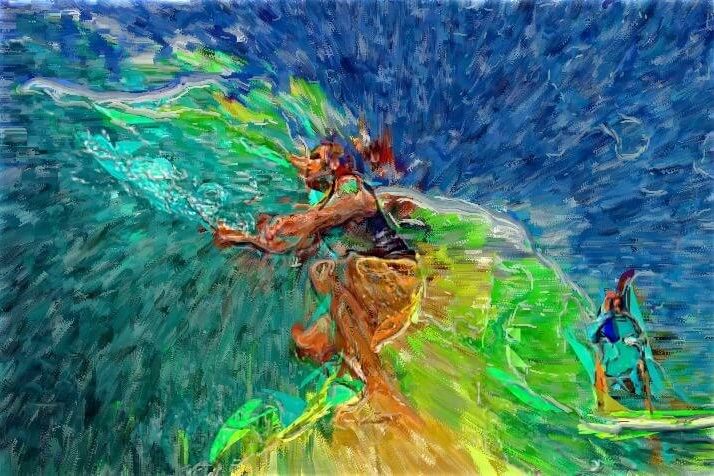
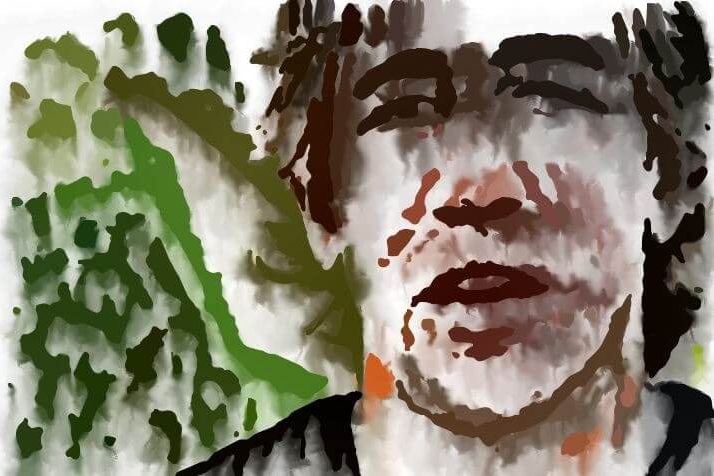
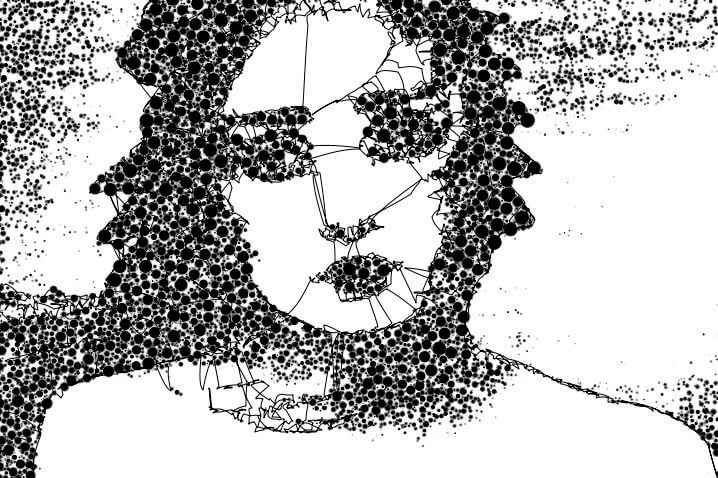
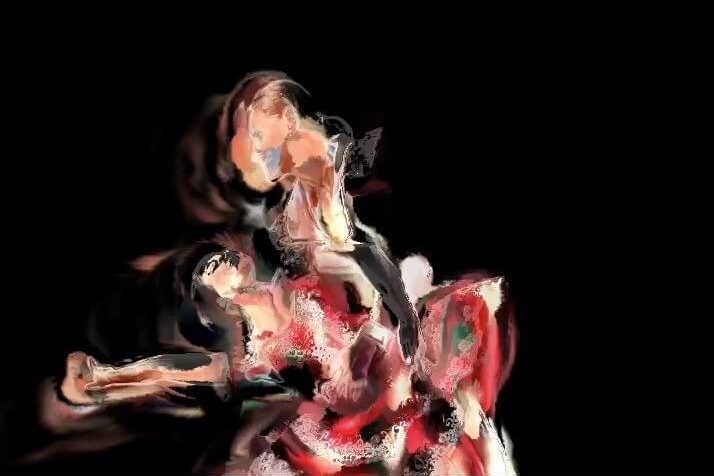
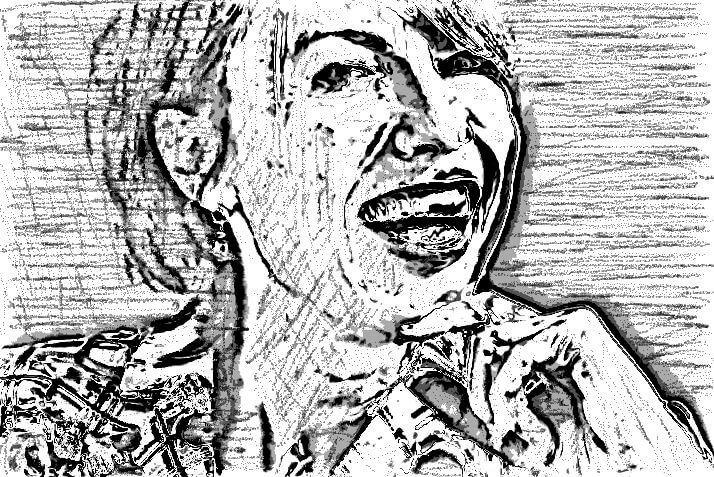
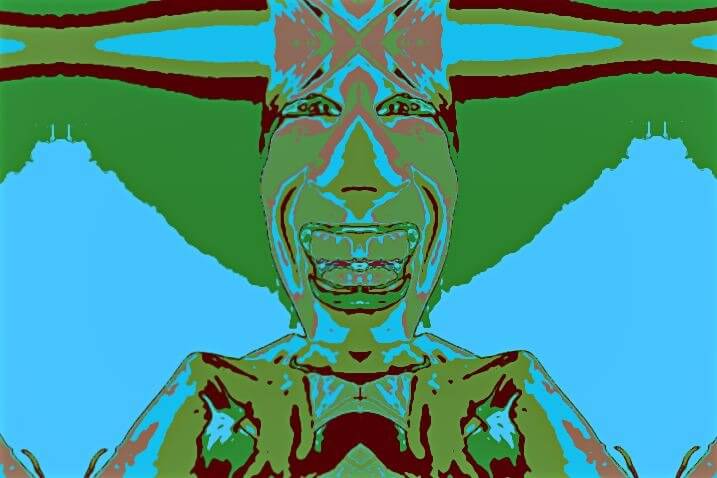
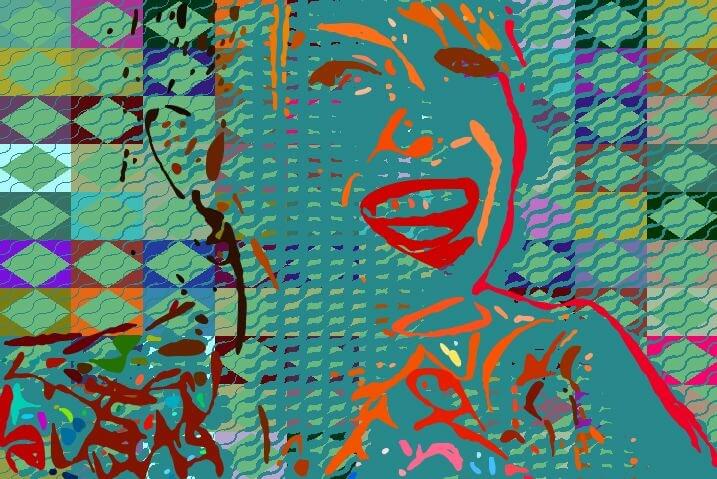
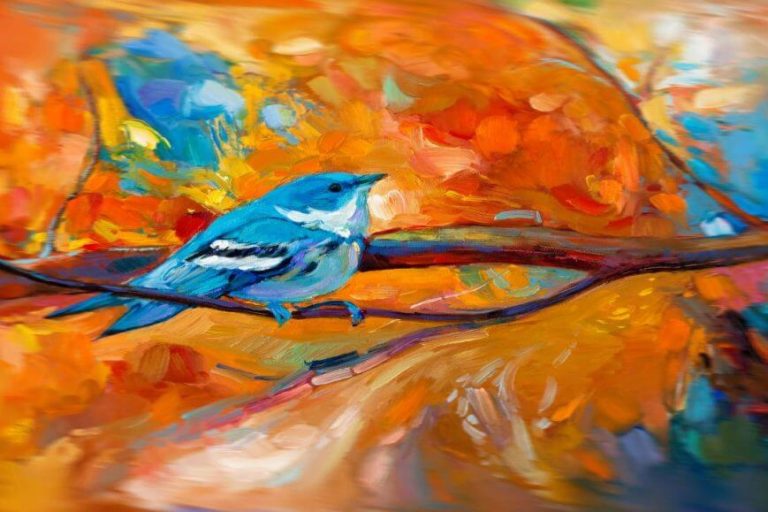
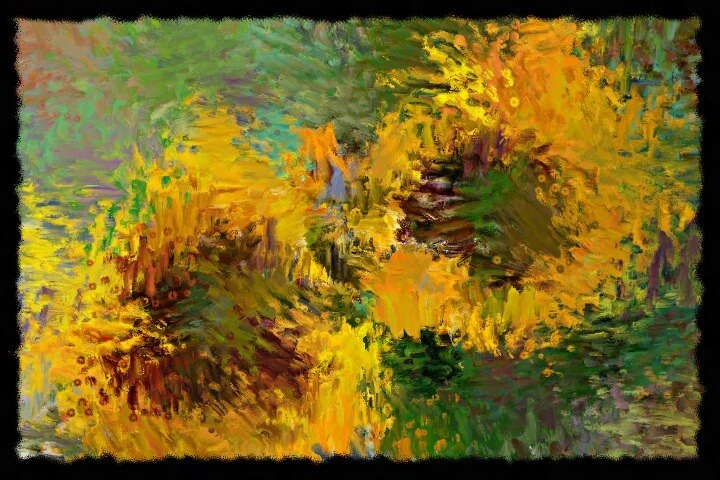
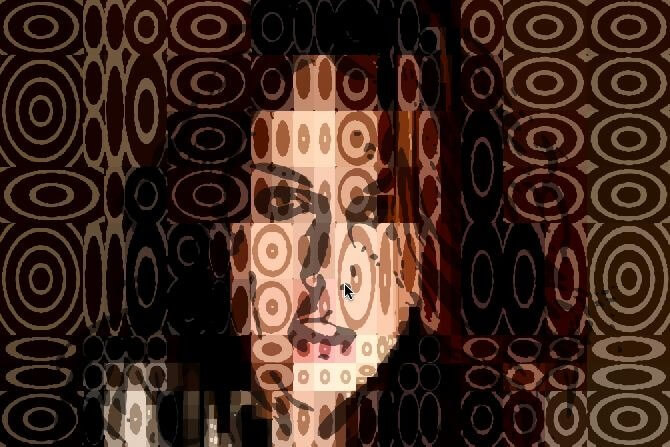
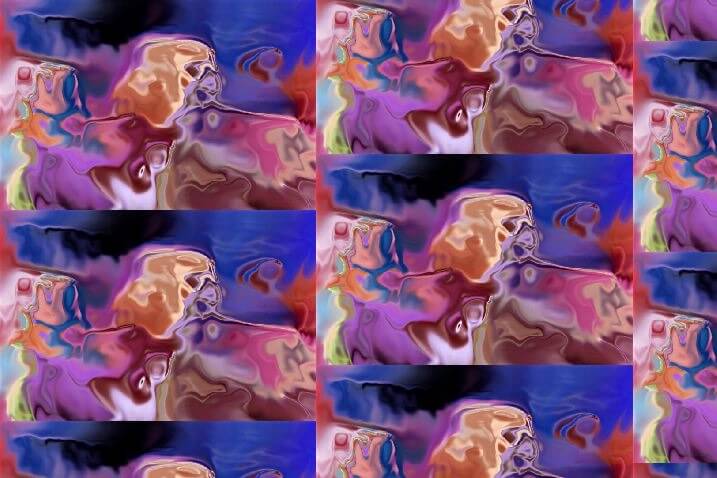
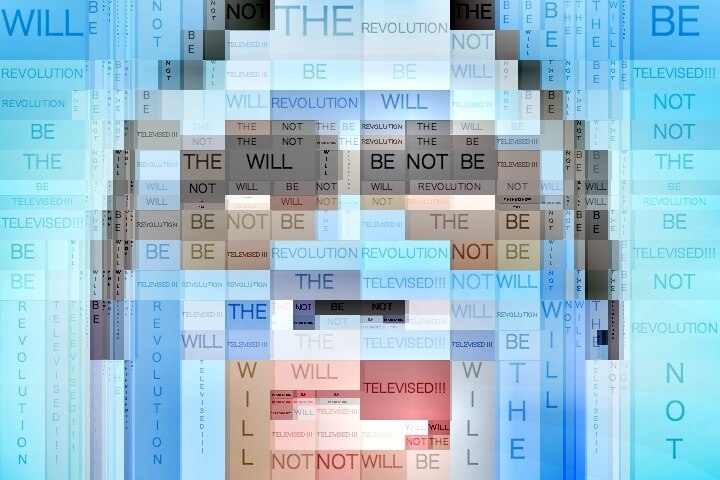
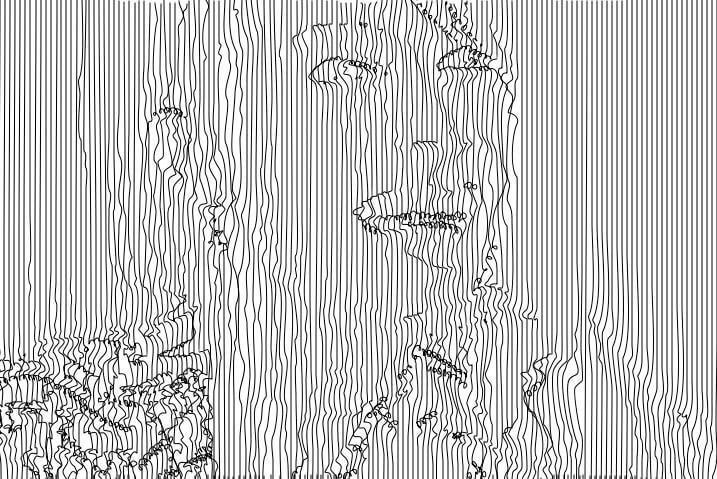
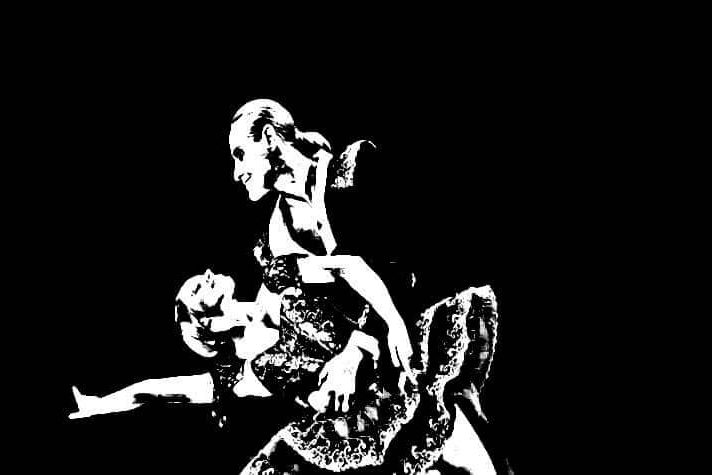
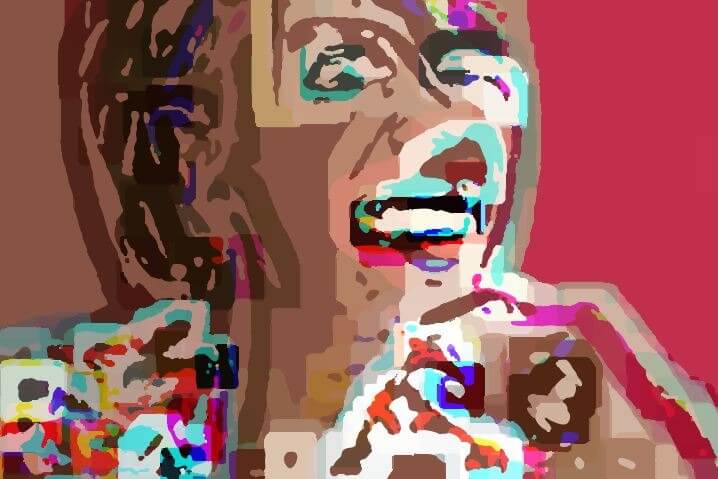
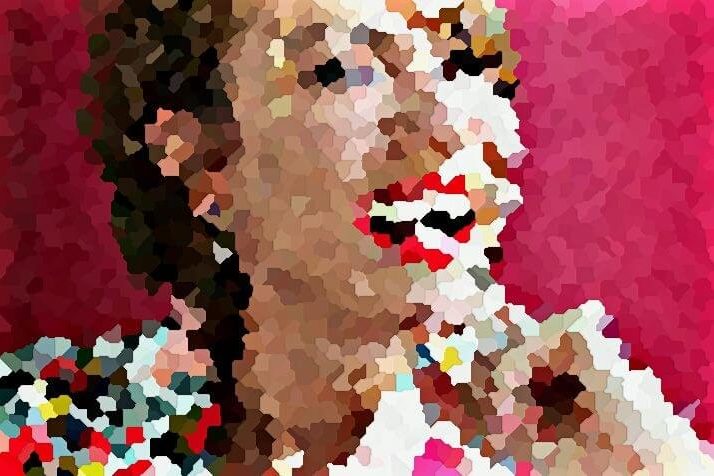
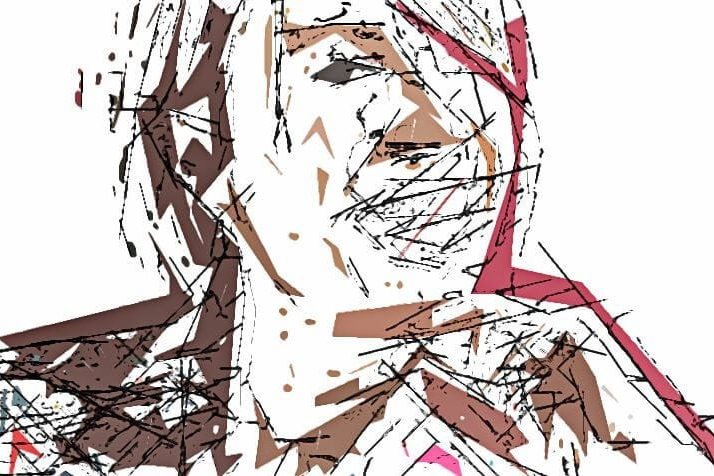
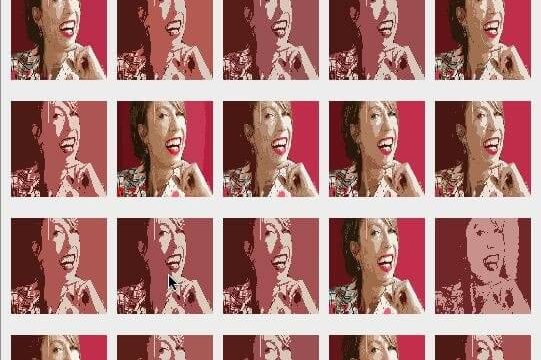
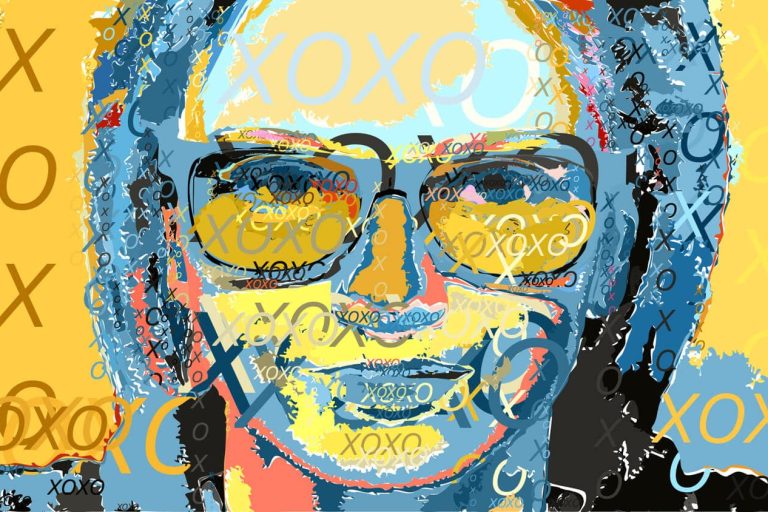
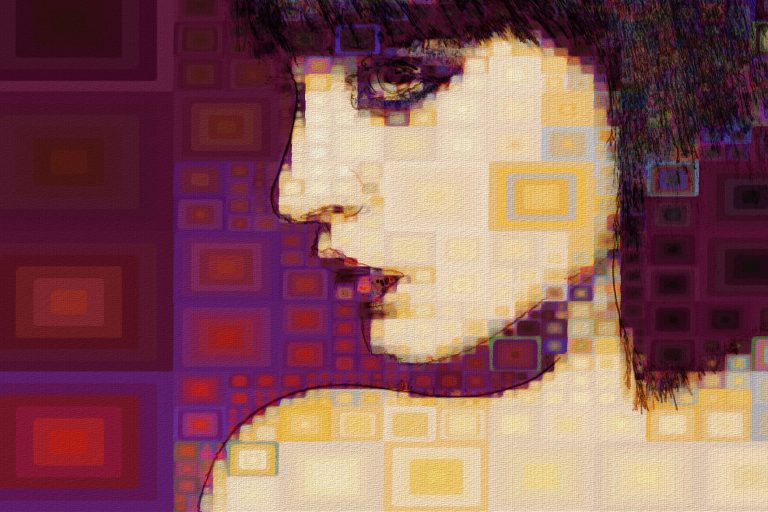
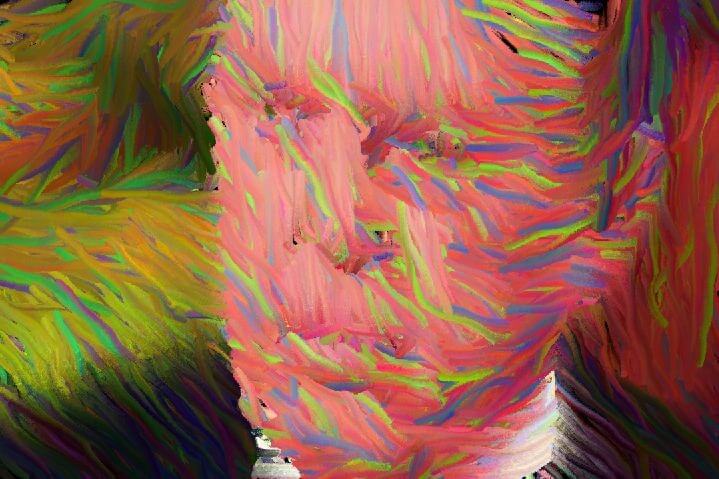
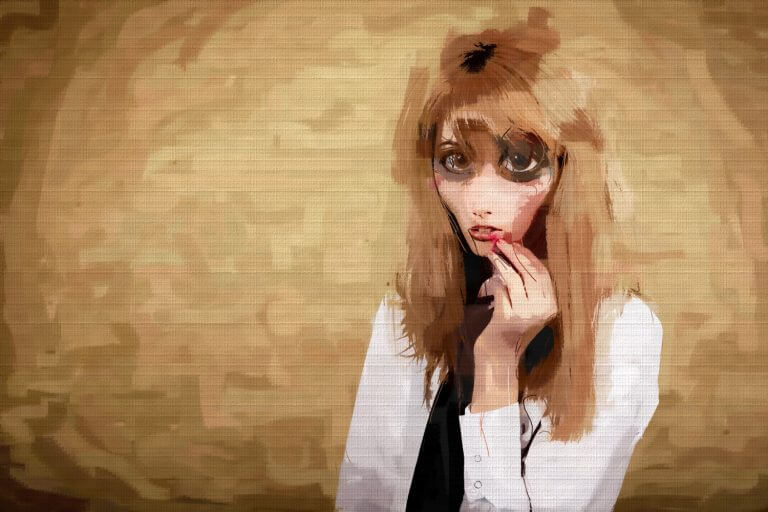
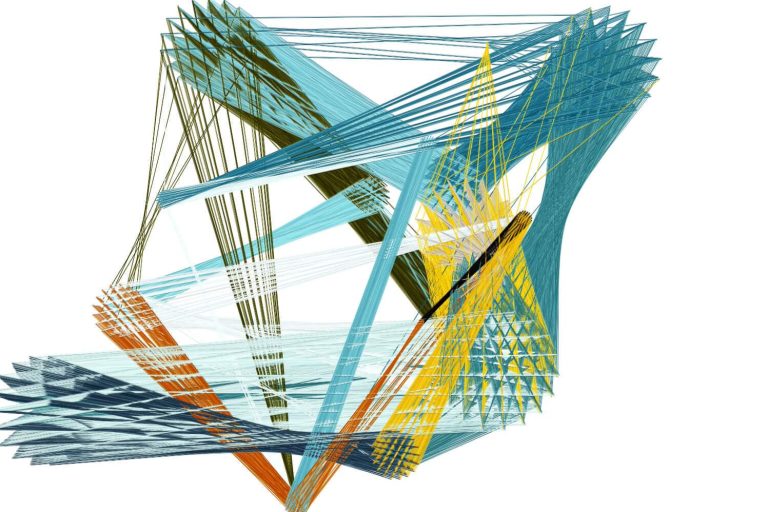
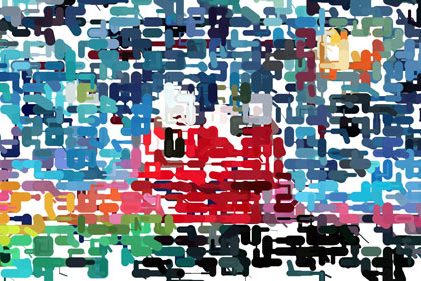
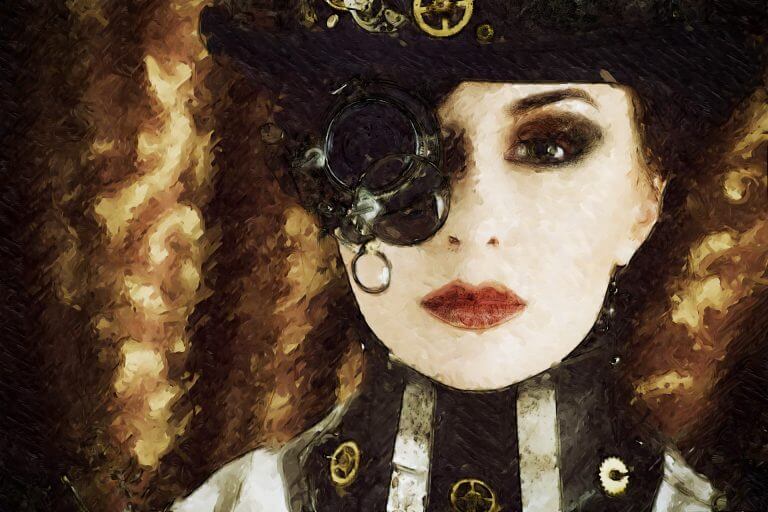
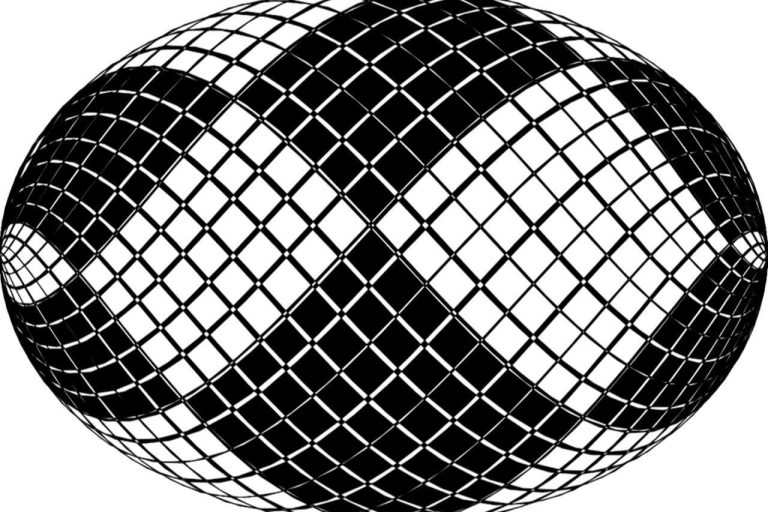
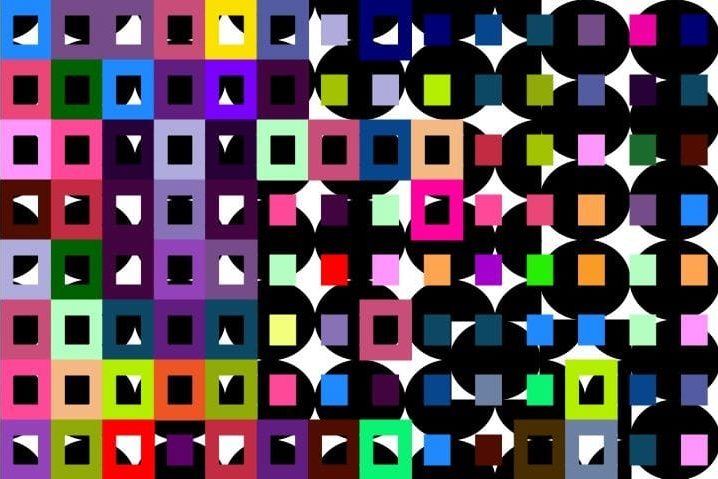
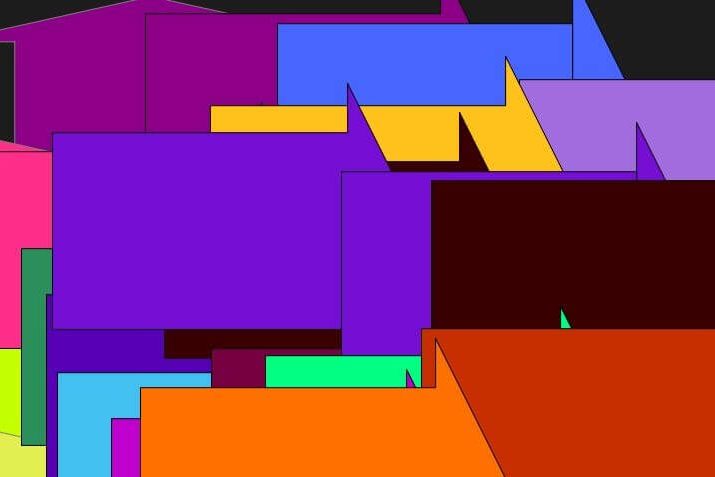
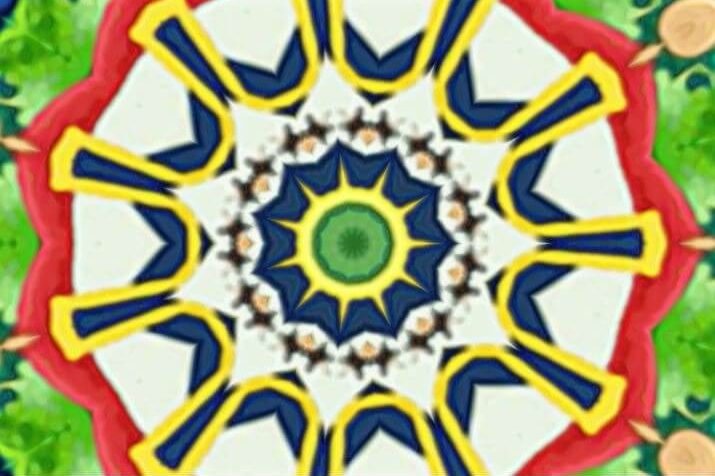
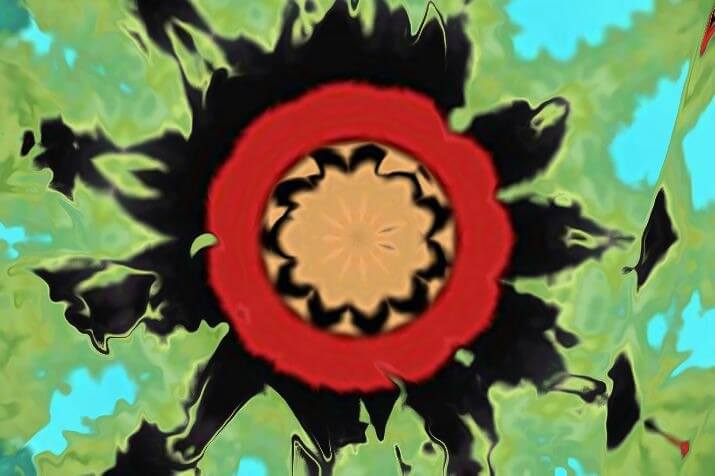
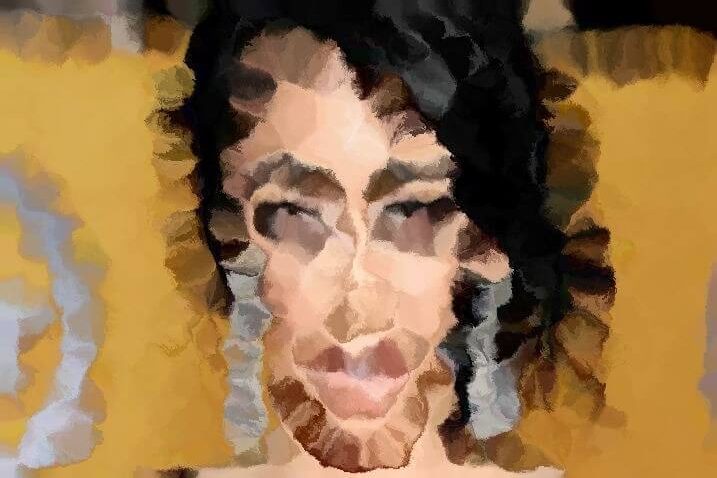
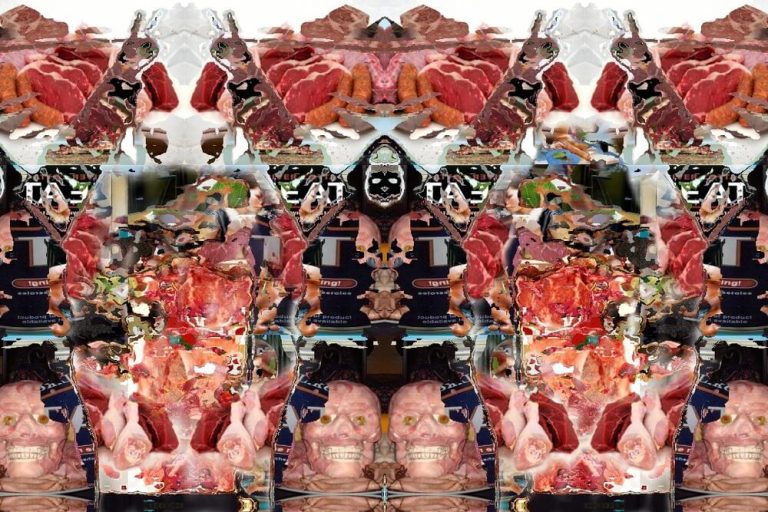
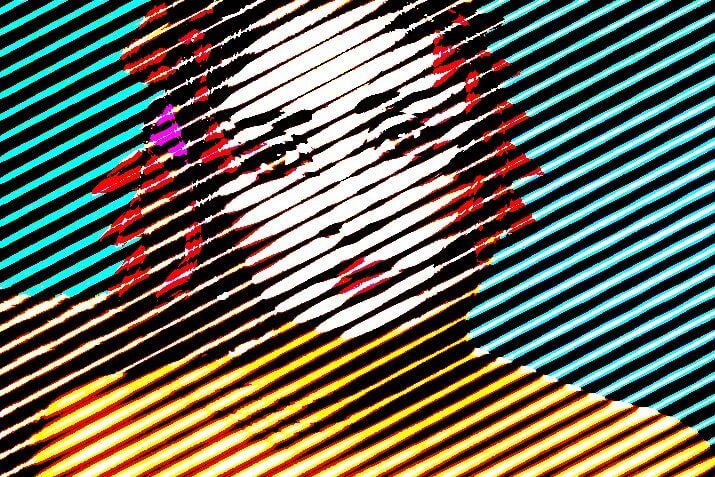
We were asked if Studio Artist could do Piet Mondrian styles so we gave it a go and here is some of the images we came up with.
If you like these you can download the Mondrian PASeq Presets here
You can put the Mondrian Presets in the following folder
Studio Artist Folder – Presets Folder – PASeq Folder – Still Images Folder (Put them in the Still Images Folder) Or you can put them in your Favorites Folder if you like.
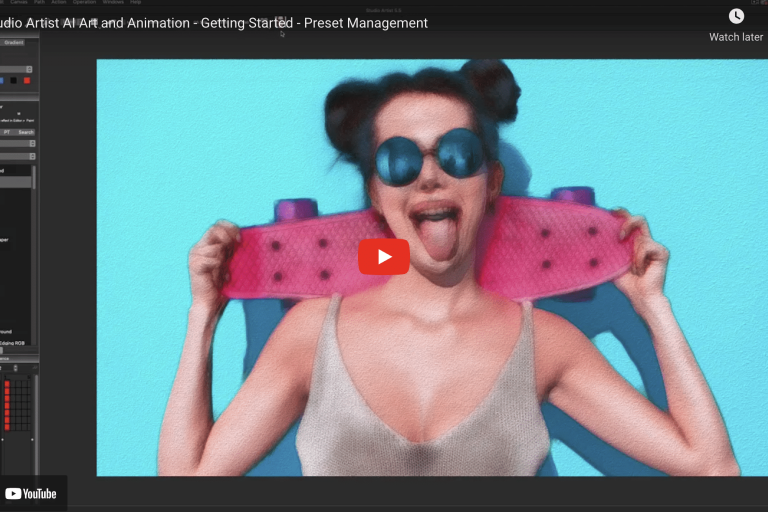
There are several training videos on preset management on the Studio Artist video tutorials page.
To Access the Shape Mode in the Vectorizer to create your own shapes
1. Choose the Vectorizer Mode and then Toggle to the Editor
2. In Generator Mode choose Shape for the Main Technique
3. Then Experiment with Shape Scan – Shape Complexity and Shape Type. Also experiment with the the other parameters in this mode.
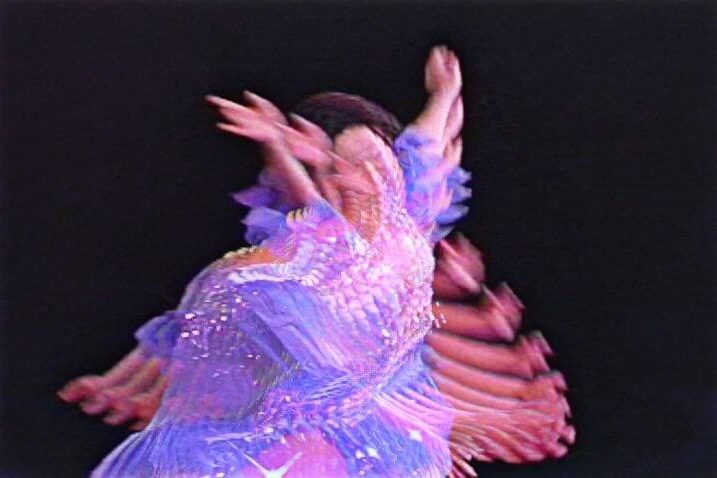
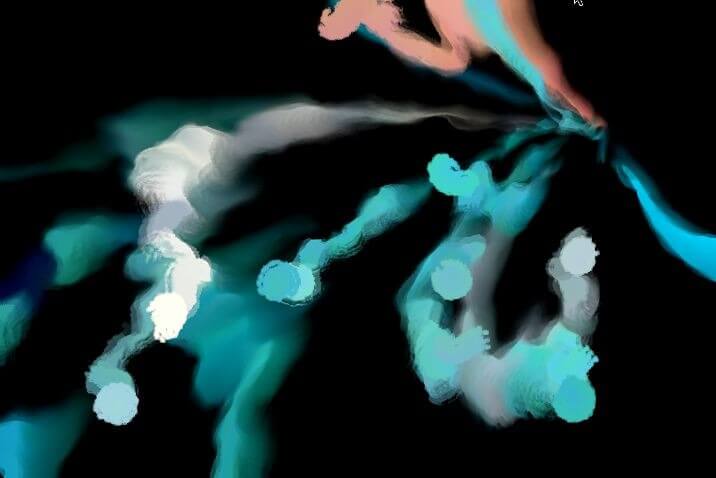
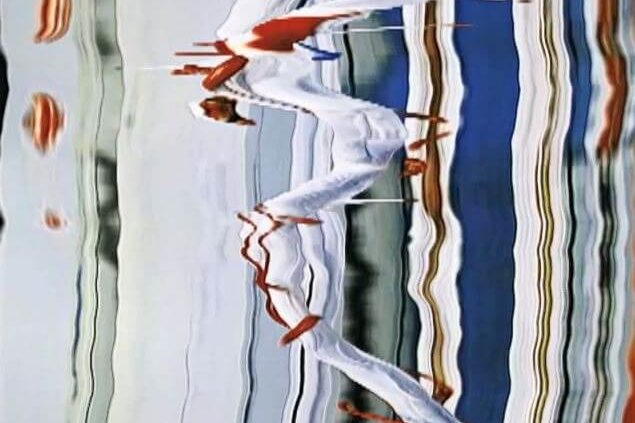
Studio Artist Large Scale Video Artwork at the Boston Convention Center
“Art on the Marque” is a public art exhibit displayed outside of the Boston Convention Center that is viewed by over 10,000 people a day. Studio Artist user Dennis Miller’s artwork has been featured throughout the “Art on the Marque” exhibit. You can learn more about Dennis’s Studio Artist generated video artwork for “Art on the Marque” here.
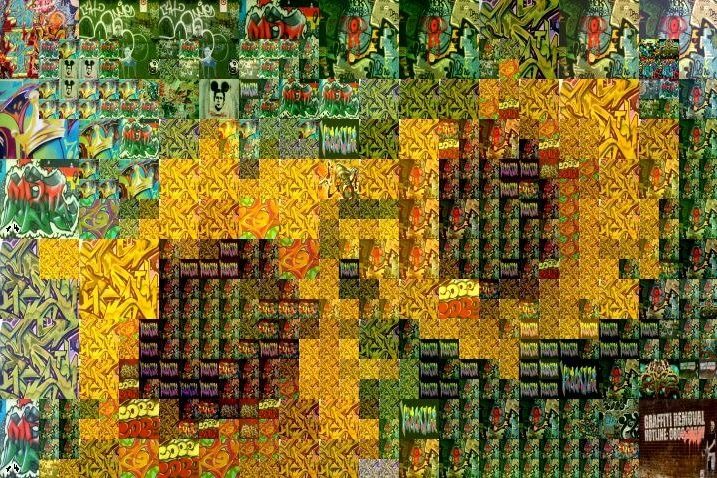
Dennis Miller “Marathon”
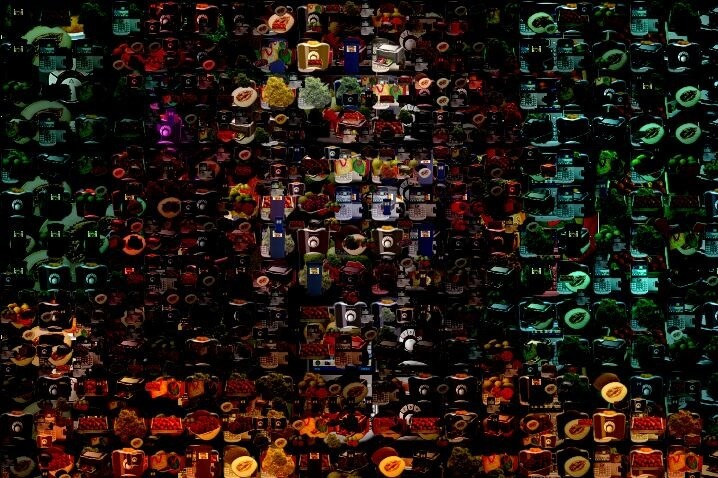
Dennis Miller: “IV”
The video links above show off some of Dennis’s Studio Artist generated video artwork presented on the 8 video screens that make up “Art on the Marque” outside the Boston Convention Center.
Creating a Travel Matte (Movie within a Movie)
Traveling Matte Example
This video series explains how to make a travel matte using masking and layers, adding motion inside a masked movie. This series will show the progressive steps of first one movie inside a masked movie to using multiple layers, compositing and multiple movies inside a masked movie.
Travel Matte Part 1
Travel Matte – Part 2
Travel Matte – Part 3
Travel Matte – Part 4
_
Download Background Videos For Tutorials
Download Presets for this Tutorial
travelmatte1
travelmatte2
travelmatte3
travelmatte4
Download MSG Canvas Texture Presets (Check to see if you have these presets first)
Once you download these presets make sure they are unzipped then put the folder in the following folder
Studio Artist Folder > Presets > MSG > OPEN EVOLUTION EDITOR TO MAKE YOUR OWN (put it inside this folder)
CanvasPaperLinenTextures
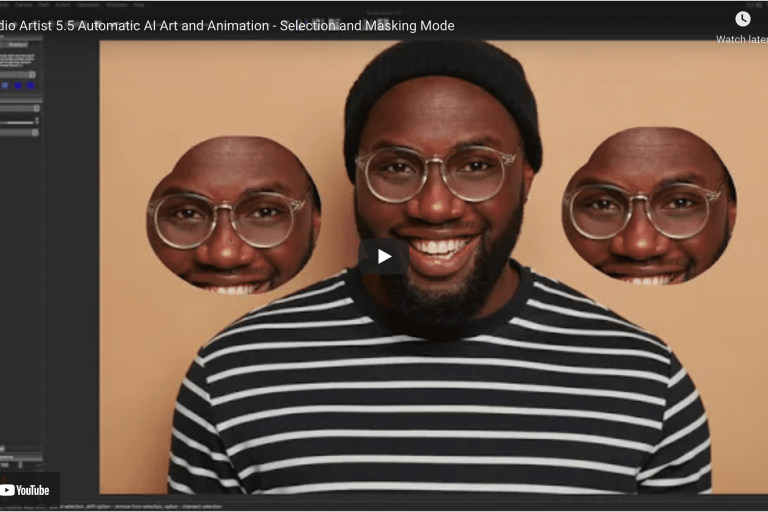
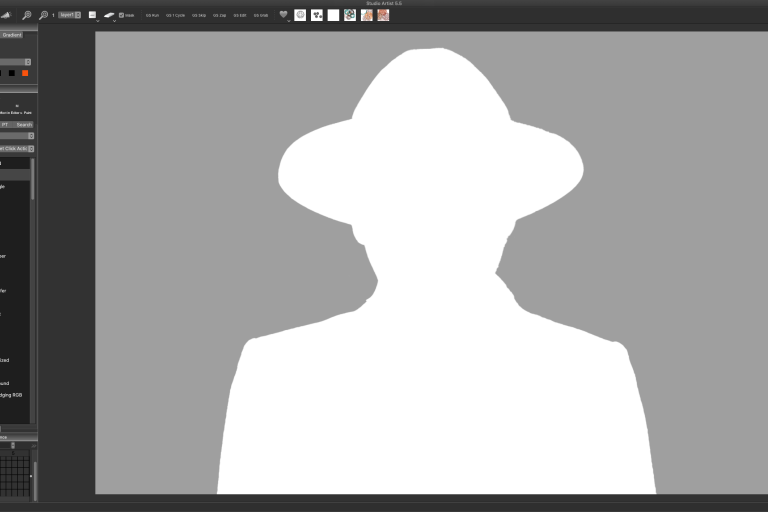
Using the Interactive Masking Selection Tool to Create Silhouette Images
3 Videos Addressing A User’s Request to Make Hi-Res Silhouettes from low-res Dog Images
This series addresses interactive masking, erasers, dodge and burn tools and the vectorizer.


Introduction to Masking and Making a Silhouette
Silhouette Part 1
Silhouette Part 2
Silhouette Part 3
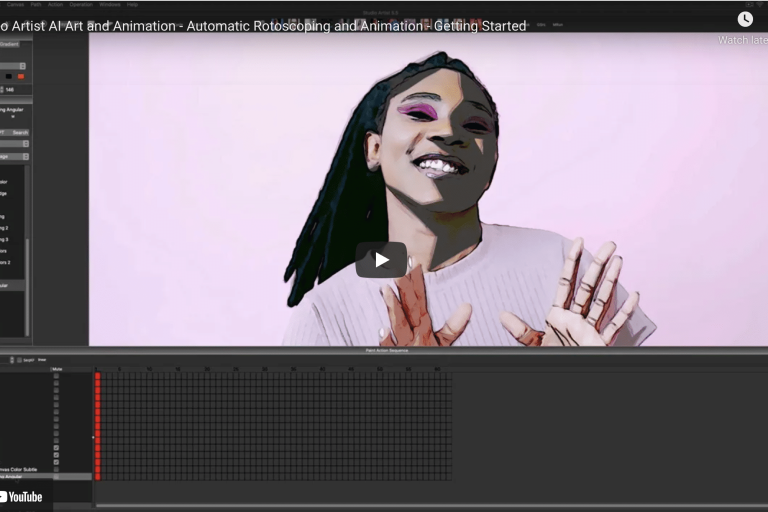
Auto-Rotoscoping – Making Animated Videos with Paint Action Sequences (PASeq)
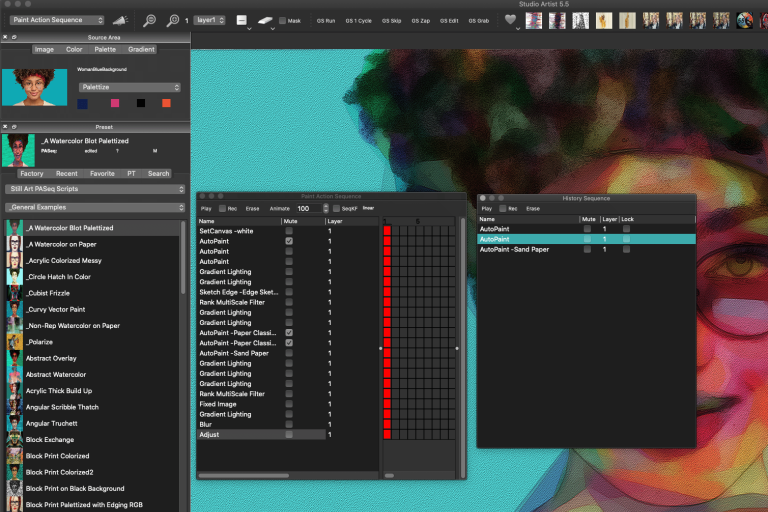
Making Movies – Paint Action Sequence Basic Editing 1
Movie Editing Basics with a PAseq Preset
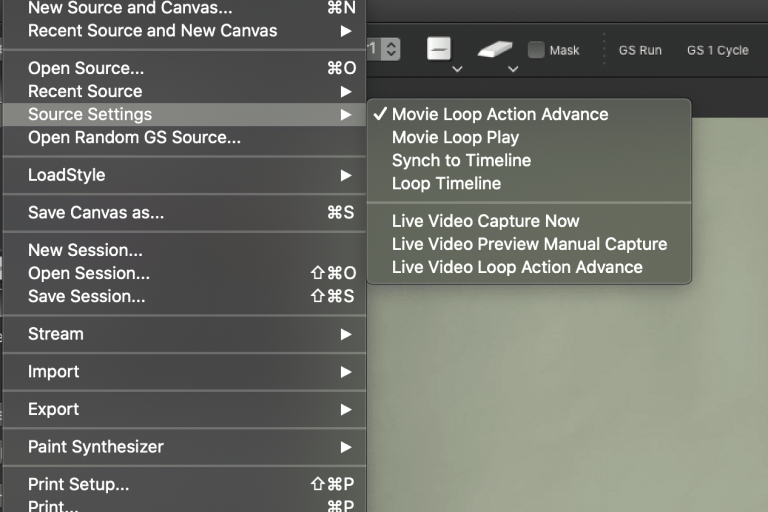
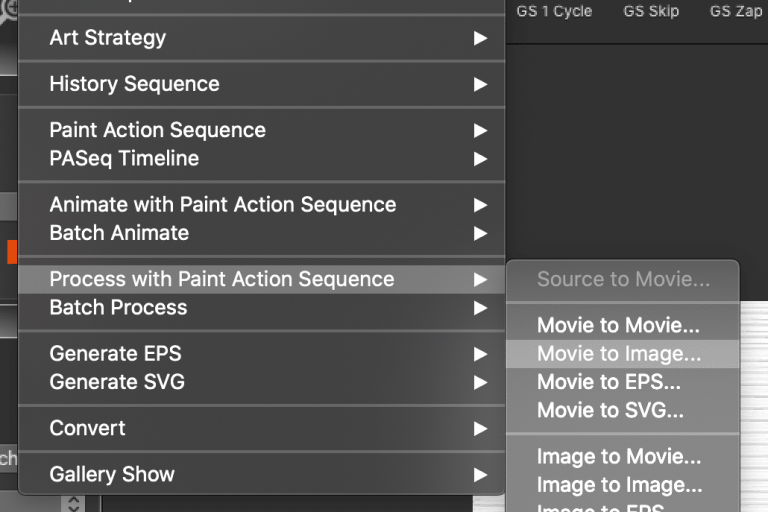
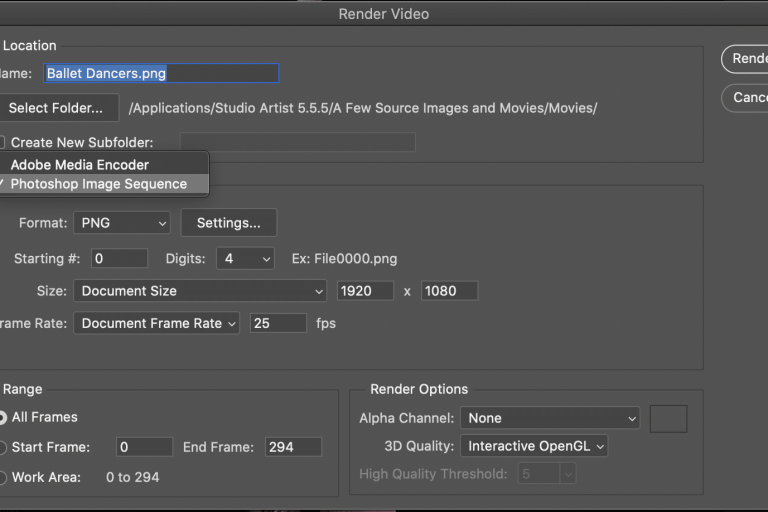
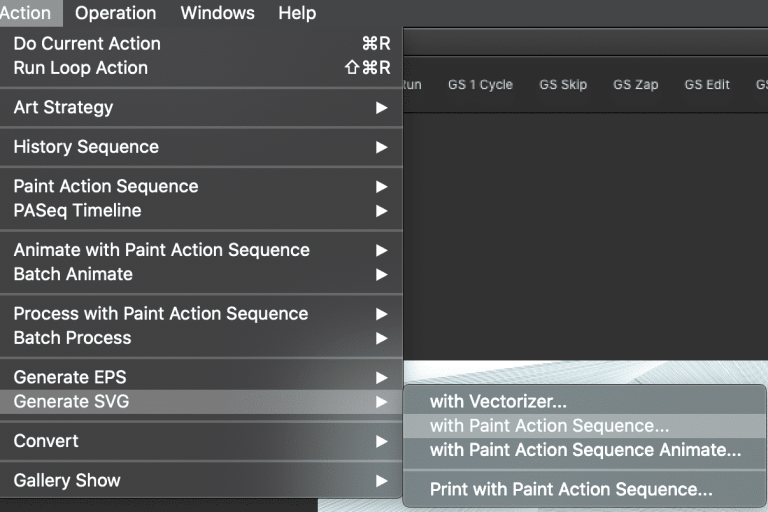
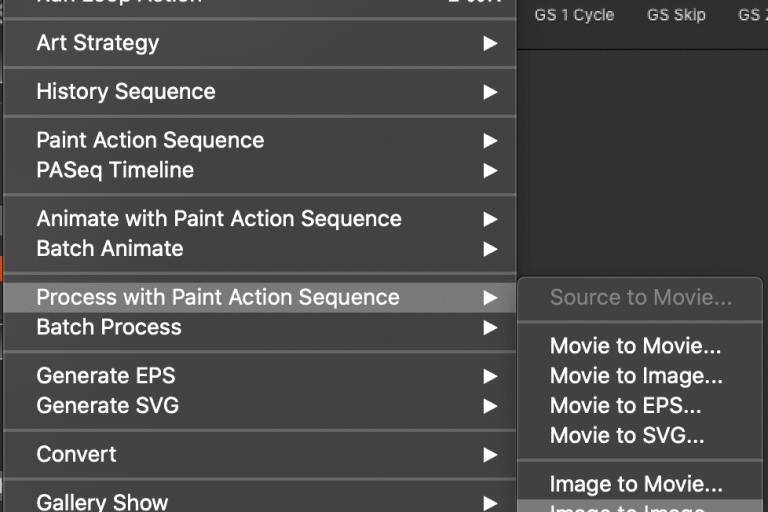
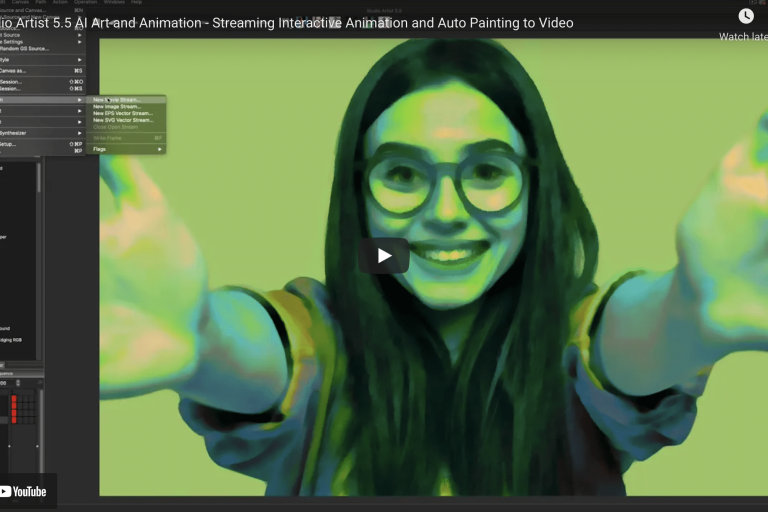
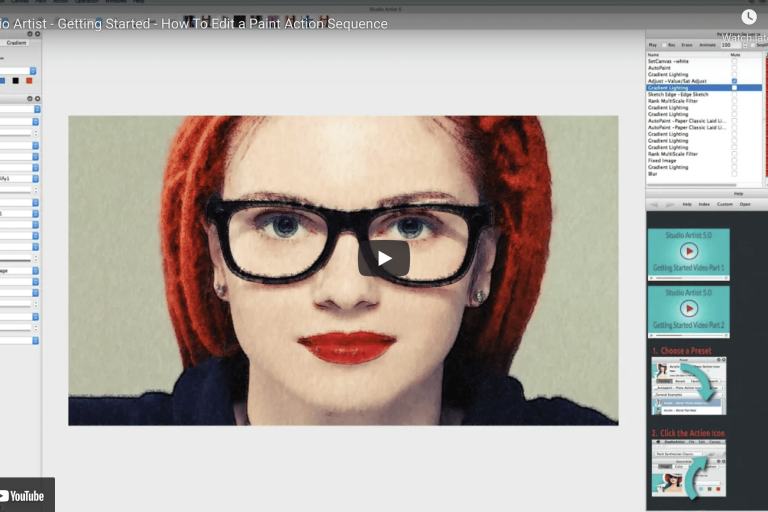
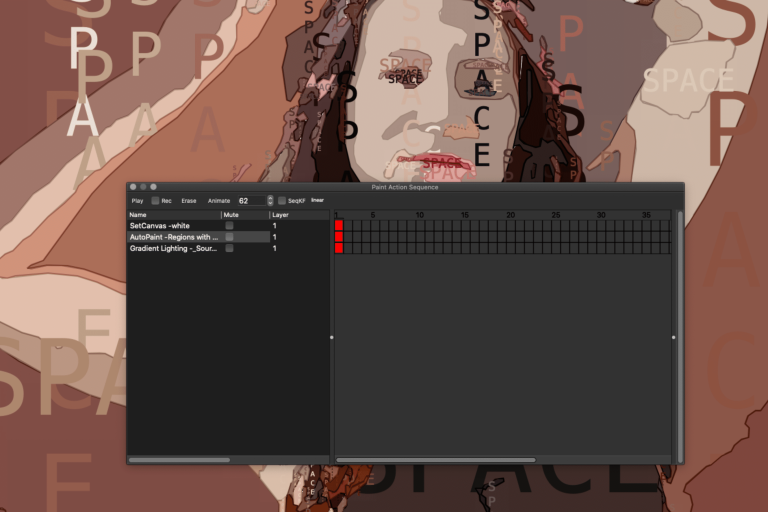
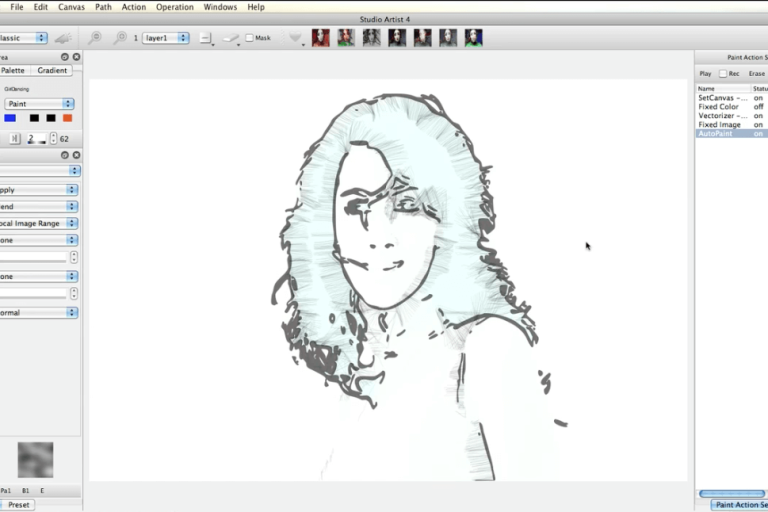
This video explains how a Paint Action Sequence (PASeq) works in Studio Artist for making movies. You can also use any PASeq to make still images as well. This video will show you how to edit a Factory PASeq Preset. You will learn how to delete and add action steps, turn action steps on and off, mute and unmute steps plus create and record your own steps. You will also learn some basic editing of PASeq steps as well as the advanced trick of creating a ghost effect which helps with smoothing flicker.
Check out Cool new Music Video Made with Studio Artist For The Diving Bell
Studio Artist user Victor Ingrassia recently completed a music video called “China, My China” for the group “The Diving Bell”. “The Diving Bell” is out of Seattle, and the song and associated video were released on FIN Records.
Check out the video
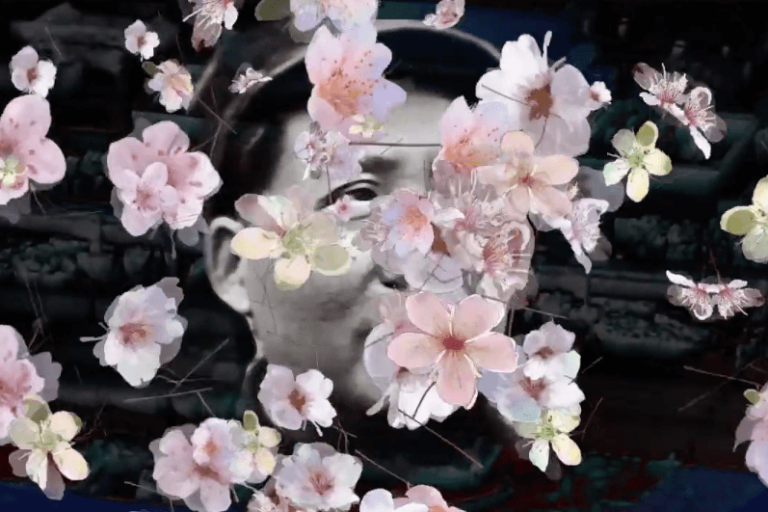
Victor had this to say about the new music video. “I’ve been working on it since last November. I was able to work in 1080p using SA4, FCPX & Motion5. 95% of the content was created in Studio Artist 4. I used Motion 5 for some graphic elements as well as to make the blossom snow. Final Cut Pro X was where I composited and edited it. The speed of the new iMac, along with how sweet Studio Artist runs on the Intel processor, combined with FCPX’s background rendering allowed me to work experimentally and intuitively… often tossing material back and forth between Studio Artist, Final Cut & Motion. I was able to explore dangerous paths that would have wasted time I didn’t have, were I still using my old G5 tower. I worked mostly from found and stock footage using a combination of auto rotoscope and hand drawing. I had a great time making this and stretching my Studio Artist skill set.”
I really like that the Fin Records label was inspired by Black Sparrow Press, Charles Bukowski’s publisher. Fin Records and the group are premiering the new music video this weekend at SXSW.
Victor is a master at manipulating Studio Artist video processing effects, and has a ton of great Studio Artist processed video examples on both his web site and his vimeo site.
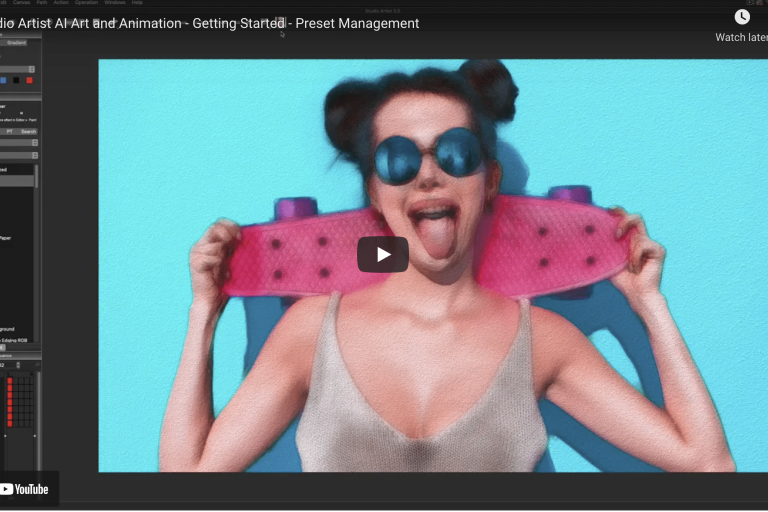
Training Videos: Changing, Randomizing and Blending Paint Preset Colors
Watch Videos on How to Change the Color of Paint Preset. Plus Randomizing and Blending.
Managing and Changing Paint Preset Colors – Randomizing Color and Color Offsets
How to change the color in paint and drawing presets as well as how to randomize the color and use color offsets to create rich and complex paints in Studio Artist.
Randomizing Color
Deeper look at how to randomize color in real-time to create rich and creative paints in Studio Artist. An explanation through manual painting on how the randomization setting work.
Blending Color
Studio Artist’s dynamic paint presets simulate color blending. Like when an aritst puts down chalk (for instance) and then overdraws blending the chalk on paper. This creates dynamic rich natural media paints in Studio Artist as well as unique paint simulations.
![]()
Corrected Post: Tighten Up a Paint Preset In Real Time
Attention New Post: (Last Post had incorrect video on the rss feed)
Easily Tighten up a Paint Preset in real-time with this one easy edit step
Tighten up a Paint Preset Part 2

Check out another Technique on Tightening Up and Image
Selective Cloning – Another approach to tightening up a Painting
How to Tighten up a Paint Preset in Real-Time with One Easy Step
Easily Tighten up a Paint Preset in real-time with this one easy edit step
Tighten up a Paint Preset Part 2

Check out another Technique on Tightening Up and Image
Selective Cloning – Another approach to tightening up a Painting